Blog's Page
 Blog's Page
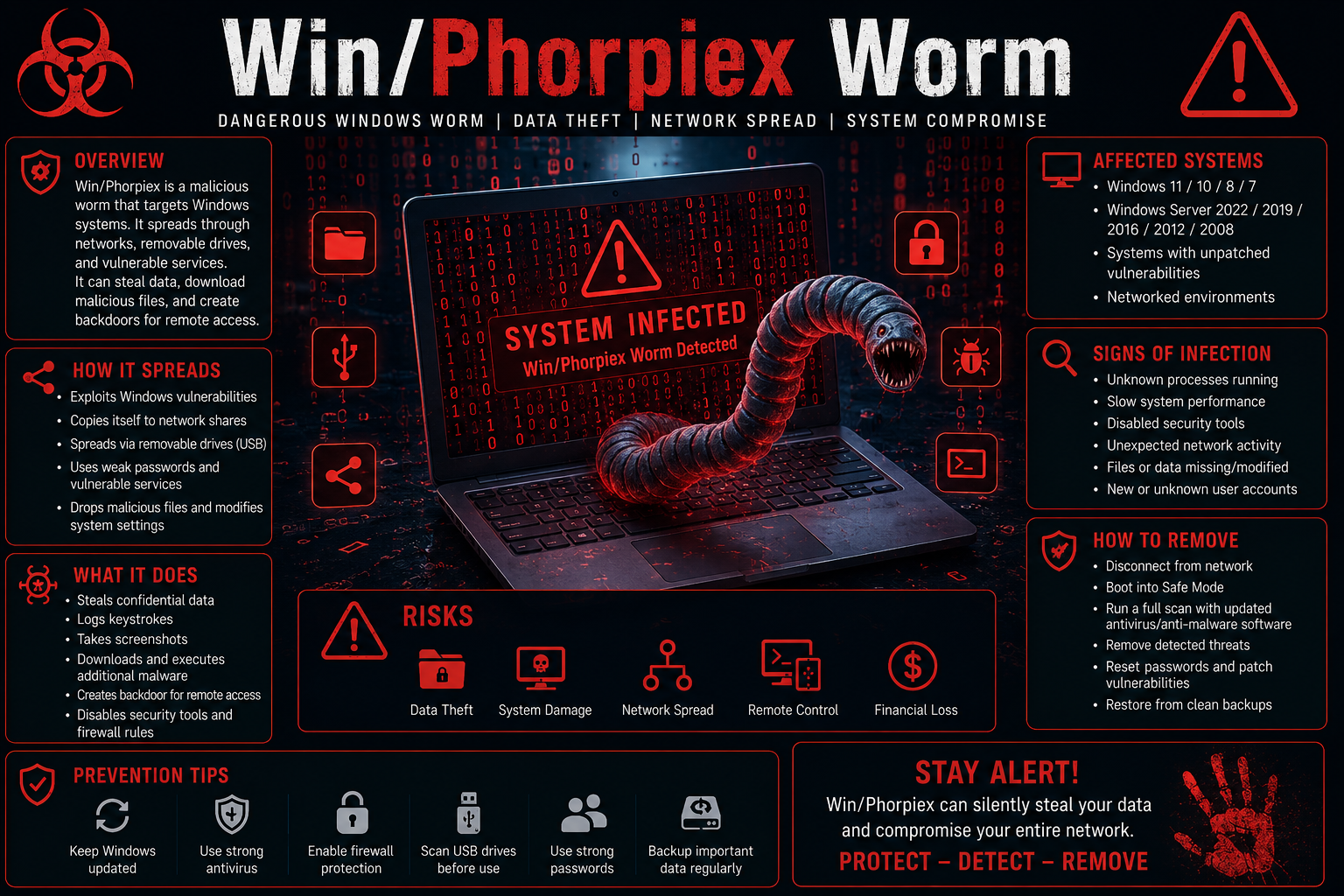
Win/Phorpiex Worm, Also Known Simply As Phorpiex Or Trik, Is A Notorious Windows-based Worm That Has Been Active For Many Years. Initially Designed To Spread Through Removable Drives And Network Shares, The Malware Has Evolved Into A Sophisticated Threat Capable Of Distributing Ransomware, Credential Stealers, Cryptocurrency Malware, And Other Malicious Payloads.
Unlike Traditional Viruses, A Worm Can Self-replicate And Spread Automatically Without Requiring User Interaction. This Makes Win/Phorpiex Particularly Dangerous In Corporate Environments, Where It Can Move Rapidly Across Networks And Infect Multiple Devices.
Cybersecurity Researchers Have Linked Phorpiex To Spam Campaigns, Ransomware Distribution, Botnet Activity, And Data Theft Operations Targeting Both Businesses And Individual Users.
Win/Phorpiex Uses Several Infection Methods To Compromise Windows Systems.
Common Infection Vectors
Malicious Email Attachments
Infected USB Drives
Network Shares
Pirated Software Downloads
Software Cracks And Key Generators
Exploited Security Vulnerabilities
Malicious Websites
Trojanized Applications
Once Installed, The Worm Attempts To Copy Itself To Additional Systems And Establish Persistence Within The Operating System.
Users May Notice Various Warning Signs That Indicate Malware Activity.
Performance Symptoms
Slow Computer Performance
Frequent System Freezes
High CPU Usage
Unexpected Restarts
Security Symptoms
Antivirus Software Disabled
Firewall Settings Modified
Security Updates Blocked
Unauthorized User Accounts Created
Network Symptoms
Unusual Internet Traffic
Suspicious Outgoing Connections
Spam Emails Sent From Your Account
Network Congestion
System Changes
Unknown Startup Entries
New Files Appearing Unexpectedly
Missing Or Modified Data
Unknown Background Processes
Immediate Investigation Is Recommended If Multiple Symptoms Are Detected.
Unlike Ransomware Such As Sodin (REvil), Win/Phorpiex Does Not Primarily Encrypt Files. Instead, It Creates, Modifies, And Distributes Malicious Files Throughout The System.
Executable Files
EXE Files
DLL Files
BAT Files
CMD Files
System Files
Windows Registry Entries
Startup Configurations
Scheduled Tasks
Security Settings
User Data Potentially Targeted
Documents
Password Databases
Browser Credentials
Email Account Information
Cryptocurrency Wallet Files
Removable Drive Files
The Worm Frequently Copies Malicious Executables To:
USB Flash Drives
External Hard Drives
Shared Network Folders
These Copied Files Help The Malware Spread To Additional Devices.
Phorpiex May Target Browser-related Data To Steal Sensitive Information.
Affected Browsers May Include:
Google Chrome
Microsoft Edge
Mozilla Firefox
Opera Browser
Brave Browser
Internet Explorer
Browser Data At Risk
Saved Passwords
Cookies
Autofill Data
Session Tokens
Browsing History
Attackers May Use Stolen Browser Data To Gain Unauthorized Access To Online Accounts.
Win/Phorpiex Primarily Targets Microsoft Windows Systems.
Supported Windows Targets
Windows 11
Windows 10
Windows 8.1
Windows 8
Windows 7
Windows Vista
Windows XP
Windows Server Environments
Older Systems That No Longer Receive Security Updates Are Especially Vulnerable To Infection.
Enterprise Environments Face Additional Risks Due To Network-based Propagation Capabilities.
If You Suspect A Win/Phorpiex Infection, Follow These Remediation Steps Immediately.
Step 1: Disconnect The Infected Device
Disconnect:
Internet Connection
Local Network Access
Shared Drives
External Storage Devices
This Limits The Worm's Ability To Spread.
Step 2: Boot Into Safe Mode
Safe Mode Prevents Many Malicious Processes From Loading During Startup.
To Enter Safe Mode:
Restart The PC.
Access Advanced Startup Options.
Select Safe Mode With Networking.
Step 3: Run A Full Malware Scan
Use Reputable Anti-malware Software To Perform A Complete System Scan.
The Scan Should Identify:
Worm Components
Trojan Payloads
Registry Modifications
Additional Malware Installations
Step 4: Remove Detected Threats
Delete Or Quarantine All Identified Malicious Files And Registry Entries.
Step 5: Update Windows
Install All Available:
Security Patches
Windows Updates
Driver Updates
Patching Vulnerabilities Helps Prevent Reinfection.
Step 6: Reset Passwords
Change Passwords For:
Email Accounts
Banking Services
Social Media Accounts
Business Applications
Perform Password Changes From A Clean, Uncompromised Device.
Step 7: Restore Files If Needed
If The Worm Delivered Ransomware Or Damaged Files:
Restore From Backups
Use Cloud Recovery Options
Reinstall Affected Applications
Step 8: Monitor For Additional Threats
Phorpiex Often Downloads Secondary Malware. Continue Monitoring Systems For Suspicious Behavior After Removal.
Yes. One Of The Most Concerning Capabilities Of Win/Phorpiex Is Its Role As A Malware Delivery Platform.
The Worm Has Been Associated With Distributing:
Ransomware
Credential Stealers
Banking Trojans
Cryptocurrency Miners
Remote Access Malware
If Ransomware Has Been Deployed, Users May Experience Encrypted Files, Ransom Notes, And Inaccessible Data.
Recovery Options Depend On The Extent Of The Infection.
Potential Recovery Methods Include:
Offline Backups
Cloud Backups
System Restore Points
File History Backups
Enterprise Backup Solutions
If Ransomware Was Delivered, Avoid Paying Attackers. Recovery Should Focus On Verified Backups And Professional Incident Response Procedures.
The Best Defense Against Malware Is Prevention.
Keep Windows Updated
Regular Updates Close Security Vulnerabilities Exploited By Worms.
Install:
Windows Security Patches
Microsoft Defender Updates
Application Updates
Use Reputable Security Software
Deploy Antivirus And Endpoint Protection Capable Of Detecting:
Worms
Trojans
Ransomware
Spyware
Be Careful With Email Attachments
Never Open:
Unexpected Attachments
Unknown File Downloads
Suspicious Email Links
Disable Autorun For USB Devices
Many Worms Use USB Drives To Spread Automatically.
Disabling Autorun Reduces Infection Risk.
Use Strong Passwords
Protect:
User Accounts
Administrator Accounts
Remote Access Services
Enable Multi-factor Authentication Whenever Possible.
Secure Network Shares
Restrict Permissions And Monitor File-sharing Activity To Prevent Lateral Movement.
Backup Important Data
Follow The 3-2-1 Backup Strategy:
Three Copies Of Data
Two Storage Locations
One Offline Backup
Educate Users
Security Awareness Training Helps Users Identify:
Phishing Emails
Malicious Downloads
Social Engineering Attacks
Win/Phorpiex Worm Remains A Serious Cybersecurity Threat Due To Its Ability To Self-propagate, Steal Information, Disable Security Tools, And Distribute Additional Malware Such As Ransomware And Credential Stealers. Organizations And Individual Users Should Implement Strong Security Practices, Maintain Updated Systems, Use Reputable Security Software, And Regularly Back Up Critical Data. Early Detection And Rapid Removal Are Essential To Minimizing Damage And Preventing The Worm From Spreading Throughout A Network. By Combining Proactive Security Measures With User Awareness, The Risk Posed By Win/Phorpiex Can Be Significantly Reduced.
Step 1: Boot Into Safe Mode
Restart Your PC And Press F8 (or Shift + F8 For Some Systems) Before Windows Loads.
Choose Safe Mode With Networking.
Safe Mode Prevents Most Malware From Loading.
Press Win + R, Type appwiz.cpl, And Press Enter.
Sort By Install Date And Uninstall Unknown Or Recently Added Programs.
Use A Trusted Anti-malware Tool:
Malwarebytes – https://www.malwarebytes.com
Screenshot Of Malwarebytes - Visit Links
Microsoft Defender – Built Into Windows 10/11
HitmanPro, ESET Online Scanner, Or Kaspersky Virus Removal Tool
ZoneAlarm Pro Antivirus + Firewall NextGen
VIPRE Antivirus - US And Others Countries, | India
Run A Full Scan And Delete/quarantine Detected Threats.
Win + R, Type temp → Delete All Files.Press Win + R, Type %temp% → Delete All Files.
Use Disk Cleanup: cleanmgr In The Run Dialog.
Go To: C:\Windows\System32\drivers\etc
Open hosts File With Notepad.
Replace With Default Content:
Press Ctrl + Shift + Esc → Open Task Manager
Go To Startup Tab
Disable Any Suspicious Entries.
Open Command Prompt As Administrator.
Run These Commands:
netsh Winsock Reset

netsh Int Ip Reset

ipconfig /flushdns
Unwanted Homepage Or Search Engine
Pop-ups Or Redirects
Unknown Extensions Installed
For Chrome:
Go To: chrome://extensions/
Remove Anything Unfamiliar
For Firefox:
Go To: about:addons → Extensions
Remove Suspicious Add-ons
For Edge:
Go To: edge://extensions/
Uninstall Unknown Add-ons
Chrome:
Go To chrome://settings/reset → "Restore Settings To Their Original Defaults"
Firefox:
Go To about:support → "Refresh Firefox"
Edge:
Go To edge://settings/resetProfileSettings → "Reset Settings"
All Browsers:
Use Ctrl + Shift + Del → Select All Time
Clear Cookies, Cached Files, And Site Data
Make Sure They Are Not Hijacked.
Chrome: chrome://settings/search
Firefox: about:preferences#search
Edge: edge://settings/search
Chrome: chrome://settings/cleanup
Use Malwarebytes Browser Guard For Real-time Browser Protection.
Always Download Software From Trusted Sources.
Keep Windows, Browsers, And Antivirus Updated.
Avoid Clicking Suspicious Links Or Ads.
Use ad Blockers And reputable Antivirus Software.
Backup Your Files Regularly.
To Remove Malware From Your Windows PC, Start By Booting Into Safe Mode, Uninstalling Suspicious Programs, And Scanning With Trusted Anti-malware Tools Like Malwarebytes. Clear Temporary Files, Reset Your Network Settings, And Check Startup Apps For Anything Unusual.
For web Browsers, Remove Unwanted Extensions, Reset Browser Settings, Clear Cache And Cookies, And Ensure Your Homepage And Search Engine Haven’t Been Hijacked. Use Cleanup Tools Like Chrome Cleanup Or Browser Guard For Added Protection.
?? Prevention Tips: Keep Software Updated, Avoid Suspicious Downloads, And Use Antivirus Protection Plus Browser Ad Blockers. Regular Backups Are Essential.
Why It Matters: Not All VPNs Offer Malware Protection.
What To Look For: Providers With built-in Malware/ad/tracker Blockers (e.g., NordVPN’s Threat Protection, ProtonVPN’s NetShield).
Purpose: Prevents Data Leaks If Your VPN Connection Drops.
Benefit: Ensures Your Real IP And Browsing Activity Aren’t Exposed To Malware-distributing Websites.
Why It Matters: DNS Leaks Can Expose Your Online Activity To Attackers.
Solution: Enable DNS Leak Protection In Your VPN Settings Or Use A Secure DNS Like Cloudflare (1.1.1.1).
Risk: Free VPNs Often Contain Malware, Sell User Data, Or Lack Security Features.
Better Option: Use Reputable Paid VPNs That Offer security Audits And Transparent Privacy Policies.
Some VPNs Block Known Phishing And Malicious Sites.
Example: Surfshark’s CleanWeb, CyberGhost’s Content Blocker.
Reason: Security Patches Fix Known Vulnerabilities.
Tip: Enable Auto-updates Or Check For Updates Weekly.
Scope: Malware Can Enter Through Phones, Tablets, Or IoT Devices.
Solution: Install VPN Apps On Every Internet-connected Device.
Fact: VPNs Do Not Remove Or Detect Malware On Your System.
Complement It With:
Antivirus Software
Firewall
Browser Extensions For Script Blocking
VPN Encrypts Traffic But Can’t Stop Malware From Executing If You Download Infected Files.
Split Tunneling Allows Certain Apps/sites To Bypass VPN.
Tip: Never Exclude Browsers, Email Clients, Or Download Managers From VPN Tunneling.
A VPN (Virtual Private Network) Enhances Your Online Privacy By Encrypting Your Internet Traffic And Masking Your IP Address. It Protects Your Data On Public Wi-Fi, Hides Browsing Activity From Hackers And ISPs, And Helps Bypass Geo-restrictions. VPNs Also Add A Layer Of Defense Against Malware By Blocking Malicious Websites And Trackers When Using Advanced Features. However, A VPN Does Not Remove Existing Malware Or Act As Antivirus Software. For Full Protection, Combine VPN Use With Antivirus Tools, Regular Software Updates, And Cautious Browsing Habits. Always Choose A Reputable VPN Provider With Strong Security And Privacy Policies.
Win/Phorpiex Worm, Remove Win/Phorpiex, Windows Worm Malware, Phorpiex Infection, Worm Virus Removal, Infected Files, Browser Credential Theft, Window