Blog's Page
 Blog's Page
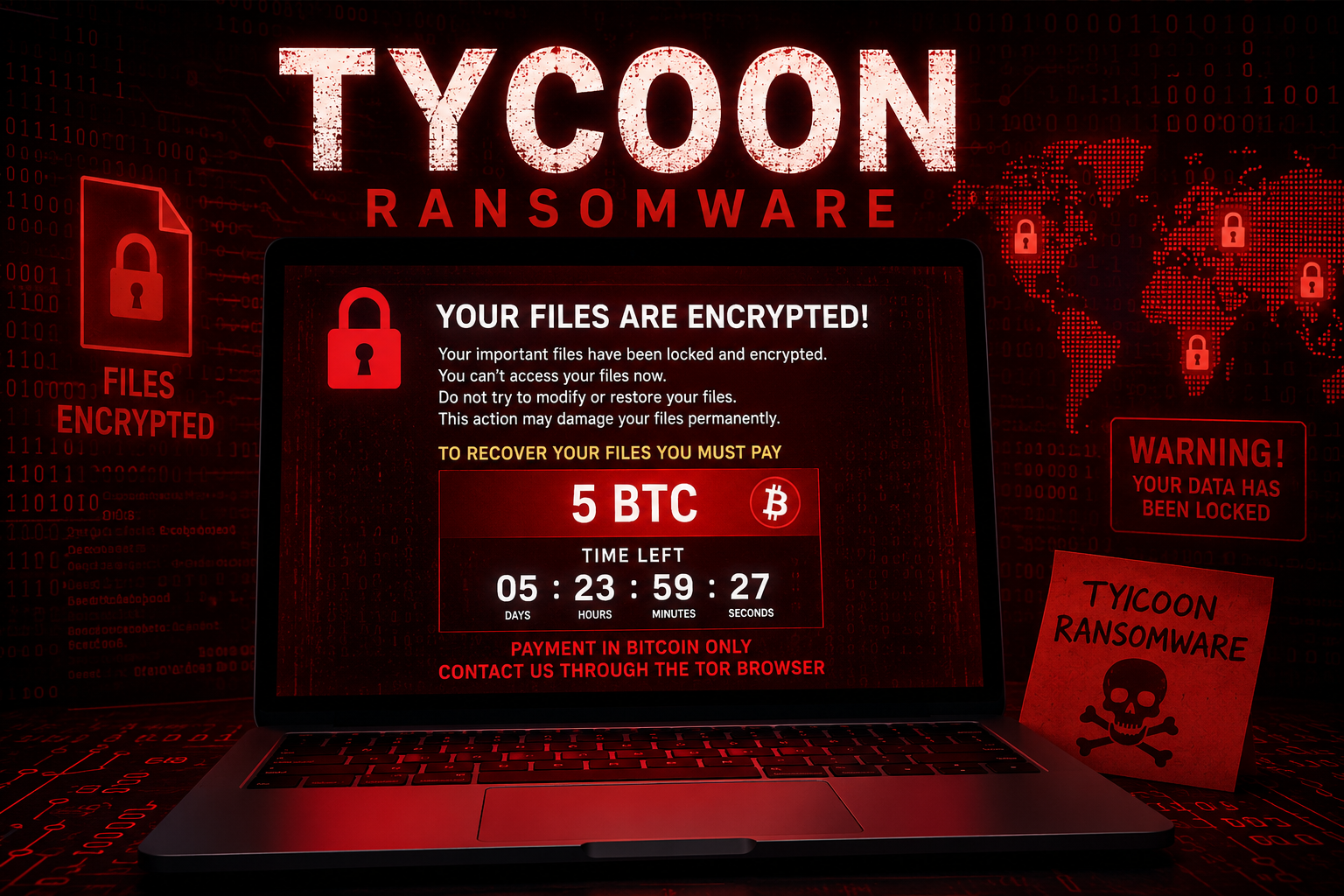
Tycoon Ransomware Is A Sophisticated File-encrypting Malware Family That Targets Businesses, Organizations, And Individual Users. First Identified By Cybersecurity Researchers In 2019, Tycoon Gained Attention For Its Unique Use Of Java Runtime Environment (JRE) To Execute Malicious Payloads And Evade Traditional Security Defenses. Once It Infects A System, The Ransomware Encrypts Files And Demands A Ransom Payment In Exchange For A Decryption Key.
Like Many Modern Ransomware Variants, Tycoon Is Operated By Cybercriminal Groups That Use Advanced Tactics To Infiltrate Networks, Steal Sensitive Data, And Disrupt Business Operations. The Ransomware Has Affected Organizations Across Various Industries, Making It A Significant Cybersecurity Threat.
Tycoon Ransomware Follows A Multi-stage Attack Process Designed To Maximize Damage And Increase The Likelihood Of Ransom Payments.
Initial Access
Attackers Typically Gain Access Through:
Phishing Emails Containing Malicious Attachments
Remote Desktop Protocol (RDP) Compromise
Exploitation Of Software Vulnerabilities
Stolen Credentials
Malicious Downloads And Trojanized Software
Once Access Is Established, The Attackers Move Laterally Through The Network To Identify Valuable Systems And Sensitive Data.
Payload Deployment
Tycoon Is Notable For Using Java-based Techniques That Can Help Bypass Certain Security Solutions. The Ransomware Payload Is Executed On Targeted Systems And Begins Scanning For Files To Encrypt.
File Encryption
The Malware Encrypts Documents, Images, Databases, Backups, Spreadsheets, And Other Important Files. Victims Are Then Presented With A Ransom Note Containing Payment Instructions, Usually Demanding Cryptocurrency Such As Bitcoin.
Data Theft
Many Modern Ransomware Campaigns, Including Tycoon-related Operations, May Involve Data Exfiltration Before Encryption. Attackers Use Stolen Information As Leverage To Pressure Victims Into Paying The Ransom.
After Encryption, Tycoon Ransomware May Append A Specific Extension To Affected Files, Although Extensions Can Vary Depending On The Campaign Version.
Examples May Include:
Custom Encrypted File Extensions Assigned By Attackers
Modified Filenames Indicating Encryption Status
Ransom Note Files Placed Throughout Affected Directories
Common Indicators Of Compromise (IOCs) Include:
Sudden Inability To Open Files
Appearance Of Ransom Notes
Unusual Network Activity
Unauthorized Administrative Actions
Security Software Being Disabled
High CPU And Disk Usage During Encryption
Organizations Should Investigate Suspicious Activity Immediately To Minimize Damage.
Tycoon Primarily Targets Microsoft Windows Environments, Including:
Windows 10
Windows 11
Windows Server Editions
Enterprise Network Infrastructure
The Ransomware Often Focuses On Organizations Because They Are More Likely To Pay Large Ransom Demands To Restore Operations Quickly.
Users May Observe Several Warning Signs Before Or During Encryption.
Common Symptoms Include:
Files Becoming Inaccessible
New File Extensions Appearing On Documents
Ransom Notes Displayed On The Desktop
Slow System Performance
Disabled Antivirus Solutions
Unexpected Administrator Account Activity
Missing Backups Or Deleted Shadow Copies
In Many Cases, Users Only Discover The Attack After Encryption Has Already Occurred.
Tycoon Ransomware Can Have Severe Consequences For Victims.
Financial Loss
Organizations May Face Ransom Demands, Recovery Costs, Legal Expenses, And Business Interruption Losses.
Data Breaches
Sensitive Customer Information, Intellectual Property, And Internal Documents May Be Stolen Before Encryption.
Operational Disruption
Critical Business Systems Can Become Unavailable, Resulting In Downtime And Reduced Productivity.
Reputation Damage
Public Disclosure Of Ransomware Incidents Can Negatively Affect Customer Trust And Brand Reputation.
Regulatory Consequences
Organizations That Handle Regulated Data May Face Compliance Investigations And Penalties Following A Breach.
If You Suspect A Tycoon Infection, Act Immediately.
Step 1: Isolate Infected Systems
Disconnect Affected Devices From:
The Internet
Corporate Networks
Shared Storage Devices
Isolation Helps Prevent Further Spread Across The Environment.
Step 2: Identify The Scope Of Infection
Determine Which Devices, Servers, And Accounts Have Been Compromised.
Step 3: Preserve Evidence
Retain Ransom Notes, Logs, And Suspicious Files For Forensic Investigation And Incident Response.
Step 4: Use Reputable Security Software
Run A Comprehensive Malware Scan Using Trusted Endpoint Security Solutions To Identify And Remove Malicious Components.
Step 5: Remove Persistence Mechanisms
Investigate:
Scheduled Tasks
Startup Entries
Services
Registry Modifications
Unauthorized Administrator Accounts
Eliminate Any Persistence Techniques Used By Attackers.
Step 6: Restore From Backups
Recover Data From Clean, Offline Backups If Available. Ensure Systems Are Fully Cleaned Before Restoration.
Step 7: Reset Credentials
Change Passwords For:
User Accounts
Administrator Accounts
VPN Access
Email Systems
Remote Access Services
Step 8: Monitor For Reinfection
Continue Monitoring Systems And Network Activity For Signs Of Residual Compromise.
Preventive Cybersecurity Measures Are The Best Defense Against Ransomware.
Keep Systems Updated
Apply Security Patches Promptly To Operating Systems, Applications, And Network Devices.
Use Multi-Factor Authentication (MFA)
Enable MFA For:
Email Accounts
VPN Access
Administrative Accounts
Remote Desktop Services
Secure Remote Access
Restrict RDP Exposure And Implement Strong Authentication Controls.
Train Employees
Educate Users About:
Phishing Attacks
Malicious Attachments
Social Engineering Techniques
Suspicious Links
Maintain Offline Backups
Store Backups Offline Or In Isolated Environments To Protect Them From Ransomware Encryption.
Deploy Endpoint Security
Use Advanced Endpoint Detection And Response (EDR) Solutions To Identify And Stop Ransomware Behavior.
Monitor Network Activity
Implement Continuous Monitoring To Detect Unusual Activity Before Encryption Begins.
Tycoon Ransomware Is A Highly Dangerous Threat Capable Of Encrypting Critical Files, Disrupting Operations, And Causing Substantial Financial Losses. Its Use Of Advanced Techniques And Targeted Attacks Makes It Particularly Concerning For Businesses And Organizations. Understanding How Tycoon Ransomware Spreads, Recognizing Signs Of Infection, And Implementing Strong Cybersecurity Controls Can Significantly Reduce The Risk Of Compromise.
Organizations Should Prioritize Employee Awareness, Vulnerability Management, Secure Backups, And Proactive Monitoring To Defend Against Ransomware Attacks. A Layered Security Strategy Remains The Most Effective Approach To Protecting Systems And Sensitive Data From Evolving Threats Such As Tycoon Ransomware.
Step 1: Boot Into Safe Mode
Restart Your PC And Press F8 (or Shift + F8 For Some Systems) Before Windows Loads.
Choose Safe Mode With Networking.
Safe Mode Prevents Most Malware From Loading.
Press Win + R, Type appwiz.cpl, And Press Enter.
Sort By Install Date And Uninstall Unknown Or Recently Added Programs.
Use A Trusted Anti-malware Tool:
Malwarebytes – https://www.malwarebytes.com
Screenshot Of Malwarebytes - Visit Links
Microsoft Defender – Built Into Windows 10/11
HitmanPro, ESET Online Scanner, Or Kaspersky Virus Removal Tool
ZoneAlarm Pro Antivirus + Firewall NextGen
VIPRE Antivirus - US And Others Countries, | India
Run A Full Scan And Delete/quarantine Detected Threats.
Win + R, Type temp → Delete All Files.Press Win + R, Type %temp% → Delete All Files.
Use Disk Cleanup: cleanmgr In The Run Dialog.
Go To: C:\Windows\System32\drivers\etc
Open hosts File With Notepad.
Replace With Default Content:
Press Ctrl + Shift + Esc → Open Task Manager
Go To Startup Tab
Disable Any Suspicious Entries.
Open Command Prompt As Administrator.
Run These Commands:
netsh Winsock Reset

netsh Int Ip Reset

ipconfig /flushdns
Unwanted Homepage Or Search Engine
Pop-ups Or Redirects
Unknown Extensions Installed
For Chrome:
Go To: chrome://extensions/
Remove Anything Unfamiliar
For Firefox:
Go To: about:addons → Extensions
Remove Suspicious Add-ons
For Edge:
Go To: edge://extensions/
Uninstall Unknown Add-ons
Chrome:
Go To chrome://settings/reset → "Restore Settings To Their Original Defaults"
Firefox:
Go To about:support → "Refresh Firefox"
Edge:
Go To edge://settings/resetProfileSettings → "Reset Settings"
All Browsers:
Use Ctrl + Shift + Del → Select All Time
Clear Cookies, Cached Files, And Site Data
Make Sure They Are Not Hijacked.
Chrome: chrome://settings/search
Firefox: about:preferences#search
Edge: edge://settings/search
Chrome: chrome://settings/cleanup
Use Malwarebytes Browser Guard For Real-time Browser Protection.
Always Download Software From Trusted Sources.
Keep Windows, Browsers, And Antivirus Updated.
Avoid Clicking Suspicious Links Or Ads.
Use ad Blockers And reputable Antivirus Software.
Backup Your Files Regularly.
To Remove Malware From Your Windows PC, Start By Booting Into Safe Mode, Uninstalling Suspicious Programs, And Scanning With Trusted Anti-malware Tools Like Malwarebytes. Clear Temporary Files, Reset Your Network Settings, And Check Startup Apps For Anything Unusual.
For web Browsers, Remove Unwanted Extensions, Reset Browser Settings, Clear Cache And Cookies, And Ensure Your Homepage And Search Engine Haven’t Been Hijacked. Use Cleanup Tools Like Chrome Cleanup Or Browser Guard For Added Protection.
?? Prevention Tips: Keep Software Updated, Avoid Suspicious Downloads, And Use Antivirus Protection Plus Browser Ad Blockers. Regular Backups Are Essential.
Why It Matters: Not All VPNs Offer Malware Protection.
What To Look For: Providers With built-in Malware/ad/tracker Blockers (e.g., NordVPN’s Threat Protection, ProtonVPN’s NetShield).
Purpose: Prevents Data Leaks If Your VPN Connection Drops.
Benefit: Ensures Your Real IP And Browsing Activity Aren’t Exposed To Malware-distributing Websites.
Why It Matters: DNS Leaks Can Expose Your Online Activity To Attackers.
Solution: Enable DNS Leak Protection In Your VPN Settings Or Use A Secure DNS Like Cloudflare (1.1.1.1).
Risk: Free VPNs Often Contain Malware, Sell User Data, Or Lack Security Features.
Better Option: Use Reputable Paid VPNs That Offer security Audits And Transparent Privacy Policies.
Some VPNs Block Known Phishing And Malicious Sites.
Example: Surfshark’s CleanWeb, CyberGhost’s Content Blocker.
Reason: Security Patches Fix Known Vulnerabilities.
Tip: Enable Auto-updates Or Check For Updates Weekly.
Scope: Malware Can Enter Through Phones, Tablets, Or IoT Devices.
Solution: Install VPN Apps On Every Internet-connected Device.
Fact: VPNs Do Not Remove Or Detect Malware On Your System.
Complement It With:
Antivirus Software
Firewall
Browser Extensions For Script Blocking
VPN Encrypts Traffic But Can’t Stop Malware From Executing If You Download Infected Files.
Split Tunneling Allows Certain Apps/sites To Bypass VPN.
Tip: Never Exclude Browsers, Email Clients, Or Download Managers From VPN Tunneling.
A VPN (Virtual Private Network) Enhances Your Online Privacy By Encrypting Your Internet Traffic And Masking Your IP Address. It Protects Your Data On Public Wi-Fi, Hides Browsing Activity From Hackers And ISPs, And Helps Bypass Geo-restrictions. VPNs Also Add A Layer Of Defense Against Malware By Blocking Malicious Websites And Trackers When Using Advanced Features. However, A VPN Does Not Remove Existing Malware Or Act As Antivirus Software. For Full Protection, Combine VPN Use With Antivirus Tools, Regular Software Updates, And Cautious Browsing Habits. Always Choose A Reputable VPN Provider With Strong Security And Privacy Policies.
Tycoon Ransomware, Remove Tycoon Ransomware, Uninstall Tycoon Ransomware, Delete Tycoon Ransomware, Get Rid Of Tycoon Ransomware, Tycoon Ransomware Re