Blog's Page
 Blog's Page
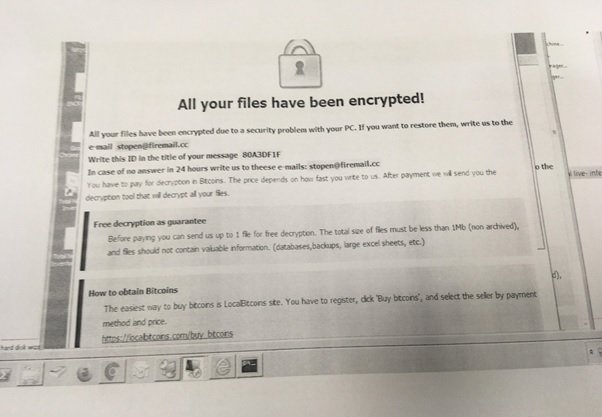
STOP Ransomware Is A Widespread File-encrypting Malware Family That Targets Windows-based Systems And Prevents Users From Accessing Their Personal And Business Data. Once Executed On A Victim's Device, The Ransomware Encrypts A Wide Range Of File Types, Including Documents, Images, Videos, Databases, Archives, And Other Valuable Files. After The Encryption Process Is Completed, The Malware Demands A Ransom Payment In Exchange For A Decryption Key That Allegedly Restores Access To The Affected Files.
The STOP Ransomware Family Has Evolved Significantly Over Time And Has Appeared In Multiple Variants. It Is Commonly Distributed Through Malicious Email Attachments, Cracked Software, Fake Software Updates, Pirated Applications, Key Generators, Malicious Advertisements, Compromised Websites, And Exploit Kits. Cybercriminals Frequently Update The Ransomware To Evade Detection And Increase Infection Rates.
When A User Unknowingly Executes The Malicious File, STOP Ransomware Begins A Series Of Actions Designed To Compromise The System And Encrypt Data. Initially, It May Gather System Information And Establish Persistence Mechanisms To Ensure It Remains Active After A System Reboot. The Malware Then Scans Local Drives, Removable Storage Devices, And Sometimes Network-connected Locations For Files That Match Its Target Criteria.
The Ransomware Uses Strong Encryption Algorithms To Lock Files, Making Them Inaccessible Without The Corresponding Decryption Key. During The Encryption Process, Original Files Remain On The System But Become Unusable Because Their Contents Are Encrypted. After Encrypting Files, The Malware Creates A Ransom Note That Instructs Victims On How To Contact The Attackers And Submit Payment, Typically In Cryptocurrency.
Victims Are Warned Not To Rename Encrypted Files Or Attempt Unauthorized Recovery Methods, As The Attackers Claim Such Actions Could Permanently Damage The Data. However, Paying The Ransom Does Not Guarantee Successful File Recovery And May Encourage Further Criminal Activity.
One Of The Most Recognizable Indicators Of A STOP Ransomware Infection Is The Addition Of A Unique File Extension To Encrypted Files. Different Variants Of The STOP Family Use Different Extensions.
Some Commonly Observed Extensions Associated With STOP Ransomware Include:
.djvu
.djvuu
.udjvu
.tro
.rumba
.promorad
.gero
.hese
.puma
.moka
.nols
.reco
.bora
.karl
.peet
.seto
.mado
.npph
.codnat
.coharos
.todarius
.kuus
.lokf
.nesa
.vawe
For Example, A File Originally Named invoice.xlsx May Be Renamed To invoice.xlsx.djvu After Encryption. The Specific Extension Often Helps Security Researchers Identify The Ransomware Variant Involved In The Attack.
STOP Ransomware Targets A Broad Range Of File Types That Are Likely To Contain Valuable Information.
Commonly Affected Files Include:
.doc
.docx
.xls
.xlsx
.ppt
.pptx
.txt
.rtf
.jpg
.jpeg
.png
.gif
.bmp
.tiff
.psd
.svg
.mp3
.wav
.aac
.mp4
.avi
.mov
.mkv
.zip
.rar
.7z
.tar
.bak
.sql
.db
.mdb
.sqlite
.php
.java
.cpp
.xml
.json
.config
System-critical Files Required For Windows Operation Are Often Excluded To Ensure The Operating System Remains Functional And Victims Can View Ransom Instructions.
While STOP Ransomware Primarily Focuses On File Encryption, Some Variants And Associated Malware Components May Attempt To Collect Information Stored In Web Browsers.
Browsers Commonly Found On Infected Systems Include:
Google Chrome
Microsoft Edge
Mozilla Firefox
Opera
Brave Browser
Internet Explorer
Cybercriminals May Deploy Information-stealing Malware Alongside STOP Ransomware To Harvest Saved Passwords, Browsing Data, Cookies, Autofill Information, Cryptocurrency Wallet Credentials, And Other Sensitive Information Stored Within These Browsers.
STOP Ransomware Primarily Targets Microsoft Windows Operating Systems. Known Affected Versions Include:
Windows 7
Windows 8
Windows 8.1
Windows 10
Windows 11
Windows Server Environments
The Ransomware Is Designed Specifically For Windows Architecture And Generally Does Not Target Linux Or MacOS Systems Directly. However, Files Stored On Shared Network Drives Accessible From Infected Windows Machines May Also Become Encrypted.
Signs That A System May Be Infected With STOP Ransomware Include:
Files Suddenly Becoming Inaccessible.
Appearance Of Unfamiliar File Extensions.
Presence Of Ransom Notes In Folders Containing Encrypted Files.
Significant CPU Or Disk Activity During Encryption.
Disabled Security Software Or Modified System Settings.
Missing Backups Or Deleted Shadow Volume Copies.
Organizations And Individuals Can Reduce The Risk Of STOP Ransomware Infection By Implementing Strong Cybersecurity Practices. Recommended Measures Include Maintaining Updated Operating Systems And Software, Using Reputable Endpoint Protection Solutions, Enabling Multi-factor Authentication, Restricting Administrative Privileges, Regularly Backing Up Important Data, And Educating Users About Phishing And Malicious Downloads.
Downloading Software Only From Trusted Sources Is Particularly Important, As Many STOP Ransomware Infections Originate From Pirated Software, Cracks, And Unofficial Installers. Regular Offline Or Cloud Backups Can Significantly Reduce The Impact Of A Ransomware Attack By Allowing Data Restoration Without Relying On Cybercriminals.
STOP Ransomware Remains One Of The Most Prevalent Ransomware Families Due To Its Numerous Variants, Extensive Distribution Methods, And Ability To Encrypt A Wide Range Of File Types. By Appending Distinctive File Extensions, Encrypting Valuable Data, And Demanding Ransom Payments, It Can Cause Significant Operational And Financial Disruption.
Understanding Its Behavior, Targeted Files, Affected Browsers, And Supported Operating Systems Helps Organizations And Individuals Improve Detection, Response, And Prevention Efforts Against This Persistent Cyber Threat.
Step 1: Boot Into Safe Mode
Restart Your PC And Press F8 (or Shift + F8 For Some Systems) Before Windows Loads.
Choose Safe Mode With Networking.
Safe Mode Prevents Most Malware From Loading.
Press Win + R, Type appwiz.cpl, And Press Enter.
Sort By Install Date And Uninstall Unknown Or Recently Added Programs.
Use A Trusted Anti-malware Tool:
Malwarebytes – https://www.malwarebytes.com
Screenshot Of Malwarebytes - Visit Links
Microsoft Defender – Built Into Windows 10/11
HitmanPro, ESET Online Scanner, Or Kaspersky Virus Removal Tool
ZoneAlarm Pro Antivirus + Firewall NextGen
VIPRE Antivirus - US And Others Countries, | India
Run A Full Scan And Delete/quarantine Detected Threats.
Win + R, Type temp → Delete All Files.Press Win + R, Type %temp% → Delete All Files.
Use Disk Cleanup: cleanmgr In The Run Dialog.
Go To: C:\Windows\System32\drivers\etc
Open hosts File With Notepad.
Replace With Default Content:
Press Ctrl + Shift + Esc → Open Task Manager
Go To Startup Tab
Disable Any Suspicious Entries.
Open Command Prompt As Administrator.
Run These Commands:
netsh Winsock Reset

netsh Int Ip Reset

ipconfig /flushdns
Unwanted Homepage Or Search Engine
Pop-ups Or Redirects
Unknown Extensions Installed
For Chrome:
Go To: chrome://extensions/
Remove Anything Unfamiliar
For Firefox:
Go To: about:addons → Extensions
Remove Suspicious Add-ons
For Edge:
Go To: edge://extensions/
Uninstall Unknown Add-ons
Chrome:
Go To chrome://settings/reset → "Restore Settings To Their Original Defaults"
Firefox:
Go To about:support → "Refresh Firefox"
Edge:
Go To edge://settings/resetProfileSettings → "Reset Settings"
All Browsers:
Use Ctrl + Shift + Del → Select All Time
Clear Cookies, Cached Files, And Site Data
Make Sure They Are Not Hijacked.
Chrome: chrome://settings/search
Firefox: about:preferences#search
Edge: edge://settings/search
Chrome: chrome://settings/cleanup
Use Malwarebytes Browser Guard For Real-time Browser Protection.
Always Download Software From Trusted Sources.
Keep Windows, Browsers, And Antivirus Updated.
Avoid Clicking Suspicious Links Or Ads.
Use ad Blockers And reputable Antivirus Software.
Backup Your Files Regularly.
To Remove Malware From Your Windows PC, Start By Booting Into Safe Mode, Uninstalling Suspicious Programs, And Scanning With Trusted Anti-malware Tools Like Malwarebytes. Clear Temporary Files, Reset Your Network Settings, And Check Startup Apps For Anything Unusual.
For web Browsers, Remove Unwanted Extensions, Reset Browser Settings, Clear Cache And Cookies, And Ensure Your Homepage And Search Engine Haven’t Been Hijacked. Use Cleanup Tools Like Chrome Cleanup Or Browser Guard For Added Protection.
?? Prevention Tips: Keep Software Updated, Avoid Suspicious Downloads, And Use Antivirus Protection Plus Browser Ad Blockers. Regular Backups Are Essential.
Why It Matters: Not All VPNs Offer Malware Protection.
What To Look For: Providers With built-in Malware/ad/tracker Blockers (e.g., NordVPN’s Threat Protection, ProtonVPN’s NetShield).
Purpose: Prevents Data Leaks If Your VPN Connection Drops.
Benefit: Ensures Your Real IP And Browsing Activity Aren’t Exposed To Malware-distributing Websites.
Why It Matters: DNS Leaks Can Expose Your Online Activity To Attackers.
Solution: Enable DNS Leak Protection In Your VPN Settings Or Use A Secure DNS Like Cloudflare (1.1.1.1).
Risk: Free VPNs Often Contain Malware, Sell User Data, Or Lack Security Features.
Better Option: Use Reputable Paid VPNs That Offer security Audits And Transparent Privacy Policies.
Some VPNs Block Known Phishing And Malicious Sites.
Example: Surfshark’s CleanWeb, CyberGhost’s Content Blocker.
Reason: Security Patches Fix Known Vulnerabilities.
Tip: Enable Auto-updates Or Check For Updates Weekly.
Scope: Malware Can Enter Through Phones, Tablets, Or IoT Devices.
Solution: Install VPN Apps On Every Internet-connected Device.
Fact: VPNs Do Not Remove Or Detect Malware On Your System.
Complement It With:
Antivirus Software
Firewall
Browser Extensions For Script Blocking
VPN Encrypts Traffic But Can’t Stop Malware From Executing If You Download Infected Files.
Split Tunneling Allows Certain Apps/sites To Bypass VPN.
Tip: Never Exclude Browsers, Email Clients, Or Download Managers From VPN Tunneling.
A VPN (Virtual Private Network) Enhances Your Online Privacy By Encrypting Your Internet Traffic And Masking Your IP Address. It Protects Your Data On Public Wi-Fi, Hides Browsing Activity From Hackers And ISPs, And Helps Bypass Geo-restrictions. VPNs Also Add A Layer Of Defense Against Malware By Blocking Malicious Websites And Trackers When Using Advanced Features. However, A VPN Does Not Remove Existing Malware Or Act As Antivirus Software. For Full Protection, Combine VPN Use With Antivirus Tools, Regular Software Updates, And Cautious Browsing Habits. Always Choose A Reputable VPN Provider With Strong Security And Privacy Policies.
STOP Ransomware, Remove STOP Ransomware, Uninstall STOP Ransomware, Delete STOP Ransomware, Get Rid Of STOP Ransomware, STOP Ransomware Removal