Blog's Page
 Blog's Page
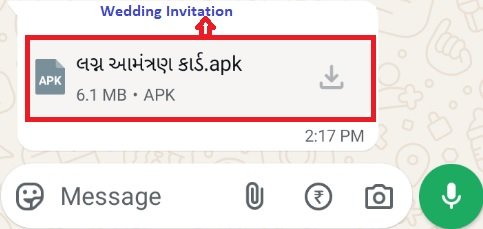
SpyMax Is An Android Spyware Threat And Remote Access Trojan (RAT) Designed To Secretly Monitor Infected Smartphones And Provide Attackers With Remote Access To Selected Device Functions. The Malware May Collect Sensitive Information, Monitor User Activity, Access Device Resources, And Transmit Stolen Data To Attacker-controlled Infrastructure. Since Modern Smartphones Contain Personal Messages, Contact Information, Photographs, Financial Details, Business Documents, Authentication Data, And Private Communications, A SpyMax Infection Can Create Serious Privacy And Cybersecurity Risks.
SpyMax Is Generally Distributed Through Malicious Android Application Packages, Commonly Known As APK Files. These Applications May Appear Legitimate And May Be Disguised As Useful Utilities, Software Updates, Security Applications, Communication Tools, Document Viewers, Or Other Trusted Services. The Malware Relies Heavily On Social Engineering Because Attackers Often Attempt To Convince Users To Install The Application And Approve Permissions That Provide Access To Sensitive Information.
Once Installed, SpyMax May Operate Quietly In The Background. Its Behavior Can Vary Depending On The Malware Version, Android Operating-system Version, Device Configuration, And Permissions Granted By The User. Some Variants May Focus Mainly On Information Collection, While Others May Support Broader Surveillance And Remote-management Functions.
SpyMax May Reach Android Users Through Several Deceptive Delivery Methods. Attackers Commonly Use Phishing Messages, Malicious Websites, Fake Application Downloads, Compromised Web Pages, Fraudulent Advertisements, And Social-engineering Campaigns. A Victim May Receive A Message Claiming That An Application Is Required To View A Document, Install An Update, Improve Device Performance, Access A Service, Or Protect The Phone From Security Threats.
The Malicious Application May Also Be Promoted Through Unofficial Android Application Stores Or Third-party Download Websites. Users Who Download Cracked Applications, Modified APKs, Unauthorized Premium Software, Or Unknown Utilities May Face A Greater Risk Of Installing Spyware. In Some Cases, Attackers May Imitate The Name, Logo, Or Appearance Of A Legitimate Application To Make The Malicious File Appear Trustworthy.
A Typical Infection Process May Follow These Stages:
The Victim Receives A Malicious Link Or Downloads An Untrusted APK.
The Application Is Installed From An Unofficial Or Unknown Source.
The Application Requests Permissions That May Be Unrelated To Its Advertised Purpose.
The Victim Approves Some Or All Requested Permissions.
SpyMax Begins Collecting Device Information And Monitoring Supported Activities.
The Malware Communicates With An Attacker-controlled Command-and-Control Server.
Stolen Information May Be Transferred To The Attacker, While Additional Commands May Be Sent To The Infected Device.
SpyMax May Support Multiple Surveillance And Information-collection Functions. The Exact Capabilities Depend On The Specific Version And Configuration Used In A Campaign. A Malicious Application May Attempt To Access Contacts, Messages, Files, Location Information, Device Details, Or Other Sensitive Resources When The Required Permissions Are Available.
SpyMax May Collect Technical Information About An Infected Smartphone. This Process Is Often Called Device Profiling Or System Reconnaissance.
Information May Include:
Device Manufacturer And Model
Android Operating-system Version
Device Language And Regional Settings
Network And Connectivity Information
Installed Applications
Device Identifiers
Hardware Characteristics
Battery And System Information
This Information Can Help Attackers Understand The Environment Of The Infected Device And Determine Which Malware Functions May Be Available.
If The Required Permissions Are Granted, Spyware May Attempt To Access Contact Information And Communication-related Data. Exposed Contact Details May Allow Attackers To Expand Their Campaigns By Sending Phishing Messages To People Connected To The Victim.
Stolen Information May Also Be Used For Impersonation, Social Engineering, Identity Fraud, Or Targeted Attacks. Because Mobile Devices Often Contain Personal And Professional Contacts, The Impact May Extend Beyond The Original Device Owner.
SpyMax May Attempt To Access Files Stored On The Device. Depending On Android Security Controls And Granted Permissions, Exposed Information May Include Photographs, Documents, Downloads, Media Files, Or Application-related Data.
The Theft Of Private Files Can Result In Privacy Violations, Identity-related Risks, Financial Fraud, Or Business-data Exposure. Users Should Avoid Granting Broad Storage Access To Applications That Do Not Clearly Require It.
Location Access Can Reveal Sensitive Information About A User’s Movements, Workplace, Home Area, Travel Patterns, Or Frequently Visited Locations. An Application Requesting Location Access Without A Clear Operational Reason Should Be Treated With Caution.
Users Should Review Location Permissions And Select Restrictive Options Whenever Possible, Such As Allowing Access Only While The Application Is In Use.
SpyMax May Communicate With An Attacker-controlled Command-and-Control (C2) Server. This Communication Can Allow The Malware To Send Collected Information And Receive Instructions.
The C2 Infrastructure May Be Used To:
Register Newly Infected Devices
Receive Device Information
Collect Stolen Data
Send Commands To The Malware
Update Malware Configuration
Enable Or Disable Supported Functions
Attackers May Attempt To Make Malicious Network Activity Resemble Ordinary Application Traffic. As A Result, Network Communication Alone May Not Be Sufficient To Confirm An Infection. Security Analysts May Examine Domains, IP Addresses, Certificates, Connection Patterns, And Application Behavior During An Investigation.
A SpyMax Infection Can Affect Both Personal Privacy And Organizational Security. A Compromised Smartphone May Expose Private Messages, Contacts, Photographs, Documents, Location Information, And Other Sensitive Data.
For Individual Users, The Consequences May Include:
Privacy Loss
Account Compromise
Identity Theft
Financial Fraud
Phishing Attacks
Social-engineering Attacks
Unauthorized Access To Online Services
For Businesses And Organizations, An Infected Employee Device May Expose Corporate Email, Cloud-storage Accounts, Internal Documents, Customer Information, Or Authentication Data. If The Device Is Connected To Company Systems, The Malware May Increase The Risk Of Data Leakage And Unauthorized Access.
SpyMax Is Designed To Remain Hidden, So Users May Not Always Notice Obvious Signs. However, Unusual Device Behavior Can Indicate That Further Investigation Is Necessary.
Possible Warning Signs Include:
Unexplained Battery Drain
Increased Mobile-data Usage
Unusual Device Heating
Slow Or Unstable Performance
Unknown Applications Appearing On The Device
Unexpected Permission Requests
Unfamiliar Notifications
Unexpected Pop-ups Or Advertisements
Suspicious Network Activity
Unusual Microphone, Camera, Or Location Indicators
Device Settings Changing Without User Approval
These Symptoms Do Not Automatically Prove That SpyMax Is Present. Legitimate Applications, Software Updates, Hardware Problems, And Normal Background Processes Can Produce Similar Behavior. A Security Review Is Required Before Concluding That A Device Is Infected.
| Security Measure | Recommended Action | Security Benefit |
|---|---|---|
| Download Applications Safely | Install Apps Primarily From Trusted App Stores | Reduces Exposure To Malicious APK Files |
| Avoid Unknown APKs | Do Not Install Applications Received Through Unexpected Links Or Messages | Prevents Many Social-engineering Attacks |
| Review Permissions | Grant Only Permissions Required For The Application’s Function | Limits Unauthorized Access To Sensitive Data |
| Update Android | Install Operating-system Security Updates Promptly | Fixes Known Security Vulnerabilities |
| Update Applications | Keep Installed Apps Updated | Reduces Exposure To Known Application Flaws |
| Enable Mobile Security | Keep Android Security Scanning And Trusted Protection Tools Active | Helps Detect Harmful Applications |
| Check Accessibility Access | Review Applications With Accessibility Permissions | Prevents Misuse Of Powerful Device-control Features |
| Review Device-admin Apps | Remove Unknown Administrator Privileges | Helps Prevent Malicious Apps From Resisting Removal |
| Monitor Battery And Data Usage | Investigate Unexplained Increases | May Help Identify Suspicious Background Activity |
| Use Multi-factor Authentication | Enable MFA For Important Accounts | Reduces The Impact Of Stolen Passwords |
| Avoid Cracked Software | Do Not Install Pirated Or Modified Android Applications | Reduces The Risk Of Trojanized Software |
| Back Up Important Data | Maintain Secure Backups Of Essential Files | Supports Recovery After Device Cleaning Or Reset |
Users Who Suspect Spyware Should Begin By Reviewing Installed Applications. Unknown Applications, Duplicate Applications, Or Apps With Misleading Names Should Be Investigated. The Application List Can Usually Be Reviewed Through Android Settings.
Users Should Also Examine:
Application Permissions
Accessibility Permissions
Device-administrator Applications
Battery Usage
Mobile-data Usage
Installed Application Sources
Unrecognized Notifications
Recent Application Installations
A Reputable Mobile-security Application May Help Identify Known Malware. However, Detection Results Can Vary Because Malware May Be Modified Or Configured Differently. Organizations May Use Mobile Device Management (MDM) And Mobile Threat Defense (MTD) Solutions To Monitor Suspicious Behavior Across Managed Devices.
If SpyMax Or Another Android Spyware Threat Is Suspected, The Device Should Be Handled Carefully.
Disconnect The Device From Wi-Fi And Mobile Data When Practical.
Avoid Entering Passwords, Banking Details, Or Sensitive Information On The Suspected Device.
Open Android Settings And Review Recently Installed Applications.
Identify Suspicious Or Unfamiliar Applications.
Check Whether The Application Has Device-administrator Privileges.
Review Accessibility Permissions And Disable Suspicious Access.
Remove The Malicious Or Unknown Application.
Run A Security Scan Using A Trusted Mobile-security Solution.
Install The Latest Android And Application Updates.
Change Important Passwords From A Separate, Trusted Device.
Review Account Activity For Unknown Logins Or Unauthorized Actions.
Enable Multi-factor Authentication.
Perform A Factory Reset If The Malware Cannot Be Removed Or Suspicious Behavior Continues.
Before Performing A Factory Reset, Back Up Essential Personal Files Such As Photographs And Documents. Avoid Restoring Unknown APK Files Or Complete Application Backups Without Reviewing Them Because They May Reintroduce The Malicious Application.
Removing The Suspicious Application May Not Be The Final Step. If Sensitive Information Was Exposed, Users Should Secure Important Accounts From A Clean Device.
Recommended Actions Include:
Change Email Passwords
Change Banking And Payment-account Passwords
Review Active Account Sessions
Remove Unknown Devices From Account Settings
Enable Multi-factor Authentication
Check For Unauthorized Financial Activity
Review Password-reset Notifications
Monitor Email And Social-media Accounts
Notify An Organization’s Security Team If The Device Accessed Work Resources
If Financial Information May Have Been Exposed, Users Should Contact The Relevant Bank Or Payment Provider And Monitor Accounts For Suspicious Transactions.
SpyMax Is An Android Spyware Threat And Remote Access Trojan That May Collect Information, Monitor Device Activity, And Communicate With Attacker-controlled Servers.
SpyMax Is More Accurately Described As Android Spyware Or A Remote Access Trojan Rather Than A Traditional Computer Virus. It Generally Relies On Deceptive Installation Methods And User-approved Permissions.
SpyMax May Be Distributed Through Malicious APK Files, Phishing Links, Fake Applications, Compromised Websites, Deceptive Advertisements, And Unofficial Application Sources.
Depending On Its Configuration And Granted Permissions, SpyMax May Attempt To Collect Device Information, Contacts, Files, Communications, Location Data, Or Other Sensitive Information.
The Available Capabilities Depend On The Malware Version, Android Security Controls, And Permissions Granted To The Malicious Application. Users Should Carefully Review Camera And Microphone Permissions.
Review Installed Applications, Permissions, Accessibility Settings, Device-administrator Access, Battery Usage, And Mobile-data Usage. A Trusted Mobile-security Scan May Also Help Identify Known Threats.
A Suspicious Application May Be Removed Through Android Settings After Any Administrator Or Accessibility Privileges Are Disabled. If Removal Fails Or Suspicious Behavior Continues, A Factory Reset May Be Necessary.
A Properly Completed Factory Reset Can Remove Many Application-based Android Threats. However, Users Should Avoid Restoring Suspicious APK Files Or Unsafe Application Backups.
Install Applications From Trusted Sources, Avoid Unknown APK Files, Review Permissions, Keep Android Updated, Enable Security Protections, Use Multi-factor Authentication, And Regularly Check Installed Applications.
SpyMax Android Malware Demonstrates The Serious Privacy And Security Risks Created By Mobile Spyware And Remote Access Trojans. By Disguising Malicious Applications As Legitimate Software, Attackers May Persuade Users To Install Harmful APK Files And Approve Excessive Permissions. Once Active, The Malware May Collect Device Information, Access Sensitive Resources, Monitor Supported Activities, And Communicate With Attacker-controlled Infrastructure.
Strong Android Security Practices Can Significantly Reduce The Risk. Users Should Install Applications Only From Trusted Sources, Avoid Unofficial APK Downloads, Review Permissions Carefully, Keep Devices Updated, And Investigate Unusual Device Behavior. Organizations Should Combine User Awareness With Mobile-device Management, Threat Detection, Access Controls, And Incident-response Procedures. Early Detection And Rapid Action Can Help Limit Data Exposure And Reduce The Impact Of SpyMax And Similar Android Spyware Threats.
Step 1: Boot Into Safe Mode
Restart Your PC And Press F8 (or Shift + F8 For Some Systems) Before Windows Loads.
Choose Safe Mode With Networking.
Safe Mode Prevents Most Malware From Loading.
Press Win + R, Type appwiz.cpl, And Press Enter.
Sort By Install Date And Uninstall Unknown Or Recently Added Programs.
Use A Trusted Anti-malware Tool:
Malwarebytes – https://www.malwarebytes.com
Screenshot Of Malwarebytes - Visit Links
Microsoft Defender – Built Into Windows 10/11
HitmanPro, ESET Online Scanner, Or Kaspersky Virus Removal Tool
ZoneAlarm Pro Antivirus + Firewall NextGen
VIPRE Antivirus - US And Others Countries, | India
Run A Full Scan And Delete/quarantine Detected Threats.
Win + R, Type temp → Delete All Files.Press Win + R, Type %temp% → Delete All Files.
Use Disk Cleanup: cleanmgr In The Run Dialog.
Go To: C:\Windows\System32\drivers\etc
Open hosts File With Notepad.
Replace With Default Content:
Press Ctrl + Shift + Esc → Open Task Manager
Go To Startup Tab
Disable Any Suspicious Entries.
Open Command Prompt As Administrator.
Run These Commands:
netsh Winsock Reset

netsh Int Ip Reset

ipconfig /flushdns
Unwanted Homepage Or Search Engine
Pop-ups Or Redirects
Unknown Extensions Installed
For Chrome:
Go To: chrome://extensions/
Remove Anything Unfamiliar
For Firefox:
Go To: about:addons → Extensions
Remove Suspicious Add-ons
For Edge:
Go To: edge://extensions/
Uninstall Unknown Add-ons
Chrome:
Go To chrome://settings/reset → "Restore Settings To Their Original Defaults"
Firefox:
Go To about:support → "Refresh Firefox"
Edge:
Go To edge://settings/resetProfileSettings → "Reset Settings"
All Browsers:
Use Ctrl + Shift + Del → Select All Time
Clear Cookies, Cached Files, And Site Data
Make Sure They Are Not Hijacked.
Chrome: chrome://settings/search
Firefox: about:preferences#search
Edge: edge://settings/search
Chrome: chrome://settings/cleanup
Use Malwarebytes Browser Guard For Real-time Browser Protection.
Always Download Software From Trusted Sources.
Keep Windows, Browsers, And Antivirus Updated.
Avoid Clicking Suspicious Links Or Ads.
Use ad Blockers And reputable Antivirus Software.
Backup Your Files Regularly.
To Remove Malware From Your Windows PC, Start By Booting Into Safe Mode, Uninstalling Suspicious Programs, And Scanning With Trusted Anti-malware Tools Like Malwarebytes. Clear Temporary Files, Reset Your Network Settings, And Check Startup Apps For Anything Unusual.
For web Browsers, Remove Unwanted Extensions, Reset Browser Settings, Clear Cache And Cookies, And Ensure Your Homepage And Search Engine Haven’t Been Hijacked. Use Cleanup Tools Like Chrome Cleanup Or Browser Guard For Added Protection.
?? Prevention Tips: Keep Software Updated, Avoid Suspicious Downloads, And Use Antivirus Protection Plus Browser Ad Blockers. Regular Backups Are Essential.
Why It Matters: Not All VPNs Offer Malware Protection.
What To Look For: Providers With built-in Malware/ad/tracker Blockers (e.g., NordVPN’s Threat Protection, ProtonVPN’s NetShield).
Purpose: Prevents Data Leaks If Your VPN Connection Drops.
Benefit: Ensures Your Real IP And Browsing Activity Aren’t Exposed To Malware-distributing Websites.
Why It Matters: DNS Leaks Can Expose Your Online Activity To Attackers.
Solution: Enable DNS Leak Protection In Your VPN Settings Or Use A Secure DNS Like Cloudflare (1.1.1.1).
Risk: Free VPNs Often Contain Malware, Sell User Data, Or Lack Security Features.
Better Option: Use Reputable Paid VPNs That Offer security Audits And Transparent Privacy Policies.
Some VPNs Block Known Phishing And Malicious Sites.
Example: Surfshark’s CleanWeb, CyberGhost’s Content Blocker.
Reason: Security Patches Fix Known Vulnerabilities.
Tip: Enable Auto-updates Or Check For Updates Weekly.
Scope: Malware Can Enter Through Phones, Tablets, Or IoT Devices.
Solution: Install VPN Apps On Every Internet-connected Device.
Fact: VPNs Do Not Remove Or Detect Malware On Your System.
Complement It With:
Antivirus Software
Firewall
Browser Extensions For Script Blocking
VPN Encrypts Traffic But Can’t Stop Malware From Executing If You Download Infected Files.
Split Tunneling Allows Certain Apps/sites To Bypass VPN.
Tip: Never Exclude Browsers, Email Clients, Or Download Managers From VPN Tunneling.
A VPN (Virtual Private Network) Enhances Your Online Privacy By Encrypting Your Internet Traffic And Masking Your IP Address. It Protects Your Data On Public Wi-Fi, Hides Browsing Activity From Hackers And ISPs, And Helps Bypass Geo-restrictions. VPNs Also Add A Layer Of Defense Against Malware By Blocking Malicious Websites And Trackers When Using Advanced Features. However, A VPN Does Not Remove Existing Malware Or Act As Antivirus Software. For Full Protection, Combine VPN Use With Antivirus Tools, Regular Software Updates, And Cautious Browsing Habits. Always Choose A Reputable VPN Provider With Strong Security And Privacy Policies.
SpyMax Malware, SpyMax Android RAT, SpyMax Spyware, SpyMax Virus, Android Spyware Detection, Android RAT Malware, SpyMax Removal, Mobile Spyware Prote