Blog's Page
 Blog's Page
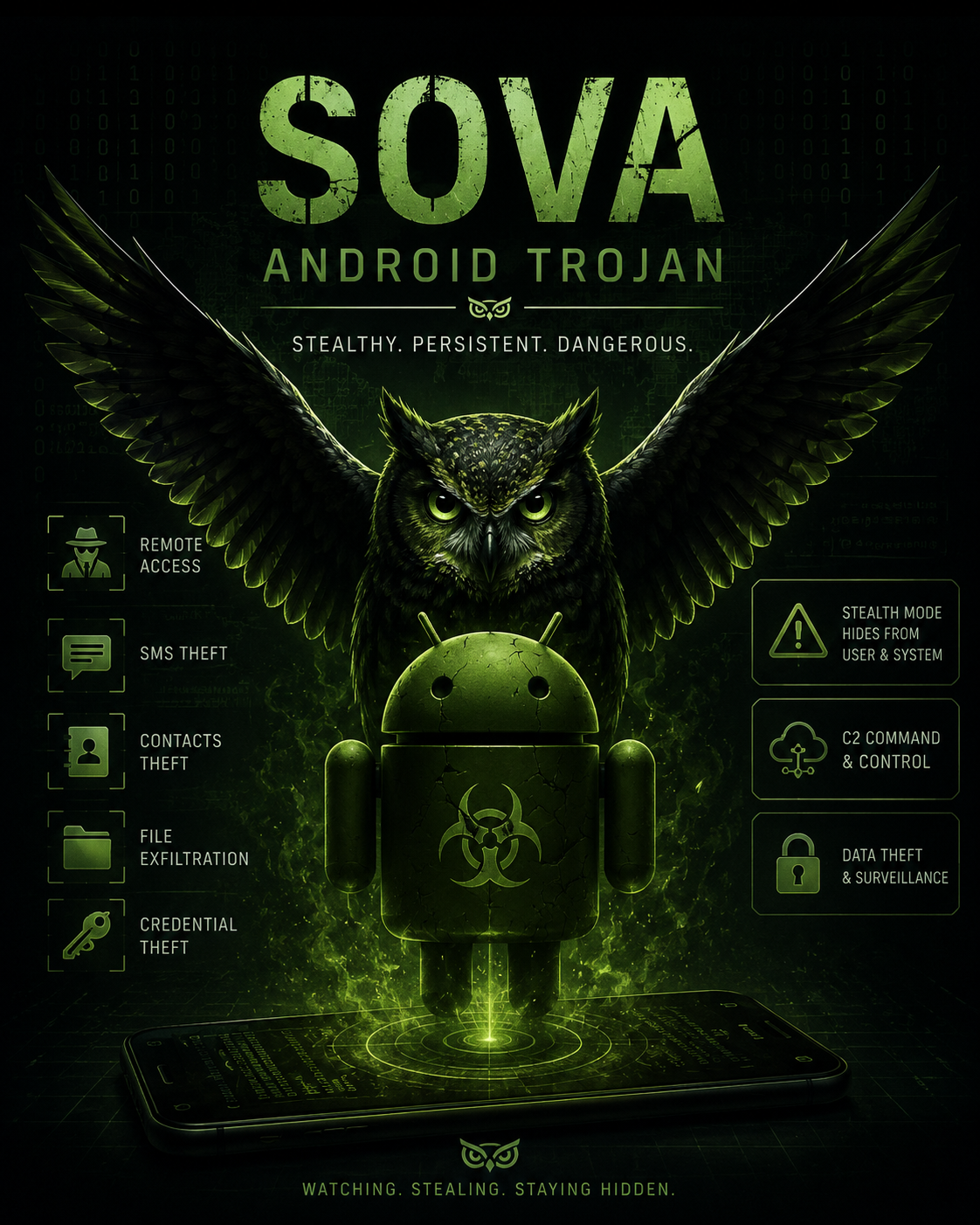
It Has Been Reported That Indian Banking Customers Are Being Targeted By A New Mobile Banking Malware Campaign Leveraging The SOVA Android Trojan.
SOVA First Emerged In Underground Marketplaces In September 2021 As An Android Banking Trojan Capable Of Stealing Usernames And Passwords Through Keylogging, Hijacking Session Cookies, And Displaying Fake Login Overlays Over Legitimate Applications. Initially, The Malware Primarily Targeted Users In The United States, Russia, And Spain. However, In July 2022, Its Operators Expanded Their Campaigns To Include Several Additional Countries, Including India.
The Latest Version Of SOVA Disguises Itself As Fake Android Applications That Imitate Well-known Apps Such As Google Chrome, Amazon, And NFT Platforms. These Counterfeit Applications Trick Users Into Installing The Malware. Once Installed, SOVA Captures Banking Credentials When Victims Log In To Their Mobile Banking Applications, Enabling Attackers To Gain Unauthorized Access To Bank Accounts.
The Current Variant Is Capable Of Targeting more Than 200 Android Applications, Including Banking Apps, Payment Platforms, Cryptocurrency Exchanges, And Digital Wallets. It Also Incorporates Significant Code Enhancements, Including ransomware Capabilities. The Malware Uses AES Encryption To Encrypt Files Stored On The Infected Device And Appends The ".enc" Extension To Encrypted Files, Potentially Holding User Data For Ransom.
SOVA Is Primarily Distributed Through smishing (SMS Phishing) Campaigns, A Common Delivery Method Used By Android Banking Trojans.
After The Malicious Application Is Installed, It Performs The Following Actions:
Collects A List Of All Applications Installed On The Victim's Device.
Sends This Information To A Command And Control (C2) Server Controlled By The Attacker.
Receives From The C2 Server A List Of Targeted Applications Along With Corresponding Overlay Configurations.
Stores The Received Information In An XML Configuration File.
Continuously Communicates With The C2 Server To Manage Targeted Applications And Receive Additional Commands.
SOVA Possesses A Wide Range Of Malicious Capabilities, Including:
Capturing Keystrokes (keylogging)
Stealing Browser Cookies
Intercepting Multi-factor Authentication (MFA) Tokens
Capturing Screenshots
Recording Videos Using The Device Camera (where Permissions Allow)
Performing Automated Gestures Such As Taps, Swipes, And Scrolling Through Abuse Of Android Accessibility Services
Copying And Pasting Clipboard Data
Displaying Fake Login Overlays Over Legitimate Applications
Mimicking More Than 200 Banking And Payment Applications To Steal User Credentials
The Latest (fifth) Version Of SOVA Introduces Ransomware Functionality Capable Of Encrypting Files Stored On Infected Android Devices. Encrypted Files Are Renamed With The ".enc" Extension, Preventing Users From Accessing Their Data.
Additionally, The Malware Includes A Significantly Enhanced protection Module Designed To Resist Removal. By Abusing Android Accessibility Services, SOVA Can Intercept User Attempts To Uninstall The Application. If A Victim Tries To Remove The Malware Through The Device Settings Or Launcher Icon, It Automatically Redirects The User To The Home Screen And Displays A Notification Stating:
"This App Is Secured."
These Self-protection Mechanisms Make The Malware Considerably More Difficult To Detect And Remove.
Indicator Of Compromise:
File Hashes
C2 Server
File Type: .apk
SOVA Poses A Serious Threat To Mobile Banking Users By Compromising Sensitive Financial And Personal Information. Its Advanced Credential-stealing Techniques, Support For More Than 200 Targeted Applications, Ransomware Functionality, And Anti-removal Mechanisms Significantly Increase The Risk Of:
Unauthorized Access To Banking And Financial Accounts
Theft Of Sensitive Personal And Financial Information
Large-scale Financial Fraud
Identity Theft
Disruption Caused By Ransomware-based Data Encryption
Organizations And Users Should Remain Vigilant Against Smishing Campaigns, Install Applications Only From Trusted Sources Such As The Google Play Store, Keep Devices Updated, And Avoid Granting Unnecessary Accessibility Service Permissions To Unfamiliar Applications.
Step 1: Boot Into Safe Mode
Restart Your PC And Press F8 (or Shift + F8 For Some Systems) Before Windows Loads.
Choose Safe Mode With Networking.
Safe Mode Prevents Most Malware From Loading.
Press Win + R, Type appwiz.cpl, And Press Enter.
Sort By Install Date And Uninstall Unknown Or Recently Added Programs.
Use A Trusted Anti-malware Tool:
Malwarebytes – https://www.malwarebytes.com
Screenshot Of Malwarebytes - Visit Links
Microsoft Defender – Built Into Windows 10/11
HitmanPro, ESET Online Scanner, Or Kaspersky Virus Removal Tool
ZoneAlarm Pro Antivirus + Firewall NextGen
VIPRE Antivirus - US And Others Countries, | India
Run A Full Scan And Delete/quarantine Detected Threats.
Win + R, Type temp → Delete All Files.Press Win + R, Type %temp% → Delete All Files.
Use Disk Cleanup: cleanmgr In The Run Dialog.
Go To: C:\Windows\System32\drivers\etc
Open hosts File With Notepad.
Replace With Default Content:
Press Ctrl + Shift + Esc → Open Task Manager
Go To Startup Tab
Disable Any Suspicious Entries.
Open Command Prompt As Administrator.
Run These Commands:
netsh Winsock Reset

netsh Int Ip Reset

ipconfig /flushdns
Unwanted Homepage Or Search Engine
Pop-ups Or Redirects
Unknown Extensions Installed
For Chrome:
Go To: chrome://extensions/
Remove Anything Unfamiliar
For Firefox:
Go To: about:addons → Extensions
Remove Suspicious Add-ons
For Edge:
Go To: edge://extensions/
Uninstall Unknown Add-ons
Chrome:
Go To chrome://settings/reset → "Restore Settings To Their Original Defaults"
Firefox:
Go To about:support → "Refresh Firefox"
Edge:
Go To edge://settings/resetProfileSettings → "Reset Settings"
All Browsers:
Use Ctrl + Shift + Del → Select All Time
Clear Cookies, Cached Files, And Site Data
Make Sure They Are Not Hijacked.
Chrome: chrome://settings/search
Firefox: about:preferences#search
Edge: edge://settings/search
Chrome: chrome://settings/cleanup
Use Malwarebytes Browser Guard For Real-time Browser Protection.
Always Download Software From Trusted Sources.
Keep Windows, Browsers, And Antivirus Updated.
Avoid Clicking Suspicious Links Or Ads.
Use ad Blockers And reputable Antivirus Software.
Backup Your Files Regularly.
To Remove Malware From Your Windows PC, Start By Booting Into Safe Mode, Uninstalling Suspicious Programs, And Scanning With Trusted Anti-malware Tools Like Malwarebytes. Clear Temporary Files, Reset Your Network Settings, And Check Startup Apps For Anything Unusual.
For web Browsers, Remove Unwanted Extensions, Reset Browser Settings, Clear Cache And Cookies, And Ensure Your Homepage And Search Engine Haven’t Been Hijacked. Use Cleanup Tools Like Chrome Cleanup Or Browser Guard For Added Protection.
?? Prevention Tips: Keep Software Updated, Avoid Suspicious Downloads, And Use Antivirus Protection Plus Browser Ad Blockers. Regular Backups Are Essential.
Why It Matters: Not All VPNs Offer Malware Protection.
What To Look For: Providers With built-in Malware/ad/tracker Blockers (e.g., NordVPN’s Threat Protection, ProtonVPN’s NetShield).
Purpose: Prevents Data Leaks If Your VPN Connection Drops.
Benefit: Ensures Your Real IP And Browsing Activity Aren’t Exposed To Malware-distributing Websites.
Why It Matters: DNS Leaks Can Expose Your Online Activity To Attackers.
Solution: Enable DNS Leak Protection In Your VPN Settings Or Use A Secure DNS Like Cloudflare (1.1.1.1).
Risk: Free VPNs Often Contain Malware, Sell User Data, Or Lack Security Features.
Better Option: Use Reputable Paid VPNs That Offer security Audits And Transparent Privacy Policies.
Some VPNs Block Known Phishing And Malicious Sites.
Example: Surfshark’s CleanWeb, CyberGhost’s Content Blocker.
Reason: Security Patches Fix Known Vulnerabilities.
Tip: Enable Auto-updates Or Check For Updates Weekly.
Scope: Malware Can Enter Through Phones, Tablets, Or IoT Devices.
Solution: Install VPN Apps On Every Internet-connected Device.
Fact: VPNs Do Not Remove Or Detect Malware On Your System.
Complement It With:
Antivirus Software
Firewall
Browser Extensions For Script Blocking
VPN Encrypts Traffic But Can’t Stop Malware From Executing If You Download Infected Files.
Split Tunneling Allows Certain Apps/sites To Bypass VPN.
Tip: Never Exclude Browsers, Email Clients, Or Download Managers From VPN Tunneling.
A VPN (Virtual Private Network) Enhances Your Online Privacy By Encrypting Your Internet Traffic And Masking Your IP Address. It Protects Your Data On Public Wi-Fi, Hides Browsing Activity From Hackers And ISPs, And Helps Bypass Geo-restrictions. VPNs Also Add A Layer Of Defense Against Malware By Blocking Malicious Websites And Trackers When Using Advanced Features. However, A VPN Does Not Remove Existing Malware Or Act As Antivirus Software. For Full Protection, Combine VPN Use With Antivirus Tools, Regular Software Updates, And Cautious Browsing Habits. Always Choose A Reputable VPN Provider With Strong Security And Privacy Policies.
SOVA Android Trojan, Remove SOVA Android Trojan, Uninstall SOVA Android Trojan, Delete SOVA Android Trojan, Get Rid Of SOVA Android Trojan, SOVA Andro