Blog's Page
 Blog's Page
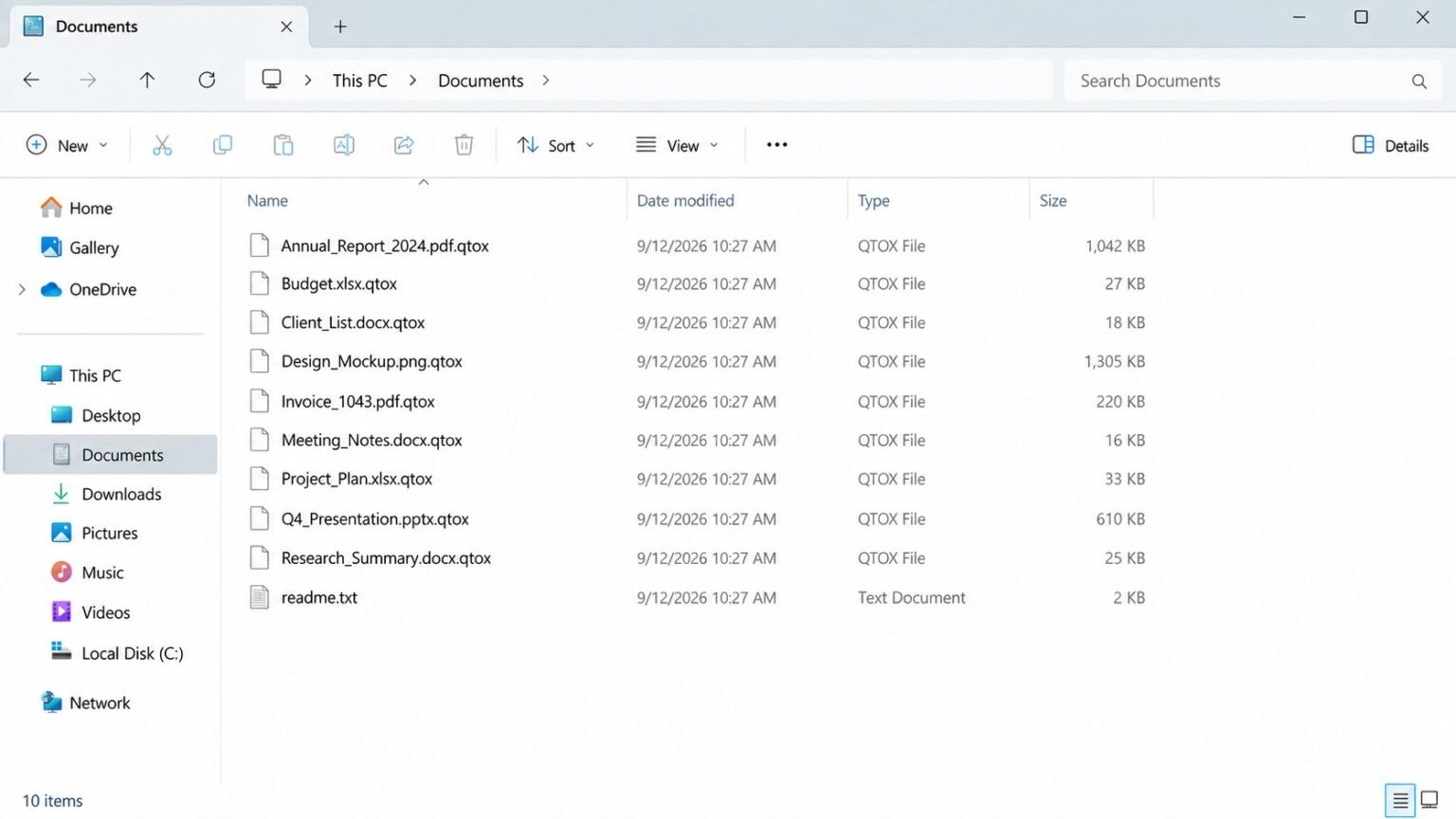
Learn What QTox Ransomware Is, How It Works, Symptoms Of Infection, Encrypted Files, Detection Methods, Removal Steps, Recovery Options, And Prevention Tips.
qTox Ransomware Is A Ransomware Threat Associated With The Tox Ransomware Family, A Type Of Malicious Software Designed To Encrypt Files And Demand A Ransom From Victims. QTox Gained Attention As Part Of The Ransomware-as-a-service (RaaS) Ecosystem, Where Ransomware Infrastructure And Tools Can Be Made Available To Affiliates Or Other Cybercriminals. The Threat Demonstrates How Ransomware Operations Can Combine File Encryption, Extortion, And Anonymous Communication To Target Individuals And Organizations.
Ransomware Such As QTox Can Cause Serious Disruption By Making Documents, Databases, Images, Archives, And Other Files Inaccessible. Businesses Can Additionally Face Downtime, Financial Losses, Data-recovery Expenses, And Potential Exposure Of Confidential Information.
qTox Ransomware Is A Malicious File-encrypting Program Associated With The Tox Ransomware Operation. The Name Is Also Connected With qTox, An Open-source Instant-messaging Client Based On The Tox Protocol, Which Can Create Confusion When Searching For Information About The Malware. In Cybersecurity Contexts, "qTox Ransomware" Refers To The Malicious Ransomware Threat, Not The Legitimate Messaging Application.
The Ransomware's Objective Is To Encrypt Valuable Files And Pressure Victims Into Paying Money For Recovery. Like Other Ransomware, Its Exact Behavior Can Vary Between Samples And Campaigns.
A Ransomware Infection Generally Begins When Attackers Obtain Access To A Computer. Possible Entry Methods Include Malicious Downloads, Phishing, Compromised Credentials, Vulnerable Services, And Other Malware Infections.
After Execution, Ransomware Can Search Local Drives And Accessible Network Locations For Valuable Files. It May Then Encrypt Selected Files And Leave A Ransom Message Explaining How Victims Can Contact The Attackers.
Modern Ransomware Often Uses Strong Cryptographic Algorithms. Consequently, Simply Changing An Encrypted Filename Or Removing A File Extension Does Not Normally Recover The Original Data.
A QTox Ransomware Infection May Produce Several Noticeable Symptoms:
Files Suddenly Become Inaccessible.
Documents Or Images Cannot Be Opened.
File Names Or Extensions Are Modified.
A Ransom Note Appears On The Computer.
Large Numbers Of Files Are Changed Within A Short Period.
CPU And Disk Activity Increases Unexpectedly.
Network Shares May Become Inaccessible.
Security Software May Be Disabled Or Interfered With.
Backup And Recovery Resources May Be Targeted.
Users May Receive Instructions Demanding Cryptocurrency Payment.
These Symptoms Are Not Exclusive To QTox. Proper Identification Requires Examination Of Malware Artifacts And Behavioral Evidence.
The Most Important Impact Of Ransomware Is File Encryption. Potentially Affected Files Can Include:
Microsoft Word Documents
Excel Spreadsheets
PDF Files
Images
Videos
Databases
Archives
Source-code Files
Financial Documents
Business Records
The Exact File Extension Used By A Particular QTox Sample Should Be Verified From The Sample Being Investigated Rather Than Assumed From The Ransomware Name.
Renaming An Encrypted File Does Not Decrypt It. Recovery Requires A Valid Decryptor, An Available Backup, Or Another Legitimate Recovery Mechanism.
Ransomware Typically Creates A Ransom Note After Encrypting Files. The Note May Contain Payment Instructions, Attacker Contact Information, A Victim Identifier, And A Deadline.
Victims Should Preserve The Ransom Note Because It Can Provide Useful Information During Incident Response And Forensic Investigation.
The Presence Of A Ransom Note Should Not Automatically Be Interpreted As Proof That Every Claim Made By Attackers Is Accurate. For Example, If Attackers Claim That Data Has Been Stolen, Investigators Should Verify The Claim Using Network And Endpoint Evidence.
Detection Should Combine Traditional Malware Scanning With Behavioral Monitoring.
Security Teams Should Investigate:
Large-scale File Modifications.
Suspicious Executable Processes.
Unusual Command-line Activity.
Unexpected PowerShell Execution.
Abnormal Administrator Activity.
Suspicious Remote-login Events.
Attempts To Disable Security Software.
Backup Deletion Or Manipulation.
Unexpected Scheduled Tasks Or Services.
Unusual Outbound Network Traffic.
Endpoint Detection And Response (EDR) Platforms Can Be Particularly Useful Because They Can Correlate Suspicious Process Execution With Rapid File Modifications.
Network Monitoring Can Also Help Identify Command-and-control Activity, Lateral Movement, And Potential Data Exfiltration.
If QTox Ransomware Is Suspected, The Infected Computer Should Be Isolated From The Network As Soon As Practical. Isolation Can Reduce The Possibility Of Additional Encryption Or Lateral Movement.
Organizations Should Preserve Forensic Evidence Before Removing Suspicious Files If An Investigation Is Required. Important Evidence Can Include Ransom Notes, Suspicious Executables, System Logs, Process Information, Authentication Records, And Representative Encrypted Files.
Security Teams Should Determine The Initial Infection Vector And Check Whether Additional Systems Have Been Compromised.
After Containment, Malicious Persistence Should Be Removed, Compromised Credentials Should Be Reviewed, Vulnerabilities Should Be Patched, And Systems Should Be Restored Only After They Have Been Verified As Clean.
Recovery Depends On The Exact QTox Variant, Encryption Implementation, Available Backups, And Whether A Legitimate Decryptor Exists.
The Safest Recovery Option Is Generally A clean Backup Created Before The Ransomware Infection. Organizations Should Also Maintain Offline Or Immutable Backups To Prevent Attackers From Encrypting Backup Copies.
Victims Should Avoid Downloading Supposed "qTox Decryptors" From Unknown Websites Because Fake Recovery Software Can Contain Additional Malware.
Organizations Can Reduce Ransomware Risk Through Layered Security Controls.
Important Measures Include:
Maintain Regular Offline And Immutable Backups.
Test Backup Restoration Regularly.
Enable Multi-factor Authentication.
Keep Operating Systems And Applications Updated.
Secure VPN And Remote-access Services.
Apply Least-privilege Access.
Deploy Endpoint Detection And Response.
Use Email Filtering And Attachment Scanning.
Segment Critical Networks.
Monitor Administrator Accounts.
Train Employees To Recognize Phishing.
Monitor Unusual File-system Activity.
Maintain An Incident-response Plan.
qTox Ransomware Is Associated With The Tox Ransomware Ecosystem And Represents The Continuing Threat Posed By File-encrypting Malware. An Infection Can Make Important Files Inaccessible And Potentially Cause Significant Operational And Financial Damage.
The Most Effective Defense Is Not A Single Antivirus Product But A Layered Approach Involving tested Backups, MFA, Endpoint Security, Patch Management, Network Segmentation, Secure Remote Access, Least Privilege, Employee Awareness, And Continuous Monitoring.
If QTox Ransomware Is Suspected, Organizations Should Prioritize network Isolation, Evidence Preservation, Investigation Of The Initial Access Method, And Recovery From Verified Clean Backups Rather Than Immediately Interacting With The Attackers.
Step 1: Boot Into Safe Mode
Restart Your PC And Press F8 (or Shift + F8 For Some Systems) Before Windows Loads.
Choose Safe Mode With Networking.
Safe Mode Prevents Most Malware From Loading.
Press Win + R, Type appwiz.cpl, And Press Enter.
Sort By Install Date And Uninstall Unknown Or Recently Added Programs.
Use A Trusted Anti-malware Tool:
Malwarebytes – https://www.malwarebytes.com
Screenshot Of Malwarebytes - Visit Links
Microsoft Defender – Built Into Windows 10/11
HitmanPro, ESET Online Scanner, Or Kaspersky Virus Removal Tool
ZoneAlarm Pro Antivirus + Firewall NextGen
VIPRE Antivirus - US And Others Countries, | India
Run A Full Scan And Delete/quarantine Detected Threats.
Win + R, Type temp → Delete All Files.Press Win + R, Type %temp% → Delete All Files.
Use Disk Cleanup: cleanmgr In The Run Dialog.
Go To: C:\Windows\System32\drivers\etc
Open hosts File With Notepad.
Replace With Default Content:
Press Ctrl + Shift + Esc → Open Task Manager
Go To Startup Tab
Disable Any Suspicious Entries.
Open Command Prompt As Administrator.
Run These Commands:
netsh Winsock Reset

netsh Int Ip Reset

ipconfig /flushdns
Unwanted Homepage Or Search Engine
Pop-ups Or Redirects
Unknown Extensions Installed
For Chrome:
Go To: chrome://extensions/
Remove Anything Unfamiliar
For Firefox:
Go To: about:addons → Extensions
Remove Suspicious Add-ons
For Edge:
Go To: edge://extensions/
Uninstall Unknown Add-ons
Chrome:
Go To chrome://settings/reset → "Restore Settings To Their Original Defaults"
Firefox:
Go To about:support → "Refresh Firefox"
Edge:
Go To edge://settings/resetProfileSettings → "Reset Settings"
All Browsers:
Use Ctrl + Shift + Del → Select All Time
Clear Cookies, Cached Files, And Site Data
Make Sure They Are Not Hijacked.
Chrome: chrome://settings/search
Firefox: about:preferences#search
Edge: edge://settings/search
Chrome: chrome://settings/cleanup
Use Malwarebytes Browser Guard For Real-time Browser Protection.
Always Download Software From Trusted Sources.
Keep Windows, Browsers, And Antivirus Updated.
Avoid Clicking Suspicious Links Or Ads.
Use ad Blockers And reputable Antivirus Software.
Backup Your Files Regularly.
To Remove Malware From Your Windows PC, Start By Booting Into Safe Mode, Uninstalling Suspicious Programs, And Scanning With Trusted Anti-malware Tools Like Malwarebytes. Clear Temporary Files, Reset Your Network Settings, And Check Startup Apps For Anything Unusual.
For web Browsers, Remove Unwanted Extensions, Reset Browser Settings, Clear Cache And Cookies, And Ensure Your Homepage And Search Engine Haven’t Been Hijacked. Use Cleanup Tools Like Chrome Cleanup Or Browser Guard For Added Protection.
?? Prevention Tips: Keep Software Updated, Avoid Suspicious Downloads, And Use Antivirus Protection Plus Browser Ad Blockers. Regular Backups Are Essential.
Why It Matters: Not All VPNs Offer Malware Protection.
What To Look For: Providers With built-in Malware/ad/tracker Blockers (e.g., NordVPN’s Threat Protection, ProtonVPN’s NetShield).
Purpose: Prevents Data Leaks If Your VPN Connection Drops.
Benefit: Ensures Your Real IP And Browsing Activity Aren’t Exposed To Malware-distributing Websites.
Why It Matters: DNS Leaks Can Expose Your Online Activity To Attackers.
Solution: Enable DNS Leak Protection In Your VPN Settings Or Use A Secure DNS Like Cloudflare (1.1.1.1).
Risk: Free VPNs Often Contain Malware, Sell User Data, Or Lack Security Features.
Better Option: Use Reputable Paid VPNs That Offer security Audits And Transparent Privacy Policies.
Some VPNs Block Known Phishing And Malicious Sites.
Example: Surfshark’s CleanWeb, CyberGhost’s Content Blocker.
Reason: Security Patches Fix Known Vulnerabilities.
Tip: Enable Auto-updates Or Check For Updates Weekly.
Scope: Malware Can Enter Through Phones, Tablets, Or IoT Devices.
Solution: Install VPN Apps On Every Internet-connected Device.
Fact: VPNs Do Not Remove Or Detect Malware On Your System.
Complement It With:
Antivirus Software
Firewall
Browser Extensions For Script Blocking
VPN Encrypts Traffic But Can’t Stop Malware From Executing If You Download Infected Files.
Split Tunneling Allows Certain Apps/sites To Bypass VPN.
Tip: Never Exclude Browsers, Email Clients, Or Download Managers From VPN Tunneling.
A VPN (Virtual Private Network) Enhances Your Online Privacy By Encrypting Your Internet Traffic And Masking Your IP Address. It Protects Your Data On Public Wi-Fi, Hides Browsing Activity From Hackers And ISPs, And Helps Bypass Geo-restrictions. VPNs Also Add A Layer Of Defense Against Malware By Blocking Malicious Websites And Trackers When Using Advanced Features. However, A VPN Does Not Remove Existing Malware Or Act As Antivirus Software. For Full Protection, Combine VPN Use With Antivirus Tools, Regular Software Updates, And Cautious Browsing Habits. Always Choose A Reputable VPN Provider With Strong Security And Privacy Policies.
QTox Ransomware Removal, QTox Encrypted Files, QTox Malware, QTox Ransomware Symptoms, QTox Ransomware Detection, Ransomware Prevention, Ransomware Re