Blog's Page
 Blog's Page
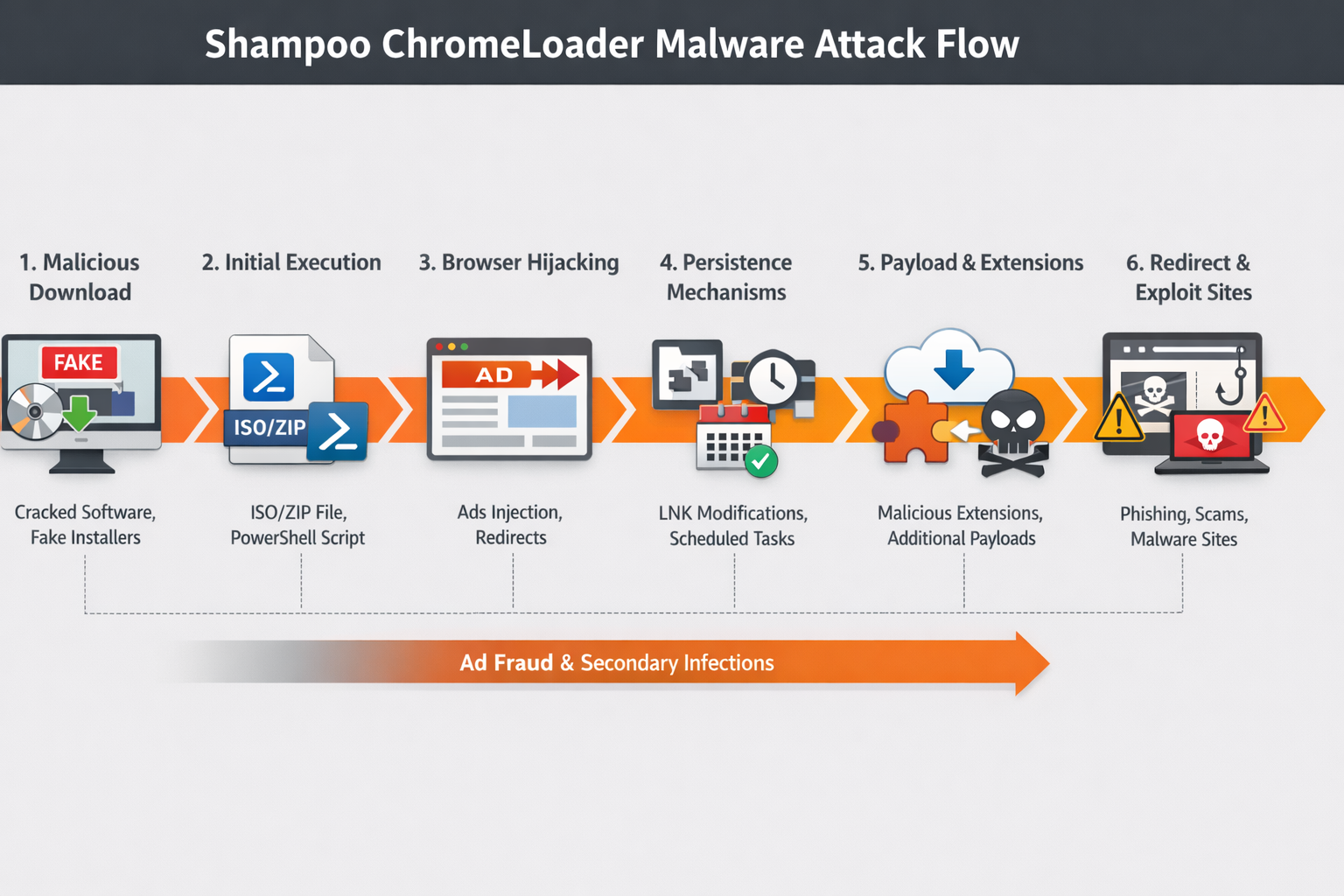
Introduction Of Shampoo ChromeLoader Malware
Shampoo ChromeLoader Malware Is A Nasty Application. It Has Been Developed By The Cyber Criminal For Own Goal. However, Shampoo ChromeLoader Malware Has Been Facilitated With ChromeLoader Extension Called “Shampoo”. It Can Only Target The Chrome Web Browser, Because Many Of The Web Site Users Should Run Chrome Web Browser.
Shampoo ChromeLoader Malware Can Take The Help Of Deceptive Advertisement As Well As Convince You Through Lucrative Ads And Compel To Install Vicious Extension. Shampoo ChromeLoader Malware May Collect The Sensitive Information From The Web Browser Such As Personal Information Including IP Address, Credit Card, Debit Card, Social Security Number, History Details, And Cookies Data.

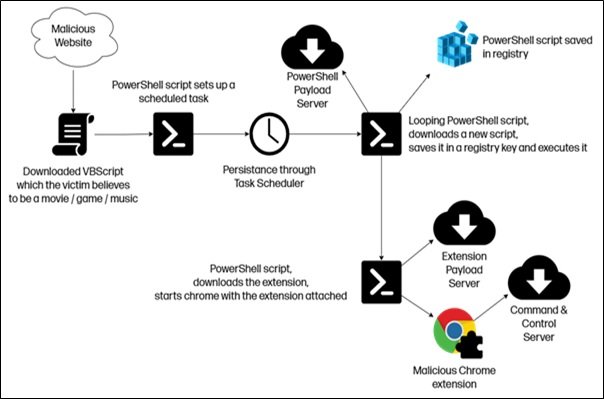
Shampoo Spreads Through Malicious Websites That Promise Free, Pirated Content (games, Movies, Music).
Fake Downloads: Users Download What They Think Is A Legitimate File, But Instead Receive A VBScript File.
PowerShell Execution: Running This Script Triggers A PowerShell Command That Sets Up A Scheduled Task To Ensure The Malware Persists Even After A Reboot.
Persistence: The Malware Operates On A Loop, Executing A Script Every 50 Minutes To Maintain Its Presence.
Malicious Extension: The Script Installs A Malicious Chrome Extension (identified As "Shampoo").
Search Redirection: Searches On Yahoo, Google, And Bing Are Redirected To Malicious Sites (e.g., Ythingamgladt[dot]com).
Ad Injection: The Extension Injects Ads Into The Browser To Generate Revenue For Attackers.
Data Theft: It Collects Personal Information, Including Search Queries.
Blocks Removals: It Prevents Users From Accessing The Chrome Extensions Screen (chrome://extensions) By Redirecting Them To Settings, Making Manual Removal Difficult.
Due To Its Persistence, Removal Requires Quick, Manual Steps:
Remove Scheduled Tasks: Open Task Scheduler And Delete Any Tasks Prefixed With "chrome_" (e.g., Chrome_center).
Delete Registry Keys: Delete The Registry Key HKCU:\Software\Mirage Utilities\.
Delete Malicious Files: Remove Files From %LOCALAPPDATA% Related To Chrome_test, Chrome_display, Or Chrome_performance.
Restart & Scan: Reboot The Computer And Run A Scan With A Reputable, Up-to-date Antivirus Program.
Avoid Pirated Software: Do Not Download Pirated Games, Music, Or Software, As These Are Primary Sources For This Malware.
Check Extensions: Regularly Review Installed Browser Extensions.
Update Browser: Keep Google Chrome Updated To The Latest Version.
Use Security Software: Employ Robust Anti-malware Solutions.
Shampoo ChromeLoader Is A Malicious Software Campaign Associated With The ChromeLoader Malware Family, Which Is Primarily Known For Browser Hijacking, Intrusive Advertising, And Redirection-based Monetization. ChromeLoader Initially Emerged As A Browser-focused Threat That Abuses Google Chrome Extensions And Windows Shortcut Manipulation To Persist On Infected Systems. The “Shampoo” Variant Refers To A Specific Campaign Or Distribution Wave That Used Deceptive Marketing Themes, Fake Software Installers, And Search Engine Poisoning Techniques To Lure Users Into Downloading Malicious Files.
The Main Objective Of Shampoo ChromeLoader Is Not Direct Data Theft, But Aggressive Ad Fraud And Traffic Redirection. Once Installed, The Malware Alters Browser Behaviour To Inject Unwanted Advertisements, Redirect Users To Sponsored Or Malicious Websites, And Manipulate Search Results. These Activities Generate Revenue For Threat Actors Through Affiliate Marketing Schemes, Pay-per-click Fraud, And Potentially The Distribution Of Additional Malware.
Infection Typically Begins When Users Download Cracked Software, Fake Updates, Media Players, Or Game Mods Promoted Through Misleading Advertisements And Malicious Websites. These Downloads Often Contain ISO Or ZIP Files That Drop Malicious Scripts And Executable. A Common Persistence Technique Used By ChromeLoader Is The Modification Of Windows Shortcut (.LNK) Files. The Malware Appends Hidden PowerShell Commands To Browser Shortcuts So That Every Time The User Opens Chrome Or Another Browser, The Malicious Script Executes In The Background.
Another Notable Technique Used By Shampoo ChromeLoader Is Abusing Scheduled Tasks And Registry Entries To Maintain Long-term Persistence. The Malware May Create Scheduled Jobs That Periodically Re-infect The Browser, Reinstall Malicious Extensions, Or Reconfigure System Settings If The User Attempts Manual Removal. It Also Downloads Browser Extensions From Attacker-controlled Servers, Bypassing Official Browser Stores And Security Warnings.
Although ChromeLoader Is Primarily Categorized As Adware Or A Potentially Unwanted Program (PUP), The Shampoo Campaign Poses Serious Security Risks. Redirected Websites May Host Phishing Pages, Scam Pop-ups, Fake Antivirus Alerts, Or Exploit Kits That Can Deliver More Dangerous Malware Such As Trojans, Ransomware, Or Information Stealers. Therefore, ChromeLoader Often Acts As A Gateway Infection That Weakens System Security And Exposes Users To Further Compromise.
From A Technical Standpoint, Shampoo ChromeLoader Uses Obfuscated PowerShell Scripts, Encoded Commands, And Fileless Execution Techniques To Evade Traditional Antivirus Detection. It Frequently Updates Its Payload And Distribution Domains, Making Signature-based Detection Less Effective. Some Variants Also Disable Browser Security Features, Modify Proxy Settings, And Manipulate DNS Configurations To Control Web Traffic.
Mitigation Of Shampoo ChromeLoader Requires Both User Awareness And Strong Endpoint Protection. Users Should Avoid Downloading Pirated Software, Fake Updates, Or Unknown Browser Extensions. Enterprises Should Implement Web Filtering, Application Control, And Behavioural Monitoring To Detect Abnormal Shortcut Modifications And Unauthorized Scheduled Tasks. Regular Patching And Browser Security Policies Can Further Reduce Exposure.
In Conclusion, Shampoo ChromeLoader Represents A Modern Evolution Of Browser-based Malware That Prioritizes Stealthy Persistence And Monetization Through Web Traffic Abuse. While It May Not Directly Steal Credentials Or Encrypt Files, Its Ability To Manipulate Browsers, Expose Users To Secondary Infections, And Resist Removal Makes It A Significant Cyber Security Threat. Its Continued Appearance In Multiple Campaigns Highlights The Importance Of Proactive Security Practices And Continuous Monitoring Of Endpoint Behaviour.
Step 1: Boot Into Safe Mode
Restart Your PC And Press F8 (or Shift + F8 For Some Systems) Before Windows Loads.
Choose Safe Mode With Networking.
Safe Mode Prevents Most Malware From Loading.
Press Win + R, Type appwiz.cpl, And Press Enter.
Sort By Install Date And Uninstall Unknown Or Recently Added Programs.
Use A Trusted Anti-malware Tool:
Malwarebytes – https://www.malwarebytes.com
Screenshot Of Malwarebytes - Visit Links
Microsoft Defender – Built Into Windows 10/11
HitmanPro, ESET Online Scanner, Or Kaspersky Virus Removal Tool
ZoneAlarm Pro Antivirus + Firewall NextGen
VIPRE Antivirus - US And Others Countries, | India
Run A Full Scan And Delete/quarantine Detected Threats.
Win + R, Type temp → Delete All Files.Press Win + R, Type %temp% → Delete All Files.
Use Disk Cleanup: cleanmgr In The Run Dialog.
Go To: C:\Windows\System32\drivers\etc
Open hosts File With Notepad.
Replace With Default Content:
Press Ctrl + Shift + Esc → Open Task Manager
Go To Startup Tab
Disable Any Suspicious Entries.
Open Command Prompt As Administrator.
Run These Commands:
netsh Winsock Reset

netsh Int Ip Reset

ipconfig /flushdns
Unwanted Homepage Or Search Engine
Pop-ups Or Redirects
Unknown Extensions Installed
For Chrome:
Go To: chrome://extensions/
Remove Anything Unfamiliar
For Firefox:
Go To: about:addons → Extensions
Remove Suspicious Add-ons
For Edge:
Go To: edge://extensions/
Uninstall Unknown Add-ons
Chrome:
Go To chrome://settings/reset → "Restore Settings To Their Original Defaults"
Firefox:
Go To about:support → "Refresh Firefox"
Edge:
Go To edge://settings/resetProfileSettings → "Reset Settings"
All Browsers:
Use Ctrl + Shift + Del → Select All Time
Clear Cookies, Cached Files, And Site Data
Make Sure They Are Not Hijacked.
Chrome: chrome://settings/search
Firefox: about:preferences#search
Edge: edge://settings/search
Chrome: chrome://settings/cleanup
Use Malwarebytes Browser Guard For Real-time Browser Protection.
Always Download Software From Trusted Sources.
Keep Windows, Browsers, And Antivirus Updated.
Avoid Clicking Suspicious Links Or Ads.
Use ad Blockers And reputable Antivirus Software.
Backup Your Files Regularly.
To Remove Malware From Your Windows PC, Start By Booting Into Safe Mode, Uninstalling Suspicious Programs, And Scanning With Trusted Anti-malware Tools Like Malwarebytes. Clear Temporary Files, Reset Your Network Settings, And Check Startup Apps For Anything Unusual.
For web Browsers, Remove Unwanted Extensions, Reset Browser Settings, Clear Cache And Cookies, And Ensure Your Homepage And Search Engine Haven’t Been Hijacked. Use Cleanup Tools Like Chrome Cleanup Or Browser Guard For Added Protection.
?? Prevention Tips: Keep Software Updated, Avoid Suspicious Downloads, And Use Antivirus Protection Plus Browser Ad Blockers. Regular Backups Are Essential.
Why It Matters: Not All VPNs Offer Malware Protection.
What To Look For: Providers With built-in Malware/ad/tracker Blockers (e.g., NordVPN’s Threat Protection, ProtonVPN’s NetShield).
Purpose: Prevents Data Leaks If Your VPN Connection Drops.
Benefit: Ensures Your Real IP And Browsing Activity Aren’t Exposed To Malware-distributing Websites.
Why It Matters: DNS Leaks Can Expose Your Online Activity To Attackers.
Solution: Enable DNS Leak Protection In Your VPN Settings Or Use A Secure DNS Like Cloudflare (1.1.1.1).
Risk: Free VPNs Often Contain Malware, Sell User Data, Or Lack Security Features.
Better Option: Use Reputable Paid VPNs That Offer security Audits And Transparent Privacy Policies.
Some VPNs Block Known Phishing And Malicious Sites.
Example: Surfshark’s CleanWeb, CyberGhost’s Content Blocker.
Reason: Security Patches Fix Known Vulnerabilities.
Tip: Enable Auto-updates Or Check For Updates Weekly.
Scope: Malware Can Enter Through Phones, Tablets, Or IoT Devices.
Solution: Install VPN Apps On Every Internet-connected Device.
Fact: VPNs Do Not Remove Or Detect Malware On Your System.
Complement It With:
Antivirus Software
Firewall
Browser Extensions For Script Blocking
VPN Encrypts Traffic But Can’t Stop Malware From Executing If You Download Infected Files.
Split Tunneling Allows Certain Apps/sites To Bypass VPN.
Tip: Never Exclude Browsers, Email Clients, Or Download Managers From VPN Tunneling.
A VPN (Virtual Private Network) Enhances Your Online Privacy By Encrypting Your Internet Traffic And Masking Your IP Address. It Protects Your Data On Public Wi-Fi, Hides Browsing Activity From Hackers And ISPs, And Helps Bypass Geo-restrictions. VPNs Also Add A Layer Of Defense Against Malware By Blocking Malicious Websites And Trackers When Using Advanced Features. However, A VPN Does Not Remove Existing Malware Or Act As Antivirus Software. For Full Protection, Combine VPN Use With Antivirus Tools, Regular Software Updates, And Cautious Browsing Habits. Always Choose A Reputable VPN Provider With Strong Security And Privacy Policies.
Shampoo ChromeLoader Malware, Remove Shampoo ChromeLoader Malware, Uninstall Shampoo ChromeLoader Malware, Get Rid Of Shampoo ChromeLoader Malware, Sh