Blog's Page
 Blog's Page
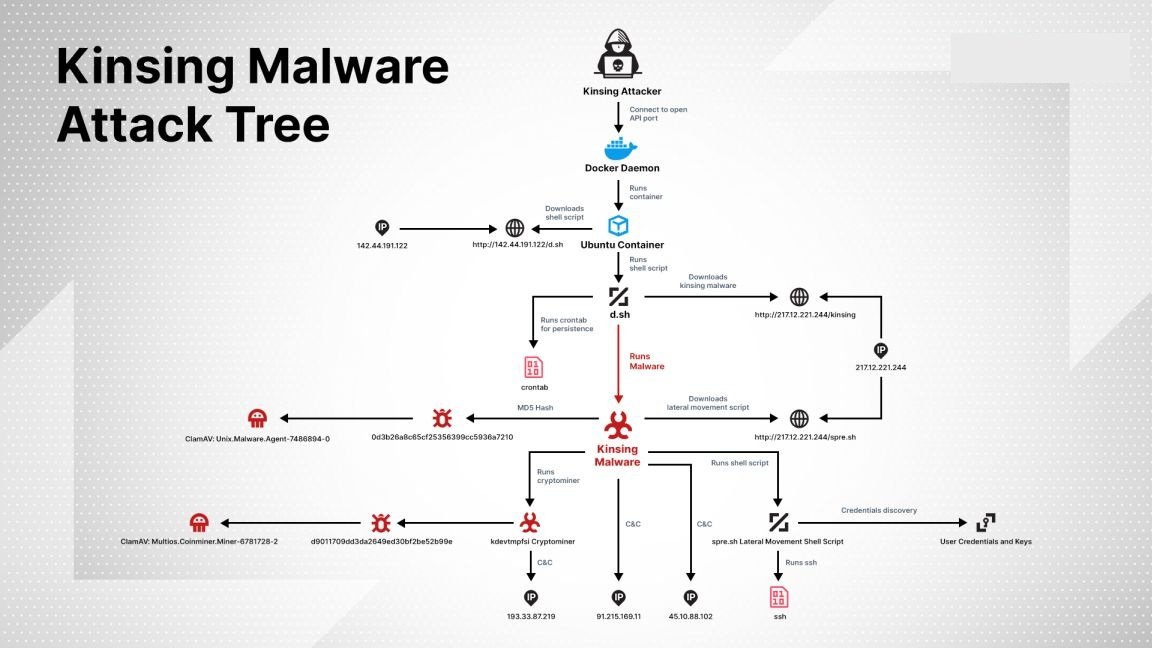
Kinsing Worm Is A Sophisticated Linux-based Malware And Cryptojacking Threat That Primarily Targets Vulnerable Cloud Environments, Containerized Applications, Web Servers, And Exposed Services. Unlike Traditional Ransomware That Encrypts Files And Demands Payment, Kinsing Focuses On Compromising Systems To Gain Unauthorized Access, Deploy Cryptocurrency Mining Software, And Spread Laterally Across Networks. Since Its Discovery, Kinsing Has Become One Of The Most Active Malware Families Targeting Misconfigured Servers And Cloud Infrastructure Worldwide.
The Malware Is Commonly Associated With Attacks Against Docker Environments, Kubernetes Clusters, Linux Servers, Web Applications, And Publicly Exposed Services. Cybercriminals Use Kinsing To Exploit Security Weaknesses, Consume System Resources, Generate Cryptocurrency Profits, And Maintain Persistent Access To Compromised Systems.
Kinsing Typically Gains Access To Systems Through Vulnerable Web Applications, Exposed Docker APIs, Weak Credentials, Outdated Software, Or Unpatched Security Flaws. Once The Malware Successfully Compromises A Target, It Downloads Additional Malicious Components And Executes A Series Of Commands To Establish Persistence And Evade Detection.
The Worm Then Installs A Cryptocurrency Miner, Usually Designed To Mine Privacy-focused Cryptocurrencies Such As Monero. To Maximize Mining Efficiency, Kinsing Often Terminates Competing Malware, Disables Security Tools, Removes Rival Cryptocurrency Miners, And Modifies System Settings.
One Of The Key Characteristics Of Kinsing Is Its Self-propagation Capability. The Malware Continuously Scans For Additional Vulnerable Hosts And Attempts To Spread Across Cloud Workloads, Containers, And Servers. This Worm-like Behavior Allows It To Infect Large Numbers Of Systems Within A Relatively Short Period.
Unlike Ransomware Families That Encrypt Data And Append New Extensions To Victim Files, Kinsing Worm Does not Typically Encrypt Files Or Rename Them With Custom Extensions. Its Primary Objective Is Resource Hijacking And Malware Propagation Rather Than Data Encryption.
None
Since Kinsing Is A Cryptojacking Worm, Infected Files Generally Retain Their Original Names And Extensions. Security Analysts Therefore Rely On Indicators Such As Malicious Processes, Unauthorized Scheduled Tasks, Suspicious Shell Scripts, And Cryptocurrency Mining Activity Rather Than Modified File Extensions.
Although Kinsing Does Not Target Files For Encryption, It Creates, Modifies, Or Downloads Various Malicious Files On Compromised Systems.
Commonly Observed Files Include:
kdevtmpfsi
kinsing
init.sh
cron.sh
setup.sh
Cryptocurrency Miners
Loader Binaries
Persistence Tools
Remote Access Components
Modified Cron Configurations
Startup Scripts
System Service Files
Scheduled Task Entries
Downloaded Payloads
Cached Scripts
Process Execution Logs
Command-and-control Communication Artifacts
Docker Containers
Container Images
Kubernetes Workloads
Cloud-hosted Application Resources
The Malware Often Removes Traces Of Competing Malware And Modifies Existing System Files To Maintain Persistence And Avoid Detection.
Kinsing Worm Is Not Primarily Designed To Attack Web Browsers Or Steal Browser-based Credentials. However, Infected Systems May Contain Browsers Used By Administrators, Developers, Or Server Operators, Potentially Exposing Sensitive Information If Additional Malware Components Are Deployed.
Browsers Commonly Present On Affected Systems Include:
Google Chrome
Mozilla Firefox
Microsoft Edge
Chromium
Opera
Brave Browser
Although Browser Credential Theft Is Not The Primary Objective Of Kinsing, Compromised Systems May Become Vulnerable To Secondary Malware Infections That Target Stored Passwords, Cookies, Authentication Tokens, And Browsing Data.
Kinsing Predominantly Targets Linux-based Operating Systems And Cloud-native Environments.
Commonly Affected Platforms Include:
Ubuntu
Debian
CentOS
Red Hat Enterprise Linux (RHEL)
Rocky Linux
AlmaLinux
Fedora
Oracle Linux
SUSE Linux Enterprise
Docker
Kubernetes
OpenShift
Containerd Environments
Amazon Web Services (AWS)
Microsoft Azure
Google Cloud Platform (GCP)
Alibaba Cloud
DigitalOcean
Linode
Vultr
Although Kinsing Mainly Targets Linux Systems, Cloud Infrastructure Components Running Containerized Workloads May Also Be Indirectly Affected Regardless Of The Underlying Cloud Provider.
Organizations Can Identify Potential Kinsing Infections Through Several Observable Indicators:
Unusually High CPU Utilization.
Excessive Memory Consumption.
Unexpected Cryptocurrency Mining Processes.
Presence Of Suspicious Files Such As Kdevtmpfsi Or Kinsing.
Unauthorized Cron Jobs Or Scheduled Tasks.
Connections To Known Mining Pools.
Modified Docker Configurations.
Unexpected Container Deployments.
Security Tool Termination Attempts.
Outbound Traffic To Suspicious Command-and-control Servers.
Continuous Monitoring Of Server Performance And System Logs Can Help Detect Infections Before Significant Damage Occurs.
A Successful Kinsing Infection Can Have Serious Consequences For Organizations And Cloud Operators. Since Cryptocurrency Mining Consumes Significant Computational Resources, Infected Systems May Experience Degraded Performance, Increased Operational Costs, And Reduced Service Availability.
Potential Impacts Include:
Increased Cloud Infrastructure Expenses.
Reduced Server Performance.
Application Slowdowns.
Service Outages.
Resource Exhaustion.
Unauthorized Access To Workloads.
Lateral Movement Across Environments.
Exposure Of Sensitive Business Data.
Compromised Container Ecosystems.
In Large Cloud Deployments, A Single Vulnerable Container Can Potentially Lead To Widespread Compromise If Proper Segmentation And Security Controls Are Not In Place.
Protecting Systems Against Kinsing Worm Requires A Combination Of Secure Configuration Practices, Vulnerability Management, And Continuous Monitoring.
Recommended Security Measures Include:
Regularly Patch Operating Systems And Applications.
Secure Exposed Docker APIs.
Disable Unnecessary Internet-facing Services.
Enforce Strong Authentication Policies.
Use Network Segmentation.
Monitor Cloud Workloads Continuously.
Implement Endpoint Detection And Response Solutions.
Restrict Privileged Container Execution.
Scan Container Images For Vulnerabilities.
Review Cron Jobs And Startup Services Regularly.
Enable Logging And Security Monitoring.
Organizations Should Also Adopt Container Security Best Practices And Perform Routine Audits Of Cloud Infrastructure To Identify Misconfigurations Before Attackers Can Exploit Them.
Kinsing Worm Is A Highly Active Linux-focused Malware Threat That Combines Cryptojacking, Persistence Mechanisms, And Worm-like Propagation Capabilities To Compromise Cloud Environments And Servers. Unlike Ransomware, It Does Not Append File Extensions Or Encrypt Data. Instead, It Hijacks System Resources For Cryptocurrency Mining While Spreading To Additional Vulnerable Systems.
Its Ability To Exploit Misconfigured Cloud Services, Docker Environments, And Linux Servers Makes It A Significant Threat To Organizations Operating Modern Infrastructure. By Implementing Strong Security Controls, Maintaining Timely Patch Management, And Continuously Monitoring Systems, Organizations Can Significantly Reduce The Risk Posed By Kinsing Worm And Similar Cloud-targeting Malware.
Step 1: Boot Into Safe Mode
Restart Your PC And Press F8 (or Shift + F8 For Some Systems) Before Windows Loads.
Choose Safe Mode With Networking.
Safe Mode Prevents Most Malware From Loading.
Press Win + R, Type appwiz.cpl, And Press Enter.
Sort By Install Date And Uninstall Unknown Or Recently Added Programs.
Use A Trusted Anti-malware Tool:
Malwarebytes – https://www.malwarebytes.com
Screenshot Of Malwarebytes - Visit Links
Microsoft Defender – Built Into Windows 10/11
HitmanPro, ESET Online Scanner, Or Kaspersky Virus Removal Tool
ZoneAlarm Pro Antivirus + Firewall NextGen
VIPRE Antivirus - US And Others Countries, | India
Run A Full Scan And Delete/quarantine Detected Threats.
Win + R, Type temp → Delete All Files.Press Win + R, Type %temp% → Delete All Files.
Use Disk Cleanup: cleanmgr In The Run Dialog.
Go To: C:\Windows\System32\drivers\etc
Open hosts File With Notepad.
Replace With Default Content:
Press Ctrl + Shift + Esc → Open Task Manager
Go To Startup Tab
Disable Any Suspicious Entries.
Open Command Prompt As Administrator.
Run These Commands:
netsh Winsock Reset

netsh Int Ip Reset

ipconfig /flushdns
Unwanted Homepage Or Search Engine
Pop-ups Or Redirects
Unknown Extensions Installed
For Chrome:
Go To: chrome://extensions/
Remove Anything Unfamiliar
For Firefox:
Go To: about:addons → Extensions
Remove Suspicious Add-ons
For Edge:
Go To: edge://extensions/
Uninstall Unknown Add-ons
Chrome:
Go To chrome://settings/reset → "Restore Settings To Their Original Defaults"
Firefox:
Go To about:support → "Refresh Firefox"
Edge:
Go To edge://settings/resetProfileSettings → "Reset Settings"
All Browsers:
Use Ctrl + Shift + Del → Select All Time
Clear Cookies, Cached Files, And Site Data
Make Sure They Are Not Hijacked.
Chrome: chrome://settings/search
Firefox: about:preferences#search
Edge: edge://settings/search
Chrome: chrome://settings/cleanup
Use Malwarebytes Browser Guard For Real-time Browser Protection.
Always Download Software From Trusted Sources.
Keep Windows, Browsers, And Antivirus Updated.
Avoid Clicking Suspicious Links Or Ads.
Use ad Blockers And reputable Antivirus Software.
Backup Your Files Regularly.
To Remove Malware From Your Windows PC, Start By Booting Into Safe Mode, Uninstalling Suspicious Programs, And Scanning With Trusted Anti-malware Tools Like Malwarebytes. Clear Temporary Files, Reset Your Network Settings, And Check Startup Apps For Anything Unusual.
For web Browsers, Remove Unwanted Extensions, Reset Browser Settings, Clear Cache And Cookies, And Ensure Your Homepage And Search Engine Haven’t Been Hijacked. Use Cleanup Tools Like Chrome Cleanup Or Browser Guard For Added Protection.
?? Prevention Tips: Keep Software Updated, Avoid Suspicious Downloads, And Use Antivirus Protection Plus Browser Ad Blockers. Regular Backups Are Essential.
Why It Matters: Not All VPNs Offer Malware Protection.
What To Look For: Providers With built-in Malware/ad/tracker Blockers (e.g., NordVPN’s Threat Protection, ProtonVPN’s NetShield).
Purpose: Prevents Data Leaks If Your VPN Connection Drops.
Benefit: Ensures Your Real IP And Browsing Activity Aren’t Exposed To Malware-distributing Websites.
Why It Matters: DNS Leaks Can Expose Your Online Activity To Attackers.
Solution: Enable DNS Leak Protection In Your VPN Settings Or Use A Secure DNS Like Cloudflare (1.1.1.1).
Risk: Free VPNs Often Contain Malware, Sell User Data, Or Lack Security Features.
Better Option: Use Reputable Paid VPNs That Offer security Audits And Transparent Privacy Policies.
Some VPNs Block Known Phishing And Malicious Sites.
Example: Surfshark’s CleanWeb, CyberGhost’s Content Blocker.
Reason: Security Patches Fix Known Vulnerabilities.
Tip: Enable Auto-updates Or Check For Updates Weekly.
Scope: Malware Can Enter Through Phones, Tablets, Or IoT Devices.
Solution: Install VPN Apps On Every Internet-connected Device.
Fact: VPNs Do Not Remove Or Detect Malware On Your System.
Complement It With:
Antivirus Software
Firewall
Browser Extensions For Script Blocking
VPN Encrypts Traffic But Can’t Stop Malware From Executing If You Download Infected Files.
Split Tunneling Allows Certain Apps/sites To Bypass VPN.
Tip: Never Exclude Browsers, Email Clients, Or Download Managers From VPN Tunneling.
A VPN (Virtual Private Network) Enhances Your Online Privacy By Encrypting Your Internet Traffic And Masking Your IP Address. It Protects Your Data On Public Wi-Fi, Hides Browsing Activity From Hackers And ISPs, And Helps Bypass Geo-restrictions. VPNs Also Add A Layer Of Defense Against Malware By Blocking Malicious Websites And Trackers When Using Advanced Features. However, A VPN Does Not Remove Existing Malware Or Act As Antivirus Software. For Full Protection, Combine VPN Use With Antivirus Tools, Regular Software Updates, And Cautious Browsing Habits. Always Choose A Reputable VPN Provider With Strong Security And Privacy Policies.
Threat Type, Symptoms, Distribution Methods, IOC, MITRE ATT&CK Mapping, And Removal Instructions.