Blog's Page
 Blog's Page
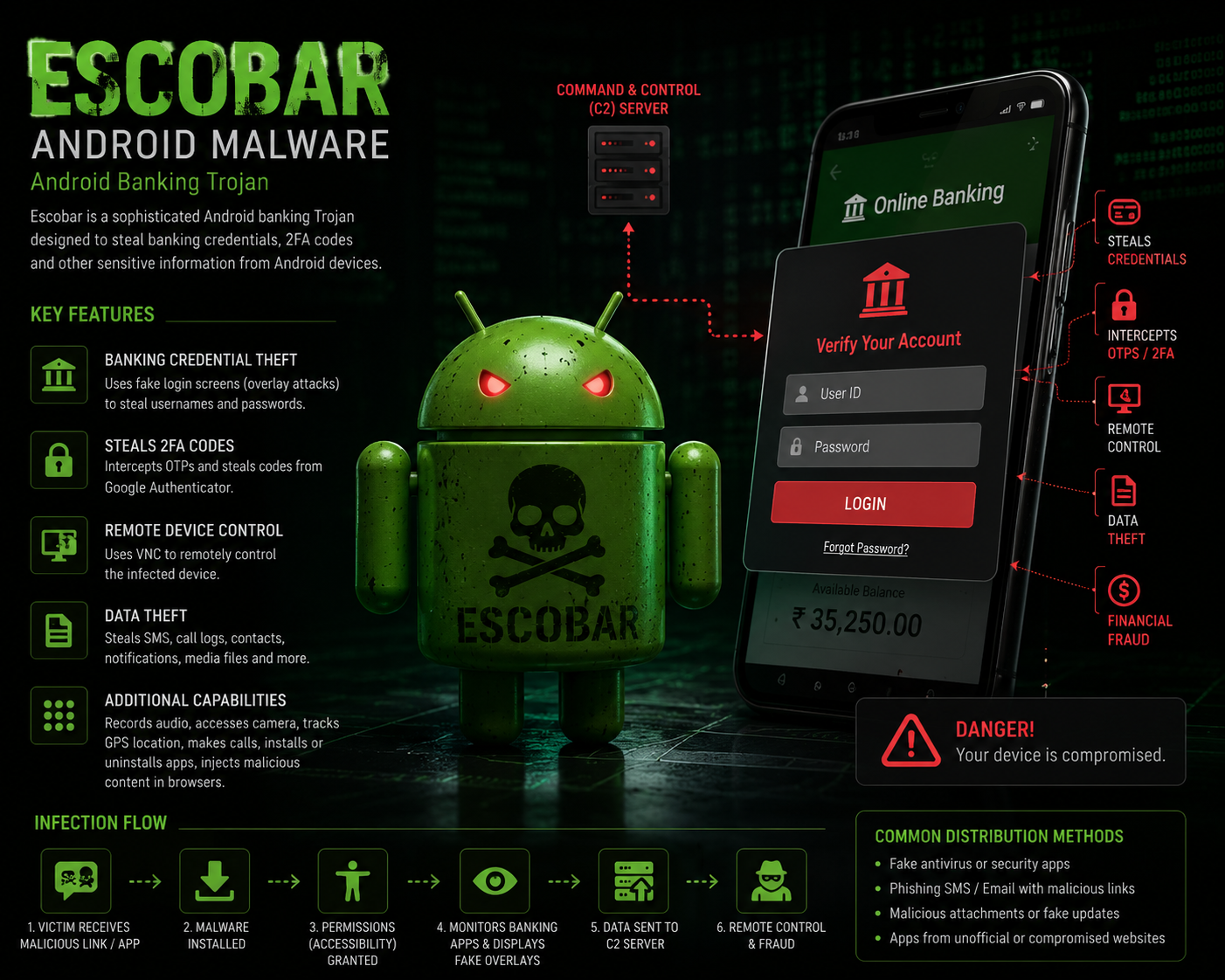
Escobar Android Malware Is A Sophisticated Android Banking Trojan That Was Publicly Identified In March 2022. It Is Believed To Be A Newer Variant Of The AbereBot Malware Family And Is Designed Primarily To Steal Banking Credentials, Authentication Codes, And Other Sensitive Information From Android Devices.
Banking Credential Theft: Uses Fake Login Screens (overlay Attacks) To Capture Usernames And Passwords For Banking And Financial Apps.
Steals Two-factor Authentication (2FA) Codes: Can Intercept One-time Passwords (OTPs) And Even Steal Codes Generated By Google Authenticator.
Remote Device Control: Uses A Virtual Network Computing (VNC) Module, Allowing Attackers To Remotely Control The Infected Device.
Data Theft: Collects SMS Messages, Call Logs, Contacts, Notifications, Media Files, And Stored Credentials.
Additional Capabilities:
Records Audio Through The Microphone.
Accesses The Camera.
Tracks The Device's GPS Location.
Makes Phone Calls.
Installs Or Uninstalls Applications.
Injects Malicious Content Into Web Browsers.
Escobar Is Commonly Distributed Through:
Fake Antivirus Or Security Applications (often Impersonating Trusted Brands Such As McAfee).
Phishing SMS Messages Containing Malicious Links.
Malicious Email Attachments Or Links.
Fake Software Updates.
Apps Downloaded From Unofficial Or Compromised Websites.
The Victim Installs A Malicious Application.
The App Requests Numerous Dangerous Permissions, Especially Accessibility Services.
The Malware Monitors Banking Applications.
When A Targeted Banking App Is Opened, Escobar Displays A Fake Login Page Over The Legitimate One.
The Entered Credentials And Authentication Codes Are Sent To The Attacker's Command-and-control (C2) Server.
Attackers May Remotely Control The Device To Perform Fraudulent Banking Transactions.
To Protect Against Escobar Malware:
Install Apps Only From Trusted Sources Such As The Google Play Store.
Keep Android And All Apps Updated.
Review App Permissions Before Granting Access.
Avoid Clicking Suspicious Links In SMS Or Emails.
Enable Google Play Protect And Use Reputable Mobile Security Software.
Verify That Banking Apps Are Official Versions Published By The Legitimate Developer.
Use Strong Authentication Methods And Monitor Banking Accounts Regularly.
Escobar Is A Highly Capable Android Banking Trojan That Combines Credential Theft, Remote Device Control, And 2FA Bypass Techniques To Compromise Users' Financial Accounts. Its Ability To Steal Authentication Codes And Remotely Operate Infected Devices Makes It Significantly More Dangerous Than Traditional Android Banking Malware.
Step 1: Boot Into Safe Mode
Restart Your PC And Press F8 (or Shift + F8 For Some Systems) Before Windows Loads.
Choose Safe Mode With Networking.
Safe Mode Prevents Most Malware From Loading.
Press Win + R, Type appwiz.cpl, And Press Enter.
Sort By Install Date And Uninstall Unknown Or Recently Added Programs.
Use A Trusted Anti-malware Tool:
Malwarebytes – https://www.malwarebytes.com
Screenshot Of Malwarebytes - Visit Links
Microsoft Defender – Built Into Windows 10/11
HitmanPro, ESET Online Scanner, Or Kaspersky Virus Removal Tool
ZoneAlarm Pro Antivirus + Firewall NextGen
VIPRE Antivirus - US And Others Countries, | India
Run A Full Scan And Delete/quarantine Detected Threats.
Win + R, Type temp → Delete All Files.Press Win + R, Type %temp% → Delete All Files.
Use Disk Cleanup: cleanmgr In The Run Dialog.
Go To: C:\Windows\System32\drivers\etc
Open hosts File With Notepad.
Replace With Default Content:
Press Ctrl + Shift + Esc → Open Task Manager
Go To Startup Tab
Disable Any Suspicious Entries.
Open Command Prompt As Administrator.
Run These Commands:
netsh Winsock Reset

netsh Int Ip Reset

ipconfig /flushdns
Unwanted Homepage Or Search Engine
Pop-ups Or Redirects
Unknown Extensions Installed
For Chrome:
Go To: chrome://extensions/
Remove Anything Unfamiliar
For Firefox:
Go To: about:addons → Extensions
Remove Suspicious Add-ons
For Edge:
Go To: edge://extensions/
Uninstall Unknown Add-ons
Chrome:
Go To chrome://settings/reset → "Restore Settings To Their Original Defaults"
Firefox:
Go To about:support → "Refresh Firefox"
Edge:
Go To edge://settings/resetProfileSettings → "Reset Settings"
All Browsers:
Use Ctrl + Shift + Del → Select All Time
Clear Cookies, Cached Files, And Site Data
Make Sure They Are Not Hijacked.
Chrome: chrome://settings/search
Firefox: about:preferences#search
Edge: edge://settings/search
Chrome: chrome://settings/cleanup
Use Malwarebytes Browser Guard For Real-time Browser Protection.
Always Download Software From Trusted Sources.
Keep Windows, Browsers, And Antivirus Updated.
Avoid Clicking Suspicious Links Or Ads.
Use ad Blockers And reputable Antivirus Software.
Backup Your Files Regularly.
To Remove Malware From Your Windows PC, Start By Booting Into Safe Mode, Uninstalling Suspicious Programs, And Scanning With Trusted Anti-malware Tools Like Malwarebytes. Clear Temporary Files, Reset Your Network Settings, And Check Startup Apps For Anything Unusual.
For web Browsers, Remove Unwanted Extensions, Reset Browser Settings, Clear Cache And Cookies, And Ensure Your Homepage And Search Engine Haven’t Been Hijacked. Use Cleanup Tools Like Chrome Cleanup Or Browser Guard For Added Protection.
?? Prevention Tips: Keep Software Updated, Avoid Suspicious Downloads, And Use Antivirus Protection Plus Browser Ad Blockers. Regular Backups Are Essential.
Why It Matters: Not All VPNs Offer Malware Protection.
What To Look For: Providers With built-in Malware/ad/tracker Blockers (e.g., NordVPN’s Threat Protection, ProtonVPN’s NetShield).
Purpose: Prevents Data Leaks If Your VPN Connection Drops.
Benefit: Ensures Your Real IP And Browsing Activity Aren’t Exposed To Malware-distributing Websites.
Why It Matters: DNS Leaks Can Expose Your Online Activity To Attackers.
Solution: Enable DNS Leak Protection In Your VPN Settings Or Use A Secure DNS Like Cloudflare (1.1.1.1).
Risk: Free VPNs Often Contain Malware, Sell User Data, Or Lack Security Features.
Better Option: Use Reputable Paid VPNs That Offer security Audits And Transparent Privacy Policies.
Some VPNs Block Known Phishing And Malicious Sites.
Example: Surfshark’s CleanWeb, CyberGhost’s Content Blocker.
Reason: Security Patches Fix Known Vulnerabilities.
Tip: Enable Auto-updates Or Check For Updates Weekly.
Scope: Malware Can Enter Through Phones, Tablets, Or IoT Devices.
Solution: Install VPN Apps On Every Internet-connected Device.
Fact: VPNs Do Not Remove Or Detect Malware On Your System.
Complement It With:
Antivirus Software
Firewall
Browser Extensions For Script Blocking
VPN Encrypts Traffic But Can’t Stop Malware From Executing If You Download Infected Files.
Split Tunneling Allows Certain Apps/sites To Bypass VPN.
Tip: Never Exclude Browsers, Email Clients, Or Download Managers From VPN Tunneling.
A VPN (Virtual Private Network) Enhances Your Online Privacy By Encrypting Your Internet Traffic And Masking Your IP Address. It Protects Your Data On Public Wi-Fi, Hides Browsing Activity From Hackers And ISPs, And Helps Bypass Geo-restrictions. VPNs Also Add A Layer Of Defense Against Malware By Blocking Malicious Websites And Trackers When Using Advanced Features. However, A VPN Does Not Remove Existing Malware Or Act As Antivirus Software. For Full Protection, Combine VPN Use With Antivirus Tools, Regular Software Updates, And Cautious Browsing Habits. Always Choose A Reputable VPN Provider With Strong Security And Privacy Policies.
Escobar Android Malware, Remove Escobar Android Malware, Delete Escobar Android Malware, Get Rid Of Escobar Android Malware, Escobar Android Malware R