Blog's Page
 Blog's Page
Security Researchers Have Identified DriveSurge, A Newly Discovered Malware Dropper Associated With A Large-scale Malicious Campaign That Abuses Legitimate Websites To Redirect Unsuspecting Users To Attacker-controlled Infrastructure. The Campaign Utilizes An Open-source Traffic Distribution System (TDS) Known As zTDS to Selectively Route Visitors Based On Predefined Targeting Criteria, Increasing The Effectiveness Of The Attack While Reducing Unnecessary Exposure.
Victims Who Are Redirected Are Presented With Deceptive ClickFix prompts Or Fraudulent Browser Update Notifications Designed To Convince Them To Execute Malicious Files. These Social Engineering Techniques Are Used To Deliver Malware Directly To Both Windows And macOS systems Without Relying On Software Vulnerability Exploitation.
DriveSurge Serves As An Initial-stage Malware Dropper, Enabling Attackers To Download And Install Additional Payloads After The Victim Executes The Disguised Installer. The Campaign Operates On A pay-per-install (PPI) model, In Which Cybercriminals Monetize Compromised Systems By Providing Other Threat Actors With Access To Newly Infected Devices.
By Combining Compromised Websites, Intelligent Traffic Redirection Through ZTDS, And Convincing Fake Update Lures, DriveSurge Creates A Scalable Malware Distribution Ecosystem That Supports Credential Theft, Remote Access, Information Stealing, And The Deployment Of Other Malicious Software.
Here's A Rewritten, More Original Version With Improved Flow And Technical Clarity:
DriveSurge Functions As An Advanced Social Engineering Platform That Exploits Users' Trust In Legitimate Websites Rather Than Relying On Direct Exploitation Of System Vulnerabilities. Instead Of Attacking Endpoints Outright, Threat Actors First Compromise Trusted Websites And Use Them As Entry Points To Redirect Visitors To Attacker-controlled Infrastructure.
The Attack Generally Follows A Two-stage Process. In The First Stage, Users Are Silently Redirected After Visiting A Compromised Website. In The Second Stage, Carefully Crafted Social Engineering Techniques Are Employed To Persuade Users To Voluntarily Execute Malicious Files Disguised As Legitimate Software Or Security-related Actions. The Primary Objective Is To Convince Victims To Unknowingly Install Malware On Their Own Systems.
Indicator Of Compromise:
URL:
hxxp://147[.]45[.]42[.]200/ce3cbfc887?force=1
hxxp://46[.]226[.]166[.]57/ce3cbfc887?force=1
Hashes:
7aa15de93cf85729ddf970e8d7897f69ece3ca29608f73e784a9ba40c9cea18d
8ecc7108cd679316bf5900e84f19b256dc399902cdede646493f502ac872cc1a
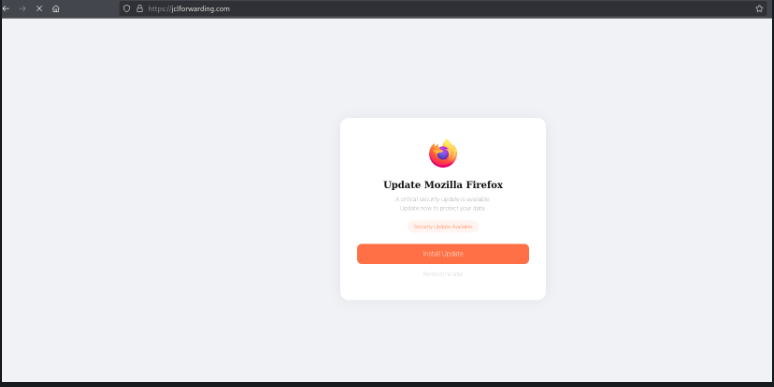
Fake Browser Update
One Of The Most Common Lures Used By DriveSurge Is A Counterfeit Browser Update Notification. After Being Redirected, The Victim Is Presented With A Realistic-looking Pop-up Claiming That Their Web Browser—such As Google Chrome, Mozilla Firefox, Microsoft Edge, Or Another Popular Application—is Outdated And Requires An Immediate Update. The Notification Closely Resembles An Official Update Prompt, Making It Appear Authentic And Trustworthy.
When The User Clicks The "Update" Button, No Legitimate Software Update Is Installed. Instead, A Malicious Executable Or Installer Is Downloaded To The System. If The Victim Runs The Downloaded File, DriveSurge Initiates The Malware Installation Process, Enabling Attackers To Deploy Additional Malicious Payloads, Establish Persistence, Steal Sensitive Information, Or Provide Remote Access For Subsequent Stages Of The Attack.
Here's A Rewritten And More Polished Version With Unique Wording:
Another Social Engineering Method Employed By DriveSurge Is The ClickFix Technique, Which Relies On Deceptive Error Messages To Manipulate Users Into Executing Malicious Commands. The Victim Is Presented With A Convincing Alert Claiming That The System Has Encountered A Technical Issue, Failed Verification, Or Requires A Manual Repair To Continue. The Message Provides Step-by-step Instructions That Urge The User To Copy And Execute A Command In PowerShell On Windows Or Terminal on MacOS.
The Command Appears To Be Part Of A Legitimate Troubleshooting Or Verification Process, But It Is Actually Crafted To Download And Execute Malicious Code From An Attacker-controlled Server. By Voluntarily Running The Command, The Victim Unintentionally Bypasses Many Traditional Security Protections, Granting The Attackers An Opportunity To Install Malware, Establish Persistence, Retrieve Additional Payloads, And Gain Unauthorized Access To The Compromised Device. This Technique Is Particularly Effective Because It Exploits User Trust And Interaction Rather Than Relying On Software Vulnerabilities.
Step 1: Boot Into Safe Mode
Restart Your PC And Press F8 (or Shift + F8 For Some Systems) Before Windows Loads.
Choose Safe Mode With Networking.
Safe Mode Prevents Most Malware From Loading.
Press Win + R, Type appwiz.cpl, And Press Enter.
Sort By Install Date And Uninstall Unknown Or Recently Added Programs.
Use A Trusted Anti-malware Tool:
Malwarebytes – https://www.malwarebytes.com
Screenshot Of Malwarebytes - Visit Links
Microsoft Defender – Built Into Windows 10/11
HitmanPro, ESET Online Scanner, Or Kaspersky Virus Removal Tool
ZoneAlarm Pro Antivirus + Firewall NextGen
VIPRE Antivirus - US And Others Countries, | India
Run A Full Scan And Delete/quarantine Detected Threats.
Win + R, Type temp → Delete All Files.Press Win + R, Type %temp% → Delete All Files.
Use Disk Cleanup: cleanmgr In The Run Dialog.
Go To: C:\Windows\System32\drivers\etc
Open hosts File With Notepad.
Replace With Default Content:
Press Ctrl + Shift + Esc → Open Task Manager
Go To Startup Tab
Disable Any Suspicious Entries.
Open Command Prompt As Administrator.
Run These Commands:
netsh Winsock Reset

netsh Int Ip Reset

ipconfig /flushdns
Unwanted Homepage Or Search Engine
Pop-ups Or Redirects
Unknown Extensions Installed
For Chrome:
Go To: chrome://extensions/
Remove Anything Unfamiliar
For Firefox:
Go To: about:addons → Extensions
Remove Suspicious Add-ons
For Edge:
Go To: edge://extensions/
Uninstall Unknown Add-ons
Chrome:
Go To chrome://settings/reset → "Restore Settings To Their Original Defaults"
Firefox:
Go To about:support → "Refresh Firefox"
Edge:
Go To edge://settings/resetProfileSettings → "Reset Settings"
All Browsers:
Use Ctrl + Shift + Del → Select All Time
Clear Cookies, Cached Files, And Site Data
Make Sure They Are Not Hijacked.
Chrome: chrome://settings/search
Firefox: about:preferences#search
Edge: edge://settings/search
Chrome: chrome://settings/cleanup
Use Malwarebytes Browser Guard For Real-time Browser Protection.
Always Download Software From Trusted Sources.
Keep Windows, Browsers, And Antivirus Updated.
Avoid Clicking Suspicious Links Or Ads.
Use ad Blockers And reputable Antivirus Software.
Backup Your Files Regularly.
To Remove Malware From Your Windows PC, Start By Booting Into Safe Mode, Uninstalling Suspicious Programs, And Scanning With Trusted Anti-malware Tools Like Malwarebytes. Clear Temporary Files, Reset Your Network Settings, And Check Startup Apps For Anything Unusual.
For web Browsers, Remove Unwanted Extensions, Reset Browser Settings, Clear Cache And Cookies, And Ensure Your Homepage And Search Engine Haven’t Been Hijacked. Use Cleanup Tools Like Chrome Cleanup Or Browser Guard For Added Protection.
?? Prevention Tips: Keep Software Updated, Avoid Suspicious Downloads, And Use Antivirus Protection Plus Browser Ad Blockers. Regular Backups Are Essential.
Why It Matters: Not All VPNs Offer Malware Protection.
What To Look For: Providers With built-in Malware/ad/tracker Blockers (e.g., NordVPN’s Threat Protection, ProtonVPN’s NetShield).
Purpose: Prevents Data Leaks If Your VPN Connection Drops.
Benefit: Ensures Your Real IP And Browsing Activity Aren’t Exposed To Malware-distributing Websites.
Why It Matters: DNS Leaks Can Expose Your Online Activity To Attackers.
Solution: Enable DNS Leak Protection In Your VPN Settings Or Use A Secure DNS Like Cloudflare (1.1.1.1).
Risk: Free VPNs Often Contain Malware, Sell User Data, Or Lack Security Features.
Better Option: Use Reputable Paid VPNs That Offer security Audits And Transparent Privacy Policies.
Some VPNs Block Known Phishing And Malicious Sites.
Example: Surfshark’s CleanWeb, CyberGhost’s Content Blocker.
Reason: Security Patches Fix Known Vulnerabilities.
Tip: Enable Auto-updates Or Check For Updates Weekly.
Scope: Malware Can Enter Through Phones, Tablets, Or IoT Devices.
Solution: Install VPN Apps On Every Internet-connected Device.
Fact: VPNs Do Not Remove Or Detect Malware On Your System.
Complement It With:
Antivirus Software
Firewall
Browser Extensions For Script Blocking
VPN Encrypts Traffic But Can’t Stop Malware From Executing If You Download Infected Files.
Split Tunneling Allows Certain Apps/sites To Bypass VPN.
Tip: Never Exclude Browsers, Email Clients, Or Download Managers From VPN Tunneling.
A VPN (Virtual Private Network) Enhances Your Online Privacy By Encrypting Your Internet Traffic And Masking Your IP Address. It Protects Your Data On Public Wi-Fi, Hides Browsing Activity From Hackers And ISPs, And Helps Bypass Geo-restrictions. VPNs Also Add A Layer Of Defense Against Malware By Blocking Malicious Websites And Trackers When Using Advanced Features. However, A VPN Does Not Remove Existing Malware Or Act As Antivirus Software. For Full Protection, Combine VPN Use With Antivirus Tools, Regular Software Updates, And Cautious Browsing Habits. Always Choose A Reputable VPN Provider With Strong Security And Privacy Policies.
DriveSurge Threat Actor, Remove DriveSurge Threat Actor, Fix The DriveSurge Threat Actor, Delete DriveSurge Threat Actor, Uninstall DriveSurge Threat