Blog's Page
 Blog's Page
Introduction
Autolycos Is A Sophisticated Android Malware Family That Primarily Focuses On financial Fraud Through Premium Service Subscriptions. It Was Discovered By Security Researchers In 2022 After Being Found In Multiple Applications Available On The Google Play Store. Unlike Many Traditional Android Malware Families That Steal Banking Credentials Or Personal Information, Autolycos Is Designed To Silently Subscribe Victims To Premium SMS And Paid Online Services Without Their Knowledge Or Consent. Its Ability To Evade Detection And Misuse Legitimate Android Permissions Makes It A Significant Threat To Mobile Device Users Worldwide.
Autolycos Demonstrates That Even Official Application Stores Can Sometimes Host Malicious Applications. Millions Of Users Unknowingly Downloaded Infected Apps Before They Were Removed, Making Autolycos One Of The Most Notable Android Malware Campaigns Targeting Financial Gain Through Subscription Fraud.
The Autolycos Malware Family Was Identified By Cybersecurity Researcher Maxime Ingrao In 2022. Researchers Discovered That Several Malicious Applications Containing Autolycos Had Accumulated Millions Of Downloads Through The Google Play Store Before Being Detected.
Unlike Ransomware Or Spyware, Autolycos Primarily Focuses On Generating Revenue For Cybercriminals Rather Than Stealing Sensitive Information Directly. It Automates Premium Subscription Processes By Exploiting SMS Services And Hidden Browser Requests.
The Primary Goals Of Autolycos Include:
Generating Illegal Revenue Through Premium SMS Subscriptions.
Enrolling Users Into Paid Mobile Services Without Authorization.
Evading Google Play Security Mechanisms.
Maintaining Persistence On Infected Devices.
Operating Silently Without Alerting The Victim.
Autolycos Spreads Mainly Through Malicious Android Applications Disguised As Useful Tools. Examples Include:
Photo Editing Apps
Camera Applications
Keyboard Apps
Utility Tools
Productivity Applications
QR Code Scanners
Document Management Apps
These Applications Appear Legitimate And Often Function Normally, Making It Difficult For Users To Suspect Malicious Activity.
The Malware Has Also Been Distributed Through:
Third-party App Stores
Fake Application Websites
Social Media Advertisements
Phishing Links
Malicious APK Downloads
Autolycos Requests Several Android Permissions To Perform Its Activities Effectively. These Include:
Internet Access
SMS Permissions
Read Phone State
Network Access
Foreground Service Permission
Notification Access (in Some Variants)
Many Users Unknowingly Grant These Permissions During Installation.
Once Installed, Autolycos Begins Operating In The Background Without Displaying Suspicious Behavior.
The Malware First Collects Basic Device Information Such As:
Device Model
Android Version
Mobile Carrier
Country Code
SIM Information
Network Details
This Information Helps Attackers Determine Which Premium Subscription Services Are Available In The Victim's Country.
Autolycos Contacts A Remote Command-and-Control (C2) Server, Where It Receives Instructions Regarding:
Premium Subscription URLs
SMS Commands
Activation Procedures
Updated Configurations
Geographic Targeting
This Enables Attackers To Modify Campaigns Dynamically.
This Is The Primary Functionality Of Autolycos.
The Malware Automatically:
Opens Hidden Web Pages.
Navigates Premium Subscription Portals.
Enters The Victim's Phone Number.
Requests Verification Codes.
Intercepts Confirmation Messages.
Completes The Subscription Process.
Victims Are Often Unaware That They Have Been Enrolled In Recurring Paid Services.
Autolycos Can:
Send SMS Messages.
Receive Verification Codes.
Read Incoming SMS.
Hide Confirmation Messages From Users.
This Allows The Malware To Bypass User Verification Mechanisms Used By Premium Service Providers.
One Of The Unique Characteristics Of Autolycos Is Its Ability To Use Browser Automation.
Instead Of Relying Solely On SMS Fraud, It:
Loads Web Pages Invisibly.
Executes JavaScript.
Clicks Buttons Automatically.
Completes Forms.
Confirms Subscriptions.
This Helps Bypass Certain Security Measures.
Autolycos Uses Several Advanced Techniques To Avoid Detection.
The Malware Hides Its Malicious Code Using:
Encrypted Strings
Dynamic Code Loading
Reflection
Obfuscation Tools
This Makes Static Analysis Difficult.
Rather Than Activating Immediately, The Malware Waits Before Executing Malicious Activities, Reducing The Likelihood Of Detection During Automated Security Scans.
Instead Of Embedding Malicious URLs Inside The Application, Autolycos Downloads Them From Remote Servers.
This Enables Attackers To:
Change Targets
Update Campaigns
Disable Activities Temporarily
Avoid Detection
Most Infected Apps Genuinely Perform Their Advertised Functions While Secretly Executing Malicious Tasks In The Background.
Autolycos Possesses Several Malicious Capabilities:
Premium SMS Fraud
Premium Subscription Fraud
Hidden Browser Automation
SMS Interception
Remote Command Execution
Background Communication
Dynamic Updates
Device Fingerprinting
Network Communication
Country-specific Targeting
Autolycos Primarily Causes Financial Losses Rather Than Data Theft.
Victims May Experience:
Unauthorized Premium Subscriptions Result In Recurring Charges On Mobile Phone Bills.
Users Often Notice Unexpected Charges Weeks After Infection.
Although Financial Fraud Is The Main Objective, Collected Device Information Can Reveal:
Device Identity
Mobile Carrier
Geographic Location
SIM Information
Continuous Background Activity Increases Battery Consumption.
Frequent Communication With Remote Servers Results In Abnormal Mobile Data Usage.
Possible Signs Of Infection Include:
Unexpected Premium SMS Charges
High Mobile Phone Bills
Increased Battery Drain
Unknown Background Activity
Suspicious SMS Permissions
Unexplained Internet Usage
Installed Applications Requesting Unnecessary Permissions
Researchers Identified Several Malicious Applications On The Google Play Store Infected With Autolycos.
Some Examples Included:
Vlog Star Video Editor
Creative 3D Launcher
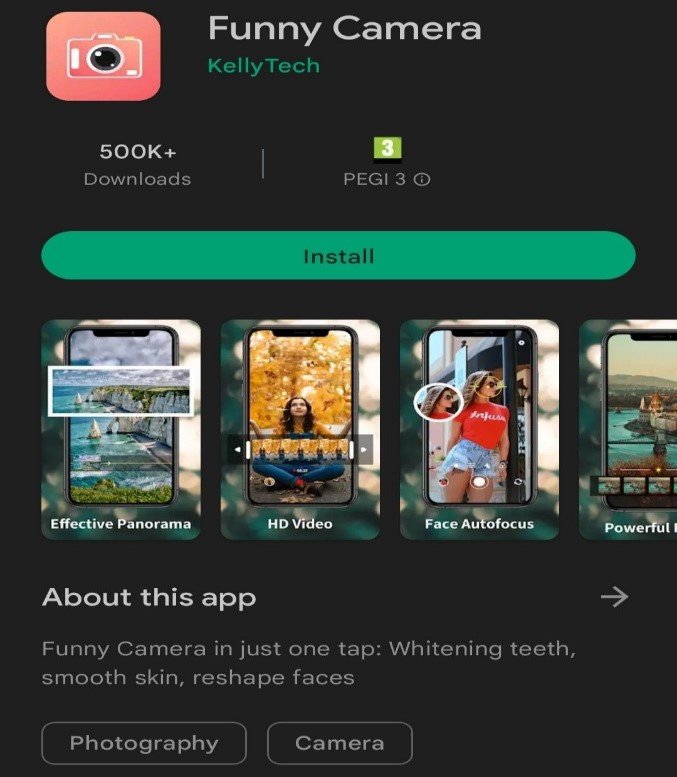
Funny Camera
Wow Beauty Camera
Together, These Applications Accumulated millions Of Downloads Before Google Removed Them From The Play Store.
This Incident Demonstrated That Official Application Stores Can Occasionally Host Malicious Applications Despite Security Screening.
Users Can Reduce The Risk Of Autolycos Infection By Following These Best Practices:
Download Applications Only From Trusted Developers.
Verify App Reviews And Download History.
Avoid Installing APK Files From Unofficial Websites.
Carefully Review Requested Permissions Before Installation.
Keep Android Devices Updated With The Latest Security Patches.
Enable Google Play Protect.
Install Reputable Mobile Security Software.
Monitor Mobile Phone Bills For Unauthorized Premium Charges.
Remove Suspicious Applications Immediately.
Avoid Clicking Links Received Through Unknown SMS Messages Or Emails.
If Autolycos Infection Is Suspected:
Disconnect The Device From The Internet.
Uninstall Suspicious Applications.
Run A Trusted Mobile Antivirus Scan.
Remove Unknown Device Administrator Privileges.
Check For Premium SMS Subscriptions With The Mobile Carrier.
Cancel Unauthorized Subscriptions.
Change Passwords For Important Accounts If Necessary.
Update Android To The Latest Version.
Perform A Factory Reset If The Infection Cannot Be Removed.
Autolycos Represents A Modern Evolution Of Android Malware By Focusing On subscription Fraud Instead Of Traditional Credential Theft. Through Hidden Browser Automation, SMS Interception, And Communication With Remote Command-and-control Servers, It Silently Enrolls Victims Into Premium Services, Generating Continuous Revenue For Cybercriminals While Remaining Largely Unnoticed. Its Presence In Applications Distributed Through The Google Play Store Highlighted That Even Trusted Platforms Are Not Immune To Sophisticated Malware Campaigns.
The Best Defense Against Autolycos Is A Combination Of Cautious App Installation Practices, Careful Permission Management, Regular Software Updates, And Continuous Monitoring Of Mobile Bills For Unexpected Charges. By Staying Informed About Emerging Mobile Threats And Adopting Sound Cybersecurity Habits, Users Can Significantly Reduce The Risk Of Infection And Protect Both Their Finances And Personal Data.
Step 1: Boot Into Safe Mode
Restart Your PC And Press F8 (or Shift + F8 For Some Systems) Before Windows Loads.
Choose Safe Mode With Networking.
Safe Mode Prevents Most Malware From Loading.
Press Win + R, Type appwiz.cpl, And Press Enter.
Sort By Install Date And Uninstall Unknown Or Recently Added Programs.
Use A Trusted Anti-malware Tool:
Malwarebytes – https://www.malwarebytes.com
Screenshot Of Malwarebytes - Visit Links
Microsoft Defender – Built Into Windows 10/11
HitmanPro, ESET Online Scanner, Or Kaspersky Virus Removal Tool
ZoneAlarm Pro Antivirus + Firewall NextGen
VIPRE Antivirus - US And Others Countries, | India
Run A Full Scan And Delete/quarantine Detected Threats.
Win + R, Type temp → Delete All Files.Press Win + R, Type %temp% → Delete All Files.
Use Disk Cleanup: cleanmgr In The Run Dialog.
Go To: C:\Windows\System32\drivers\etc
Open hosts File With Notepad.
Replace With Default Content:
Press Ctrl + Shift + Esc → Open Task Manager
Go To Startup Tab
Disable Any Suspicious Entries.
Open Command Prompt As Administrator.
Run These Commands:
netsh Winsock Reset

netsh Int Ip Reset

ipconfig /flushdns
Unwanted Homepage Or Search Engine
Pop-ups Or Redirects
Unknown Extensions Installed
For Chrome:
Go To: chrome://extensions/
Remove Anything Unfamiliar
For Firefox:
Go To: about:addons → Extensions
Remove Suspicious Add-ons
For Edge:
Go To: edge://extensions/
Uninstall Unknown Add-ons
Chrome:
Go To chrome://settings/reset → "Restore Settings To Their Original Defaults"
Firefox:
Go To about:support → "Refresh Firefox"
Edge:
Go To edge://settings/resetProfileSettings → "Reset Settings"
All Browsers:
Use Ctrl + Shift + Del → Select All Time
Clear Cookies, Cached Files, And Site Data
Make Sure They Are Not Hijacked.
Chrome: chrome://settings/search
Firefox: about:preferences#search
Edge: edge://settings/search
Chrome: chrome://settings/cleanup
Use Malwarebytes Browser Guard For Real-time Browser Protection.
Always Download Software From Trusted Sources.
Keep Windows, Browsers, And Antivirus Updated.
Avoid Clicking Suspicious Links Or Ads.
Use ad Blockers And reputable Antivirus Software.
Backup Your Files Regularly.
To Remove Malware From Your Windows PC, Start By Booting Into Safe Mode, Uninstalling Suspicious Programs, And Scanning With Trusted Anti-malware Tools Like Malwarebytes. Clear Temporary Files, Reset Your Network Settings, And Check Startup Apps For Anything Unusual.
For web Browsers, Remove Unwanted Extensions, Reset Browser Settings, Clear Cache And Cookies, And Ensure Your Homepage And Search Engine Haven’t Been Hijacked. Use Cleanup Tools Like Chrome Cleanup Or Browser Guard For Added Protection.
?? Prevention Tips: Keep Software Updated, Avoid Suspicious Downloads, And Use Antivirus Protection Plus Browser Ad Blockers. Regular Backups Are Essential.
Why It Matters: Not All VPNs Offer Malware Protection.
What To Look For: Providers With built-in Malware/ad/tracker Blockers (e.g., NordVPN’s Threat Protection, ProtonVPN’s NetShield).
Purpose: Prevents Data Leaks If Your VPN Connection Drops.
Benefit: Ensures Your Real IP And Browsing Activity Aren’t Exposed To Malware-distributing Websites.
Why It Matters: DNS Leaks Can Expose Your Online Activity To Attackers.
Solution: Enable DNS Leak Protection In Your VPN Settings Or Use A Secure DNS Like Cloudflare (1.1.1.1).
Risk: Free VPNs Often Contain Malware, Sell User Data, Or Lack Security Features.
Better Option: Use Reputable Paid VPNs That Offer security Audits And Transparent Privacy Policies.
Some VPNs Block Known Phishing And Malicious Sites.
Example: Surfshark’s CleanWeb, CyberGhost’s Content Blocker.
Reason: Security Patches Fix Known Vulnerabilities.
Tip: Enable Auto-updates Or Check For Updates Weekly.
Scope: Malware Can Enter Through Phones, Tablets, Or IoT Devices.
Solution: Install VPN Apps On Every Internet-connected Device.
Fact: VPNs Do Not Remove Or Detect Malware On Your System.
Complement It With:
Antivirus Software
Firewall
Browser Extensions For Script Blocking
VPN Encrypts Traffic But Can’t Stop Malware From Executing If You Download Infected Files.
Split Tunneling Allows Certain Apps/sites To Bypass VPN.
Tip: Never Exclude Browsers, Email Clients, Or Download Managers From VPN Tunneling.
A VPN (Virtual Private Network) Enhances Your Online Privacy By Encrypting Your Internet Traffic And Masking Your IP Address. It Protects Your Data On Public Wi-Fi, Hides Browsing Activity From Hackers And ISPs, And Helps Bypass Geo-restrictions. VPNs Also Add A Layer Of Defense Against Malware By Blocking Malicious Websites And Trackers When Using Advanced Features. However, A VPN Does Not Remove Existing Malware Or Act As Antivirus Software. For Full Protection, Combine VPN Use With Antivirus Tools, Regular Software Updates, And Cautious Browsing Habits. Always Choose A Reputable VPN Provider With Strong Security And Privacy Policies.
Autolycos Malware, Remove Autolycos Malware, Delete Autolycos Malware, Get Rid Of Autolycos Malware, Autolycos Malware Removal