Blog's Page
 Blog's Page
Learn How To Remove Fiasco Ransomware, Stop .secure File Encryption, Protect Backups, Identify The Infection, And Recover Encrypted Files Safely.
Keywords: Fiasco Ransomware Removal, .secure Files, Fiasco Decryptor, Recover Fiasco Encrypted Files, Fiasco Virus Removal, Ransomware Recovery, File Encryption
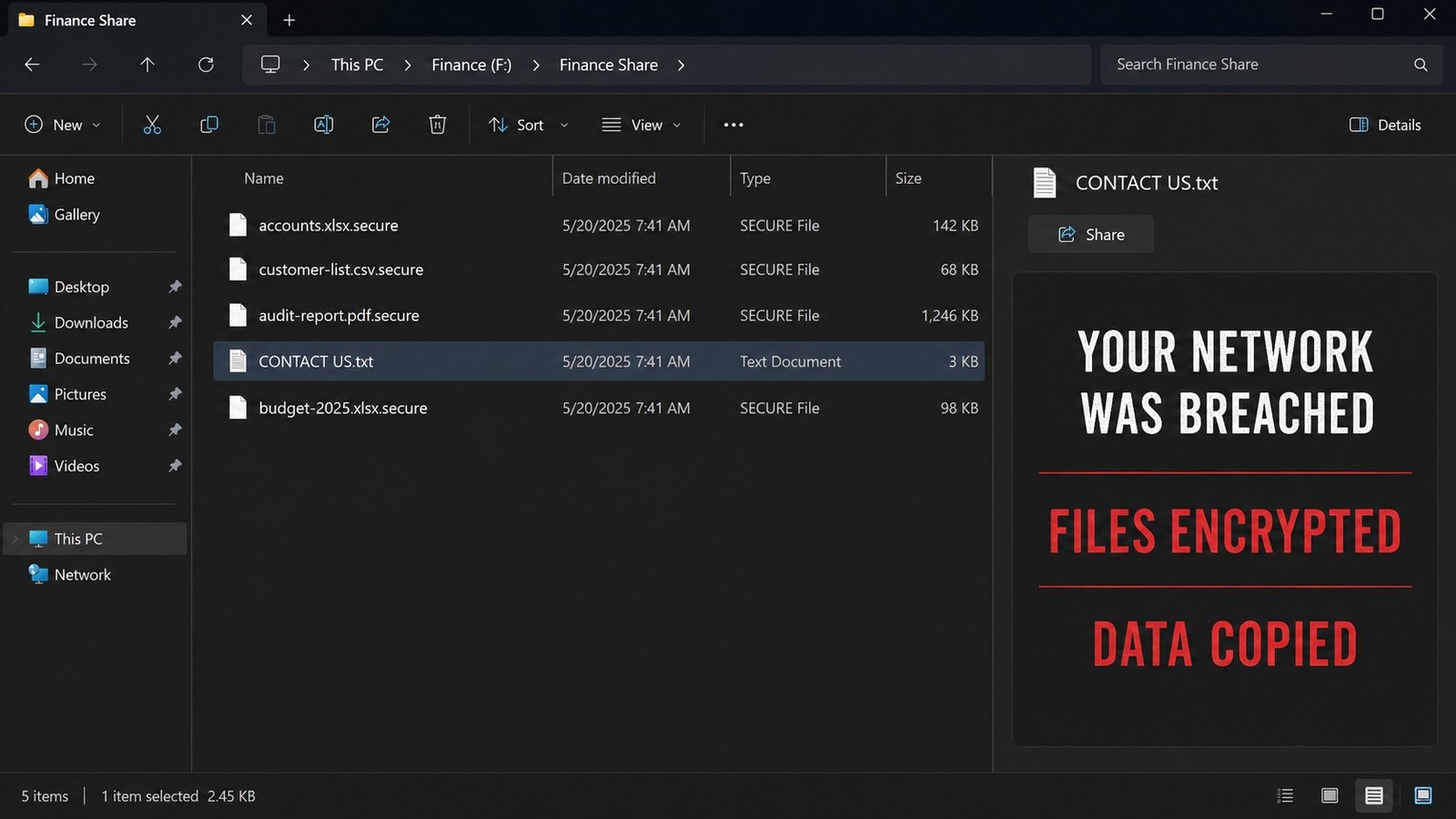
Fiasco Ransomware Is A File-encrypting Malware Threat That Can Make Documents, Images, Databases And Other Important Files Inaccessible. Recent Analysis Of Fiasco Samples Shows That The Ransomware Appends The .secure Extension To Encrypted Files And Creates A Ransom Note Named CONTACT US.txt. Researchers Have Also Reported That The Attackers Claim To Steal Sensitive Information Before Encrypting Files, Creating A Potential Double-extortion Scenario.
If Your Files Suddenly End With .secure, Do Not Immediately Pay The Ransom Or Install An Unverified Decryptor. The Safest Response Is To Isolate The Affected Computer, Protect Backups, Remove The Malware, Investigate The Compromise And Then Attempt Legitimate Recovery.
Fiasco Is A Ransomware Infection Designed To Encrypt Files And Prevent Victims From Accessing Their Data. In Analyzed Samples, A Normal File Such As photo.jpg Was Changed To photo.jpg.secure, While Other Files Received The Same Extension.
The Malware Also Creates CONTACT US.txt, Which Contains Instructions For Contacting The Attackers. The Ransom Message Claims That Sensitive Information May Have Been Stolen Before Encryption And Threatens Publication Of The Data.
Because .secure Is A Generic Extension, Its Presence Alone Should Not Be Treated As Absolute Proof Of Fiasco Infection. The Ransom Note, File Behavior And Other Indicators Should Be Considered Together.
Common Signs Associated With The Analyzed Fiasco Variant Include:
Files Suddenly Become Inaccessible.
Filenames End With .secure.
Documents, Photographs And Other Files Cannot Be Opened.
CONTACT US.txt Appears On Affected Systems Or Folders.
A Ransom Message Demands Communication With The Attackers.
Large Numbers Of Files May Be Modified In A Short Period.
Network Shares May Contain Encrypted Files.
Attackers May Claim That Confidential Information Was Stolen.
If These Symptoms Appear Simultaneously, Immediately Treat The Computer As Potentially Compromised.
The First Step Is network Isolation.
Disconnect The Ethernet Cable And Disable Wi-Fi. If Several Computers Are Connected To The Same Network, Investigate Potentially Affected Systems And Disconnect Suspicious Machines.
Also Disconnect External USB Drives And Other Removable Storage. Pause Cloud Synchronization Where Possible So Encrypted Files Are Not Automatically Synchronized To Healthy Copies.
Ransomware Can Potentially Affect Accessible Network Resources, So Rapid Isolation Can Limit Additional Damage.
Do Not Connect Your Backup Drive To An Infected Computer.
Protect Offline, Cloud And Immutable Backups From Further Modification. If You Operate An Organization, Restrict Access To Backup-management Accounts And Verify That Backup Repositories Have Not Been Encrypted Or Compromised.
A Clean Backup Created Before The Attack Is Usually One Of The Safest Recovery Options.
Do Not Delete The Encrypted .secure Files Or The CONTACT US.txt Ransom Note.
Preserve Several Encrypted Files And Record:
Original And Encrypted Filenames
Date And Approximate Time Of Infection
Ransom-note Contents
Attacker Contact Information
Affected Computers
Network Shares Involved
Suspicious Applications Or Processes
Security Alerts And Logs
For Businesses, Forensic Evidence Can Help Determine Whether Data Was Exfiltrated And How The Attackers Obtained Access.
After Isolating The System And Preserving Important Evidence, Perform A Complete Security Investigation.
Use An Updated, Reputable Endpoint-security Or Anti-malware Product To Identify And Remove Malicious Executables, Persistence Mechanisms And Related Malware.
For An Organization, Rebuilding Compromised Systems From Trusted Installation Media May Be Safer Than Assuming That Deleting One Malicious File Completely Cleans The Machine.
Changing Passwords Should Also Be Performed From A Known-clean Device, Particularly For Administrator, VPN, Email, Cloud And Backup Accounts.
Correct Identification Is Essential Before Attempting Decryption.
The .secure Extension And CONTACT US.txt Are Important Indicators Associated With Recently Analyzed Fiasco Samples. However, File Extensions Can Be Reused By Unrelated Malware, So Identification Should Not Rely On The Extension Alone.
A Ransomware-identification Service Or Qualified Cybersecurity Professional Can Help Confirm The Variant.
Do Not Download Random Software Advertised As A “100% Working Fiasco Decryptor.”
Ransomware Decryptors Are Generally Designed For Particular Variants And Encryption Implementations. Current Reporting Indicates That Fiasco Does Not Have An Established General-purpose Free Decryptor, So Victims Should Check Reputable Projects Such As The No More Ransom Project For Updates Rather Than Trusting Suspicious Websites.
Never Pay An Unknown Website For A Supposed Decryption Key Without Independently Verifying Its Legitimacy.
If No Working Decryptor Is Available, Restore Data From A Clean Backup.
Possible Recovery Sources Include:
Offline Backups
Immutable Backups
Cloud Version History
Enterprise Backup Systems
Clean External Storage
Database Backups
Application-specific Recovery Systems
Before Restoration, Make Sure The Ransomware Has Been Removed And Compromised Credentials Have Been Addressed.
Restore The Most Important Systems First And Monitor Them For Suspicious Activity.
.secure Files By Renaming Them?No.
Changing:
document.docx.secure
back To:
document.docx
does Not Decrypt The Contents.
The Ransomware Changes The Underlying File Data, Not Simply The Filename. Therefore, Manually Removing .secure Is Not A Recovery Method And Could Create Additional Confusion During Forensic Analysis.
Paying The Ransom Is Generally not Recommended.
There Is No Guarantee That Criminals Will Provide A Working Decryptor After Payment. Furthermore, Recent Reporting Describes Fiasco As Using Alleged Data Theft As Additional Leverage, Meaning Payment Does Not Necessarily Eliminate The Risk Associated With Previously Stolen Information.
Instead, Focus On Containment, Evidence Preservation, Malware Removal, Credential Security And Legitimate Recovery.
Organizations And Home Users Should Adopt A Layered Ransomware-defense Strategy:
Maintain Regular Offline Or Immutable Backups.
Test Backup Restoration Regularly.
Enable Multi-factor Authentication.
Keep Operating Systems And Applications Updated.
Restrict Administrator Privileges.
Secure RDP And Remote-access Services.
Deploy Reputable Endpoint Protection.
Train Employees To Recognize Phishing Emails.
Avoid Pirated Software And Suspicious Cracks.
Segment Critical Networks And Servers.
Monitor Unusual File-encryption Activity.
Protect Backup-management Credentials.
Maintain Centralized Security Logs.
Develop And Test An Incident-response Plan.
Fiasco Ransomware Is A Serious File-encryption Threat Associated With The .secure Extension And CONTACT US.txt Ransom Note. Recent Analyses Also Report Claims Of Sensitive-data Theft, Increasing The Potential Impact For Organizations Handling Confidential Information.
If Fiasco Has Infected Your Computer, disconnect It From The Network, Protect Your Backups, Preserve Evidence, Remove The Malware, Identify The Exact Variant And Investigate Legitimate Recovery Options. Do Not Rename Encrypted Files Or Trust Suspicious Decryptor Programs.
When A Clean Backup Is Available, Rebuilding The Affected Environment And Restoring Verified Data Is Generally Safer Than Relying On The Attackers. After Recovery, Investigate The Original Entry Point And Strengthen Security Controls To Prevent Another Ransomware Incident.
Step 1: Boot Into Safe Mode
Restart Your PC And Press F8 (or Shift + F8 For Some Systems) Before Windows Loads.
Choose Safe Mode With Networking.
Safe Mode Prevents Most Malware From Loading.
Press Win + R, Type appwiz.cpl, And Press Enter.
Sort By Install Date And Uninstall Unknown Or Recently Added Programs.
Use A Trusted Anti-malware Tool:
Malwarebytes – https://www.malwarebytes.com
Screenshot Of Malwarebytes - Visit Links
Microsoft Defender – Built Into Windows 10/11
HitmanPro, ESET Online Scanner, Or Kaspersky Virus Removal Tool
ZoneAlarm Pro Antivirus + Firewall NextGen
VIPRE Antivirus - US And Others Countries, | India
Run A Full Scan And Delete/quarantine Detected Threats.
Win + R, Type temp → Delete All Files.Press Win + R, Type %temp% → Delete All Files.
Use Disk Cleanup: cleanmgr In The Run Dialog.
Go To: C:\Windows\System32\drivers\etc
Open hosts File With Notepad.
Replace With Default Content:
Press Ctrl + Shift + Esc → Open Task Manager
Go To Startup Tab
Disable Any Suspicious Entries.
Open Command Prompt As Administrator.
Run These Commands:
netsh Winsock Reset

netsh Int Ip Reset

ipconfig /flushdns
Unwanted Homepage Or Search Engine
Pop-ups Or Redirects
Unknown Extensions Installed
For Chrome:
Go To: chrome://extensions/
Remove Anything Unfamiliar
For Firefox:
Go To: about:addons → Extensions
Remove Suspicious Add-ons
For Edge:
Go To: edge://extensions/
Uninstall Unknown Add-ons
Chrome:
Go To chrome://settings/reset → "Restore Settings To Their Original Defaults"
Firefox:
Go To about:support → "Refresh Firefox"
Edge:
Go To edge://settings/resetProfileSettings → "Reset Settings"
All Browsers:
Use Ctrl + Shift + Del → Select All Time
Clear Cookies, Cached Files, And Site Data
Make Sure They Are Not Hijacked.
Chrome: chrome://settings/search
Firefox: about:preferences#search
Edge: edge://settings/search
Chrome: chrome://settings/cleanup
Use Malwarebytes Browser Guard For Real-time Browser Protection.
Always Download Software From Trusted Sources.
Keep Windows, Browsers, And Antivirus Updated.
Avoid Clicking Suspicious Links Or Ads.
Use ad Blockers And reputable Antivirus Software.
Backup Your Files Regularly.
To Remove Malware From Your Windows PC, Start By Booting Into Safe Mode, Uninstalling Suspicious Programs, And Scanning With Trusted Anti-malware Tools Like Malwarebytes. Clear Temporary Files, Reset Your Network Settings, And Check Startup Apps For Anything Unusual.
For web Browsers, Remove Unwanted Extensions, Reset Browser Settings, Clear Cache And Cookies, And Ensure Your Homepage And Search Engine Haven’t Been Hijacked. Use Cleanup Tools Like Chrome Cleanup Or Browser Guard For Added Protection.
?? Prevention Tips: Keep Software Updated, Avoid Suspicious Downloads, And Use Antivirus Protection Plus Browser Ad Blockers. Regular Backups Are Essential.
Why It Matters: Not All VPNs Offer Malware Protection.
What To Look For: Providers With built-in Malware/ad/tracker Blockers (e.g., NordVPN’s Threat Protection, ProtonVPN’s NetShield).
Purpose: Prevents Data Leaks If Your VPN Connection Drops.
Benefit: Ensures Your Real IP And Browsing Activity Aren’t Exposed To Malware-distributing Websites.
Why It Matters: DNS Leaks Can Expose Your Online Activity To Attackers.
Solution: Enable DNS Leak Protection In Your VPN Settings Or Use A Secure DNS Like Cloudflare (1.1.1.1).
Risk: Free VPNs Often Contain Malware, Sell User Data, Or Lack Security Features.
Better Option: Use Reputable Paid VPNs That Offer security Audits And Transparent Privacy Policies.
Some VPNs Block Known Phishing And Malicious Sites.
Example: Surfshark’s CleanWeb, CyberGhost’s Content Blocker.
Reason: Security Patches Fix Known Vulnerabilities.
Tip: Enable Auto-updates Or Check For Updates Weekly.
Scope: Malware Can Enter Through Phones, Tablets, Or IoT Devices.
Solution: Install VPN Apps On Every Internet-connected Device.
Fact: VPNs Do Not Remove Or Detect Malware On Your System.
Complement It With:
Antivirus Software
Firewall
Browser Extensions For Script Blocking
VPN Encrypts Traffic But Can’t Stop Malware From Executing If You Download Infected Files.
Split Tunneling Allows Certain Apps/sites To Bypass VPN.
Tip: Never Exclude Browsers, Email Clients, Or Download Managers From VPN Tunneling.
A VPN (Virtual Private Network) Enhances Your Online Privacy By Encrypting Your Internet Traffic And Masking Your IP Address. It Protects Your Data On Public Wi-Fi, Hides Browsing Activity From Hackers And ISPs, And Helps Bypass Geo-restrictions. VPNs Also Add A Layer Of Defense Against Malware By Blocking Malicious Websites And Trackers When Using Advanced Features. However, A VPN Does Not Remove Existing Malware Or Act As Antivirus Software. For Full Protection, Combine VPN Use With Antivirus Tools, Regular Software Updates, And Cautious Browsing Habits. Always Choose A Reputable VPN Provider With Strong Security And Privacy Policies.
Fiasco Ransomware, Ransomware Removal, .secure Files, Malware, Cybersecurity, Ransomware Recovery, Data Recovery, File Encryption