Blog's Page
 Blog's Page
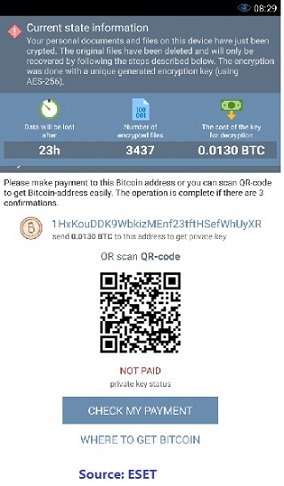
Cybersecurity Threats Are Evolving Rapidly, And Mobile Devices Are Now One Of The Biggest Targets For Cybercriminals. Among The Most Dangerous Android Malware Threats Is Double Locker Android Ransomware, A Sophisticated Ransomware Attack Designed To Lock Users Out Of Their Smartphones While Encrypting Valuable Data. As Android Smartphones Continue To Dominate The Global Market, Malware Attacks Such As Double Locker Have Become Increasingly Common.
This Article Explores What Double Locker Android Ransomware Is, How It Works, How It Spreads, Its Impact On Android Users, And The Best Ways To Protect Your Device From Ransomware Attacks.
Double Locker Android Ransomware Is A Type Of Malicious Software Specifically Designed To Target Android Devices. It Was First Discovered By Cybersecurity Researchers In 2017 And Quickly Gained Attention Because Of Its Dual Attack Mechanism.
Unlike Traditional Ransomware That Only Encrypts Files, Double Locker Combines Two Powerful Attack Methods:
Device Locking
File Encryption
This “double Locking” Capability Makes It Extremely Difficult For Victims To Regain Access To Their Devices Without Professional Assistance.
The Ransomware Changes The Device PIN And Encrypts Important Files, Effectively Taking Complete Control Of The Smartphone. Victims Are Then Asked To Pay A Ransom In Cryptocurrency To Restore Access.
Double Locker Ransomware Operates In Several Stages After Infecting An Android Device.
The Malware Commonly Spreads Through Fake Android Applications, Malicious Downloads, Or Compromised Websites. In Many Cases, Attackers Disguise The Ransomware As Legitimate Apps Or Adobe Flash Updates.
Once The User Installs The Malicious Application, It Requests Accessibility Service Permissions. Many Users Unknowingly Grant These Permissions Without Understanding The Risks.
After Obtaining Accessibility Permissions, Double Locker Activates Device Administrator Rights. This Gives The Malware Significant Control Over The Device.
The Ransomware Can Then:
Lock The Screen
Prevent Uninstallation
Monitor User Activity
Change Device Settings
One Of The Most Dangerous Features Of Double Locker Is Its Ability To Change The Device PIN. The Malware Sets A Random PIN Code Unknown To The Victim, Making The Device Inaccessible.
In Addition To Locking The Device, Double Locker Encrypts Important Files Stored On The Smartphone. This Includes:
Photos
Videos
Documents
Audio Files
The Ransomware Uses Strong Encryption Algorithms, Making Recovery Extremely Difficult Without The Decryption Key.
Once The Attack Is Complete, Victims Receive A Ransom Note Demanding Payment, Usually In Bitcoin Or Another Cryptocurrency. Attackers Promise To Provide The Unlock Code And Decryption Key After Payment.
However, Cybersecurity Experts Strongly Advise Against Paying The Ransom Because There Is No Guarantee That Attackers Will Restore Access.
Double Locker Became Infamous Because Of Its Advanced Ransomware Capabilities. Here Are Some Of Its Most Notable Features:
Unlike Standard Android Ransomware, Double Locker Both Locks The Device And Encrypts Files.
The Malware Abuses Android Accessibility Services To Gain Extensive Permissions.
Once Installed, Double Locker Prevents Users From Easily Removing It.
Attackers Typically Request Payment Through Anonymous Cryptocurrency Transactions.
Unlike Modern Ransomware Attacks, Double Locker Mainly Focuses On Locking And Encrypting Rather Than Stealing Data.
Understanding How Double Locker Spreads Can Help Users Avoid Infection.
Cybercriminals Often Distribute Infected Apps Through Unofficial Android App Stores.
Users May Receive Malicious Links Via Email, SMS Messages, Or Social Media.
One Common Infection Method Involves Fake Adobe Flash Player Update Prompts.
Downloading APK Files From Untrusted Websites Significantly Increases Infection Risk.
There Are Several Warning Signs That May Indicate A Double Locker Infection:
Sudden Device Lockout
Unknown PIN Code
Unusual Pop-up Messages
Encrypted Files That Cannot Open
Device Administrator Permissions Enabled Unexpectedly
Increased Battery Usage And Suspicious Background Activity
If You Notice These Symptoms, Disconnect The Device From The Internet Immediately And Seek Professional Cybersecurity Assistance.
Removing Ransomware From An Android Device Can Be Challenging, But Several Methods May Help.
Safe Mode Disables Third-party Apps, Which May Prevent The Ransomware From Running.
Navigate To:
Settings → Security → Device Administrators
Disable Administrator Access For Suspicious Applications.
After Removing Administrator Privileges, Uninstall The Infected App.
If The Ransomware Cannot Be Removed, A Factory Reset May Be Necessary.
Important: A Factory Reset Erases All Data On The Device.
If You Have Cloud Backups Or Local Backups, Restore Your Files After Cleaning The Device.
Prevention Is The Best Defense Against Android Ransomware Attacks.
Always Install Applications From The Google Play Store Or Verified Developers.
Do Not Click Unknown Links In Emails, SMS Messages, Or Social Media.
Install The Latest Android Security Patches And Updates Regularly.
Reliable Antivirus And Mobile Security Apps Can Detect Ransomware Threats Early.
Regular Backups Ensure Your Files Remain Safe Even If Your Device Becomes Infected.
Review App Permissions Carefully Before Granting Access.
Although Double Locker Was Discovered Several Years Ago, It Remains An Important Example Of How Dangerous Android Ransomware Can Be.
Modern Ransomware Variants Continue To Evolve Using Similar Techniques:
Accessibility Abuse
Device Locking
File Encryption
Cryptocurrency Ransom Demands
Cybercriminals Are Increasingly Targeting Mobile Devices Because Smartphones Contain Valuable Personal And Financial Information.
As Remote Work, Mobile Banking, And Digital Payments Become More Common, Android Users Must Remain Vigilant Against Ransomware Threats.
Mobile Cybersecurity Is No Longer Optional. Smartphones Store:
Banking Information
Personal Photos
Emails
Business Documents
Social Media Accounts
Passwords And Authentication Apps
A Successful Ransomware Attack Can Result In Financial Loss, Identity Theft, And Severe Privacy Violations.
Businesses Should Also Educate Employees About Mobile Security Risks, Especially When Using Android Devices For Work-related Tasks.
Double Locker Android Ransomware Is One Of The Most Dangerous Mobile Malware Threats Ever Developed For Android Devices. Its Ability To Both Lock Smartphones And Encrypt Files Makes It Particularly Destructive.
The Rise Of Android Ransomware Highlights The Importance Of Cybersecurity Awareness, Safe Browsing Habits, Regular Software Updates, And Reliable Backups.
To Stay Protected:
Avoid Unofficial App Stores
Keep Your Android Device Updated
Use Trusted Mobile Security Software
Backup Your Important Files Regularly
Never Grant Unnecessary Permissions To Unknown Apps
By Following These Best Practices, Android Users Can Significantly Reduce The Risk Of Ransomware Infections And Keep Their Personal Data Secure.
As Cyber Threats Continue To Evolve, Staying Informed About Malware Like Double Locker Is Essential For Maintaining Strong Mobile Security In Today’s Digital World.
Step 1: Boot Into Safe Mode
Restart Your PC And Press F8 (or Shift + F8 For Some Systems) Before Windows Loads.
Choose Safe Mode With Networking.
Safe Mode Prevents Most Malware From Loading.
Press Win + R, Type appwiz.cpl, And Press Enter.
Sort By Install Date And Uninstall Unknown Or Recently Added Programs.
Use A Trusted Anti-malware Tool:
Malwarebytes – https://www.malwarebytes.com
Screenshot Of Malwarebytes - Visit Links
Microsoft Defender – Built Into Windows 10/11
HitmanPro, ESET Online Scanner, Or Kaspersky Virus Removal Tool
ZoneAlarm Pro Antivirus + Firewall NextGen
VIPRE Antivirus - US And Others Countries, | India
Run A Full Scan And Delete/quarantine Detected Threats.
Win + R, Type temp → Delete All Files.Press Win + R, Type %temp% → Delete All Files.
Use Disk Cleanup: cleanmgr In The Run Dialog.
Go To: C:\Windows\System32\drivers\etc
Open hosts File With Notepad.
Replace With Default Content:
Press Ctrl + Shift + Esc → Open Task Manager
Go To Startup Tab
Disable Any Suspicious Entries.
Open Command Prompt As Administrator.
Run These Commands:
netsh Winsock Reset

netsh Int Ip Reset

ipconfig /flushdns
Unwanted Homepage Or Search Engine
Pop-ups Or Redirects
Unknown Extensions Installed
For Chrome:
Go To: chrome://extensions/
Remove Anything Unfamiliar
For Firefox:
Go To: about:addons → Extensions
Remove Suspicious Add-ons
For Edge:
Go To: edge://extensions/
Uninstall Unknown Add-ons
Chrome:
Go To chrome://settings/reset → "Restore Settings To Their Original Defaults"
Firefox:
Go To about:support → "Refresh Firefox"
Edge:
Go To edge://settings/resetProfileSettings → "Reset Settings"
All Browsers:
Use Ctrl + Shift + Del → Select All Time
Clear Cookies, Cached Files, And Site Data
Make Sure They Are Not Hijacked.
Chrome: chrome://settings/search
Firefox: about:preferences#search
Edge: edge://settings/search
Chrome: chrome://settings/cleanup
Use Malwarebytes Browser Guard For Real-time Browser Protection.
Always Download Software From Trusted Sources.
Keep Windows, Browsers, And Antivirus Updated.
Avoid Clicking Suspicious Links Or Ads.
Use ad Blockers And reputable Antivirus Software.
Backup Your Files Regularly.
To Remove Malware From Your Windows PC, Start By Booting Into Safe Mode, Uninstalling Suspicious Programs, And Scanning With Trusted Anti-malware Tools Like Malwarebytes. Clear Temporary Files, Reset Your Network Settings, And Check Startup Apps For Anything Unusual.
For web Browsers, Remove Unwanted Extensions, Reset Browser Settings, Clear Cache And Cookies, And Ensure Your Homepage And Search Engine Haven’t Been Hijacked. Use Cleanup Tools Like Chrome Cleanup Or Browser Guard For Added Protection.
?? Prevention Tips: Keep Software Updated, Avoid Suspicious Downloads, And Use Antivirus Protection Plus Browser Ad Blockers. Regular Backups Are Essential.
Why It Matters: Not All VPNs Offer Malware Protection.
What To Look For: Providers With built-in Malware/ad/tracker Blockers (e.g., NordVPN’s Threat Protection, ProtonVPN’s NetShield).
Purpose: Prevents Data Leaks If Your VPN Connection Drops.
Benefit: Ensures Your Real IP And Browsing Activity Aren’t Exposed To Malware-distributing Websites.
Why It Matters: DNS Leaks Can Expose Your Online Activity To Attackers.
Solution: Enable DNS Leak Protection In Your VPN Settings Or Use A Secure DNS Like Cloudflare (1.1.1.1).
Risk: Free VPNs Often Contain Malware, Sell User Data, Or Lack Security Features.
Better Option: Use Reputable Paid VPNs That Offer security Audits And Transparent Privacy Policies.
Some VPNs Block Known Phishing And Malicious Sites.
Example: Surfshark’s CleanWeb, CyberGhost’s Content Blocker.
Reason: Security Patches Fix Known Vulnerabilities.
Tip: Enable Auto-updates Or Check For Updates Weekly.
Scope: Malware Can Enter Through Phones, Tablets, Or IoT Devices.
Solution: Install VPN Apps On Every Internet-connected Device.
Fact: VPNs Do Not Remove Or Detect Malware On Your System.
Complement It With:
Antivirus Software
Firewall
Browser Extensions For Script Blocking
VPN Encrypts Traffic But Can’t Stop Malware From Executing If You Download Infected Files.
Split Tunneling Allows Certain Apps/sites To Bypass VPN.
Tip: Never Exclude Browsers, Email Clients, Or Download Managers From VPN Tunneling.
A VPN (Virtual Private Network) Enhances Your Online Privacy By Encrypting Your Internet Traffic And Masking Your IP Address. It Protects Your Data On Public Wi-Fi, Hides Browsing Activity From Hackers And ISPs, And Helps Bypass Geo-restrictions. VPNs Also Add A Layer Of Defense Against Malware By Blocking Malicious Websites And Trackers When Using Advanced Features. However, A VPN Does Not Remove Existing Malware Or Act As Antivirus Software. For Full Protection, Combine VPN Use With Antivirus Tools, Regular Software Updates, And Cautious Browsing Habits. Always Choose A Reputable VPN Provider With Strong Security And Privacy Policies.
Double Locker Android Ransomware, Remove Double Locker Android Ransomware, Delete Double Locker Android Ransomware, Uninstall Double Locker Android Ra