Blog's Page
 Blog's Page
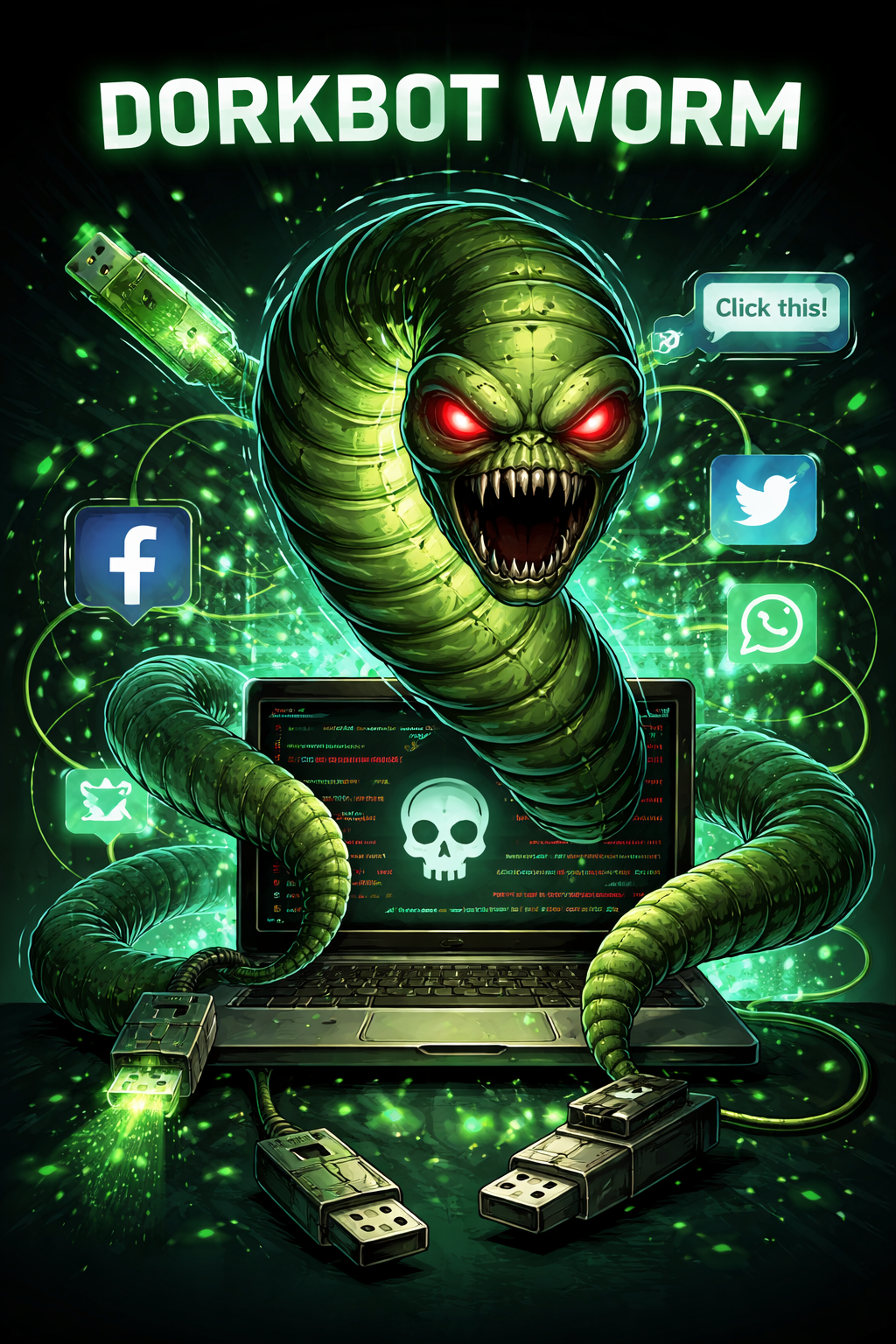
The Dorkbot Worm Is A Well-known Piece Of Malware That Infected Thousands Of Computers Worldwide During The Early 2010s. It Primarily Targeted Windows Systems, Spreading Through Removable Drives, Instant Messaging Platforms, And Compromised Websites. Once Inside A Computer, The Worm Could Steal Sensitive Information, Install Additional Malware, And Allow Attackers To Control Infected Machines Remotely.
Cybersecurity Researchers First Noticed The Dorkbot Worm Spreading Rapidly Through Social Networks And Messaging Platforms. Its Ability To Disguise Itself As Harmless Files Made It Especially Dangerous For Unsuspecting Users.
Understanding How Dorkbot Works Is Important For Anyone Interested In cybersecurity, Malware Analysis, And Digital Safety.
Aliases: BDS/Backdoor.Gen[AntiVir], Win32:Ruskill-EG[Avast], Worm/Generic2.ASJP[AVG], Worm.Dorkbot.A [BitDefender], Worm.Dorkbot.A [Emsisoft ], Win32/Dorkbot.B [ESET], Worm.Win32.Ngrbot.byu [Kaspersky], W32/IRCbot.gen.ax [McAfee] , Worm:Win32/Dorkbot.A [Microsoft] , Dorkbot.U [Norman], W32/Lolbot.R.worm [Panda] , W32.IRCBot.NG [Symantec], Worm_DORKBOT [TrendMicro].
Indicators Of Infection
File System Changes:
Malware May Arrive On The Victim’s Machine With The Following Names:
Location: %Appdata%
Filename: .exe Based On HDD Serial Number E.g.
Registry Changes:
Malware Make Registry Entry For Itself To Execute Itself At Every System Reboot. The Registry Entry Make By The Malware Is As Follows:
In Subkey: HKCU\Software\Microsoft\Windows\CurrentVersion\Run
Sets Value: "ozkqke"
With Data: "%appdata%\ozkqke.exe"
Code Injection:
To Hide Itself From Detecting By Antivirus Solutions, Malware Injects Its Code In The Following Files:
API Hooking:
To Get The Control Over The Files Used For Process Injection, Malware Hooks The Following Functions With Respect To Those Files To Avoid Infected User From Viewing Or Tempering These Files. Some Of The APIs Hooked Are:
File System Changes In Removable Drives:
This Worm Creates The Following Folders In All Removable Drives:
It Drops The Following Copy(ies) Of Itself In All Removable Drives:
Network Communications:
Malware Make Network Connections To IRC Servers To Receive Commands. Some Of The IRC Channels Used The Malware Are:
IRC Nickname Used By The Malware Is Generated Based On Format Mentioned Below:
n{(country Code)|(OS Version)(user Type)}{random String}
where , N Constant
Country Code 2 Digit Country Code
OS Version XP, 2K3, VIS, 2K8, W7, ERR (Error), Etc
User Type 'a' (administrator) Or 'u' (user)
Malware Connects To "api.wipmania.com", To Gather Infected Machine Information Such As Current IP And Location.
Once Remote Connection Is Successful, Then The Malware Is Capable Of Performing DDOS Attacks Using SYN Or UDP Floods Against Target Specified By The Remote Attacker. Also, Attacker May Instruct Malware To Restrict User From Downloading Specific Type Of Files Such As Exe, Com, Pif Or .scr Files.
The Dorkbot Worm Emerged Around 2011 And Quickly Became One Of The Most Widespread Malware Threats Of Its Time. It Infected Millions Of Computers Across Different Regions.
Security Companies Such As Microsoft And ESET Tracked The Malware And Studied Its Behavior.
In 2015, A Major International Operation Led By Microsoft Digital Crimes Unit And Law Enforcement Agencies Disrupted The Command-and-control Infrastructure Used By Dorkbot.
This Operation Significantly Reduced The Spread Of The Worm.
The Dorkbot Worm Uses Several Methods To Infect Computers.
One Of The Most Common Infection Methods Involved USB Drives. When An Infected Drive Was Connected To A Computer, The Worm Automatically Copied Itself To The System.
This Allowed The Malware To Spread Quickly In Offices, Schools, And Shared Computer Environments.
Dorkbot Spread Through Messaging Apps By Sending Malicious Links To Contacts.
Users Would Receive Messages Such As:
“Look At This Picture”
“Is This You In The Photo?”
Clicking The Link Would Download The Malware.
The Worm Also Spread Through Malicious URLs Shared On Social Media Platforms Like Facebook And Twitter.
Users Who Clicked These Links Unknowingly Installed The Malware.
Once Installed, The Dorkbot Worm Performs Several Malicious Activities.
The Worm Can Collect Sensitive Information Such As:
Login Credentials
Banking Details
Email Accounts
This Information Is Sent To Attackers.
Dorkbot Acts As A Gateway For Other Threats. It Can Download And Install Additional Malware Including:
Spyware
Ransomware
Adware
Attackers Can Remotely Control Infected Computers Using command-and-control (C2) Servers.
This Allows Them To:
Monitor User Activity
Execute Commands
Launch Cyberattacks
Some Common Symptoms Of A Dorkbot Infection Include:
Slow Computer Performance
Unknown Programs Running In The Background
Suspicious Messages Sent From Your Accounts
Disabled Antivirus Software
Pop-up Advertisements
If You Notice These Signs, You Should Run A Security Scan Immediately.
Removing The Worm Requires Several Steps.
Disconnecting Prevents The Malware From Communicating With Its Command Servers.
Use Trusted Antivirus Programs Such As:
Microsoft Defender Antivirus
Malwarebytes
These Tools Can Detect And Remove Dorkbot Infections.
Since The Worm Spreads Via USB Drives, Scanning All Removable Media Is Essential.
Preventing Infections Is Easier Than Removing Them.
Always Install Updates For Your Operating System And Applications.
Do Not Click Unknown Links Sent Through Email Or Messaging Apps.
A Good Antivirus Solution Provides Real-time Protection.
This Prevents Malware From Automatically Executing When A Drive Is Connected.
The Dorkbot Worm Affected Millions Of Computers Worldwide. It Demonstrated How Quickly Malware Can Spread Through Social Engineering And Removable Media.
The Incident Also Highlighted The Importance Of Cooperation Between technology Companies, Cybersecurity Experts, And Law Enforcement.
The Dorkbot Worm Is A Type Of Malware That Spreads Through USB Drives, Messaging Apps, And Malicious Links While Stealing User Data And Installing Additional Malware.
Large-scale Infections Have Mostly Been Stopped After The 2015 Takedown Operation, But Variants May Still Exist.
Yes. Most Modern Antivirus Programs Can Detect And Remove The Worm.
The Dorkbot Worm Is An Important Example In The History Of Cybersecurity Threats. It Shows How Attackers Combine social Engineering, Removable Media, And Network Communication To Infect Large Numbers Of Computers.
By Understanding How Malware Like Dorkbot Works, Users Can Take Steps To Protect Themselves And Maintain Safer Digital Environments.
Step 1: Boot Into Safe Mode
Restart Your PC And Press F8 (or Shift + F8 For Some Systems) Before Windows Loads.
Choose Safe Mode With Networking.
Safe Mode Prevents Most Malware From Loading.
Press Win + R, Type appwiz.cpl, And Press Enter.
Sort By Install Date And Uninstall Unknown Or Recently Added Programs.
Use A Trusted Anti-malware Tool:
Malwarebytes – https://www.malwarebytes.com
Screenshot Of Malwarebytes - Visit Links
Microsoft Defender – Built Into Windows 10/11
HitmanPro, ESET Online Scanner, Or Kaspersky Virus Removal Tool
ZoneAlarm Pro Antivirus + Firewall NextGen
VIPRE Antivirus - US And Others Countries, | India
Run A Full Scan And Delete/quarantine Detected Threats.
Win + R, Type temp → Delete All Files.Press Win + R, Type %temp% → Delete All Files.
Use Disk Cleanup: cleanmgr In The Run Dialog.
Go To: C:\Windows\System32\drivers\etc
Open hosts File With Notepad.
Replace With Default Content:
Press Ctrl + Shift + Esc → Open Task Manager
Go To Startup Tab
Disable Any Suspicious Entries.
Open Command Prompt As Administrator.
Run These Commands:
netsh Winsock Reset

netsh Int Ip Reset

ipconfig /flushdns
Unwanted Homepage Or Search Engine
Pop-ups Or Redirects
Unknown Extensions Installed
For Chrome:
Go To: chrome://extensions/
Remove Anything Unfamiliar
For Firefox:
Go To: about:addons → Extensions
Remove Suspicious Add-ons
For Edge:
Go To: edge://extensions/
Uninstall Unknown Add-ons
Chrome:
Go To chrome://settings/reset → "Restore Settings To Their Original Defaults"
Firefox:
Go To about:support → "Refresh Firefox"
Edge:
Go To edge://settings/resetProfileSettings → "Reset Settings"
All Browsers:
Use Ctrl + Shift + Del → Select All Time
Clear Cookies, Cached Files, And Site Data
Make Sure They Are Not Hijacked.
Chrome: chrome://settings/search
Firefox: about:preferences#search
Edge: edge://settings/search
Chrome: chrome://settings/cleanup
Use Malwarebytes Browser Guard For Real-time Browser Protection.
Always Download Software From Trusted Sources.
Keep Windows, Browsers, And Antivirus Updated.
Avoid Clicking Suspicious Links Or Ads.
Use ad Blockers And reputable Antivirus Software.
Backup Your Files Regularly.
To Remove Malware From Your Windows PC, Start By Booting Into Safe Mode, Uninstalling Suspicious Programs, And Scanning With Trusted Anti-malware Tools Like Malwarebytes. Clear Temporary Files, Reset Your Network Settings, And Check Startup Apps For Anything Unusual.
For web Browsers, Remove Unwanted Extensions, Reset Browser Settings, Clear Cache And Cookies, And Ensure Your Homepage And Search Engine Haven’t Been Hijacked. Use Cleanup Tools Like Chrome Cleanup Or Browser Guard For Added Protection.
?? Prevention Tips: Keep Software Updated, Avoid Suspicious Downloads, And Use Antivirus Protection Plus Browser Ad Blockers. Regular Backups Are Essential.
Why It Matters: Not All VPNs Offer Malware Protection.
What To Look For: Providers With built-in Malware/ad/tracker Blockers (e.g., NordVPN’s Threat Protection, ProtonVPN’s NetShield).
Purpose: Prevents Data Leaks If Your VPN Connection Drops.
Benefit: Ensures Your Real IP And Browsing Activity Aren’t Exposed To Malware-distributing Websites.
Why It Matters: DNS Leaks Can Expose Your Online Activity To Attackers.
Solution: Enable DNS Leak Protection In Your VPN Settings Or Use A Secure DNS Like Cloudflare (1.1.1.1).
Risk: Free VPNs Often Contain Malware, Sell User Data, Or Lack Security Features.
Better Option: Use Reputable Paid VPNs That Offer security Audits And Transparent Privacy Policies.
Some VPNs Block Known Phishing And Malicious Sites.
Example: Surfshark’s CleanWeb, CyberGhost’s Content Blocker.
Reason: Security Patches Fix Known Vulnerabilities.
Tip: Enable Auto-updates Or Check For Updates Weekly.
Scope: Malware Can Enter Through Phones, Tablets, Or IoT Devices.
Solution: Install VPN Apps On Every Internet-connected Device.
Fact: VPNs Do Not Remove Or Detect Malware On Your System.
Complement It With:
Antivirus Software
Firewall
Browser Extensions For Script Blocking
VPN Encrypts Traffic But Can’t Stop Malware From Executing If You Download Infected Files.
Split Tunneling Allows Certain Apps/sites To Bypass VPN.
Tip: Never Exclude Browsers, Email Clients, Or Download Managers From VPN Tunneling.
A VPN (Virtual Private Network) Enhances Your Online Privacy By Encrypting Your Internet Traffic And Masking Your IP Address. It Protects Your Data On Public Wi-Fi, Hides Browsing Activity From Hackers And ISPs, And Helps Bypass Geo-restrictions. VPNs Also Add A Layer Of Defense Against Malware By Blocking Malicious Websites And Trackers When Using Advanced Features. However, A VPN Does Not Remove Existing Malware Or Act As Antivirus Software. For Full Protection, Combine VPN Use With Antivirus Tools, Regular Software Updates, And Cautious Browsing Habits. Always Choose A Reputable VPN Provider With Strong Security And Privacy Policies.
Dorkbot Worm, Remove Dorkbot Worm, Delete Dorkbot Worm, Uninstall Dorkbot Worm, Get Rid Of Dorkbot Worm, Dorkbot Worm Removal Guide, How To Uninstall