Blog's Page
 Blog's Page
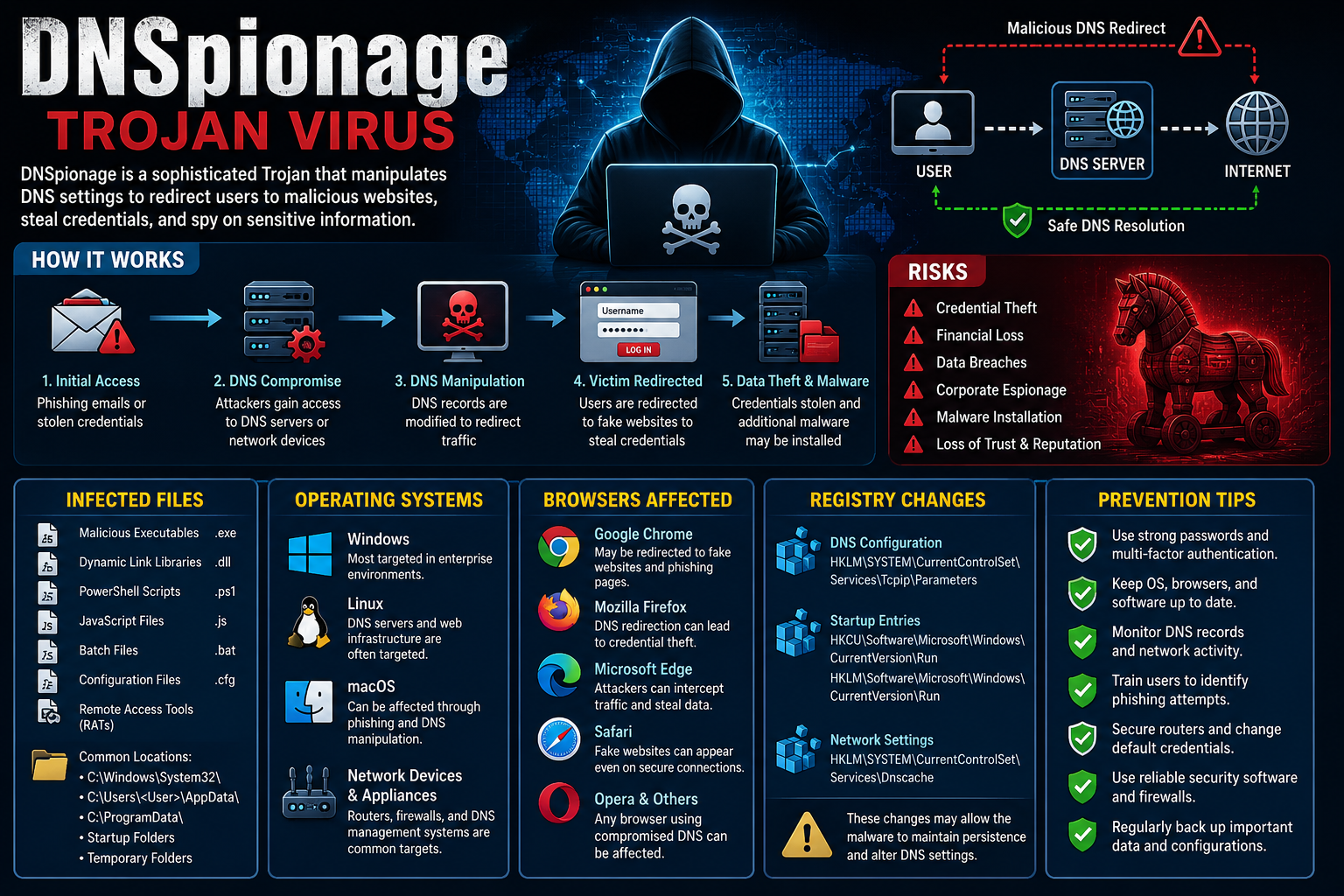
DNSpionage Is A Sophisticated Cyber Espionage Campaign And Trojan-based Threat That Manipulates Domain Name System (DNS) Settings To Redirect Users To Malicious Websites. Unlike Traditional Trojans That Focus Solely On Infecting Files Or Stealing Data, DNSpionage Targets DNS Infrastructure, Allowing Attackers To Intercept Communications, Steal Credentials, Monitor User Activity, And Gain Unauthorized Access To Sensitive Information.
First Discovered By Cybersecurity Researchers In 2018, DNSpionage Primarily Targeted Government Agencies, Telecommunications Providers, Internet Service Providers (ISPs), And Organizations Operating Critical Infrastructure. However, The Techniques Used By DNSpionage Can Also Affect Businesses And Individual Users If Their Systems Or Network Devices Are Compromised.
Because DNS Acts As The Internet's "phonebook," Manipulating It Enables Attackers To Redirect Victims To Fake Websites Without Their Knowledge, Making DNSpionage A Highly Dangerous And Stealthy Cyber Threat.
DNSpionage Attacks Often Begin By Compromising DNS Records, Routers, Or Network Configurations. Once Attackers Gain Access, They Modify DNS Settings So That Requests For Legitimate Websites Are Redirected To Malicious Servers Controlled By Cybercriminals.
The Attack Process Generally Follows These Steps:
Initial System Compromise Through Phishing Emails Or Stolen Credentials.
Unauthorized Access To DNS Servers, Routers, Or Network Devices.
Modification Of DNS Records And Configurations.
Redirection Of Users To Fake Login Pages.
Collection Of Usernames, Passwords, And Sensitive Data.
Installation Of Additional Malware Or Remote-access Tools.
Because Users May Still See Familiar Website Addresses, Many Victims Fail To Realize They Are Interacting With Fraudulent Websites.
Indicators Of Compromise:
IP
DNSpionage Itself Does Not Rely On A Single Malicious File.
Instead, Attackers Often Deploy Additional Malware Payloads That May Include:
Trojan Executable Files (.exe)
Dynamic Link Library Files (.dll)
PowerShell Scripts (.ps1)
Batch Files (.bat)
JavaScript Files (.js)
Scheduled Task Files
Remote Administration Tools (RATs)
Common Locations Where Malicious Files May Appear Include:
C:\Windows\System32\
C:\Users\Username\AppData\
C:\ProgramData\
Temporary System Folders
Startup Folders
Attackers Frequently Disguise These Files As Legitimate System Processes To Avoid Detection.
DNSpionage-related Attacks Can Affect Multiple Operating Systems Depending On The Attack Vector.
Windows
The Primary Target Due To Its Widespread Use In Enterprise Environments. Windows Systems May Experience DNS Configuration Changes, Credential Theft, And Malware Deployment.
Linux
DNS Servers And Web Hosting Infrastructure Running Linux Are Often Targeted Because They Manage Critical Network Services.
macOS
Although Less Frequently Targeted, MacOS Devices Can Still Be Affected Through Phishing Attacks And Compromised DNS Settings.
Network Devices And Appliances
Routers, Firewalls, And DNS Management Systems Are Often Primary Targets Because Controlling These Devices Allows Attackers To Redirect Large Numbers Of Users.
Since DNSpionage Focuses On DNS Manipulation Rather Than Browser Vulnerabilities, Nearly All Major Browsers Can Be Impacted.
Google Chrome
Users May Be Redirected To Phishing Websites That Mimic Legitimate Services.
Mozilla Firefox
DNS Redirection Can Lead To Credential Theft And Malware Downloads.
Microsoft Edge
Attackers Can Intercept Web Traffic And Redirect Users To Fraudulent Login Pages.
Safari
Apple Users May Encounter Fake Websites Despite Using Secure Browsing Practices.
Opera And Other Browsers
Any Browser Relying On Compromised DNS Settings Can Become Affected.
Because The Attack Occurs At The DNS Level, Browser Choice Alone Cannot Prevent DNSpionage Attacks.
In Windows Environments, Attackers May Modify Registry Entries To Maintain Persistence Or Alter Network Configurations.
Potentially Affected Registry Locations Include:
DNS Configuration
HKEY_LOCAL_MACHINE\SYSTEM\CurrentControlSet\Services\Tcpip\Parameters
Startup Entries
HKEY_CURRENT_USER\Software\Microsoft\Windows\CurrentVersion\Run
HKEY_LOCAL_MACHINE\Software\Microsoft\Windows\CurrentVersion\Run
Network Settings
HKEY_LOCAL_MACHINE\SYSTEM\CurrentControlSet\Services\Dnscache
These Modifications May Allow Malware To Launch Automatically During System Startup Or Maintain Altered DNS Configurations.
Note: Registry Changes Vary Significantly Across Attacks. Administrators Should Verify Suspicious Modifications Carefully Before Making Changes.
Detecting DNSpionage Can Be Challenging Because Many Attacks Occur At The Network Level.
Common Indicators Include:
Unexpected Website Redirects
Fake Login Pages Appearing For Trusted Services
Unusual DNS Server Configurations
Browser Certificate Warnings
Suspicious Network Traffic
Unauthorized Account Access
Credential Theft Incidents
Slow Or Unstable Internet Connectivity
Organizations May Also Observe Changes In DNS Records Without Authorization.
The Consequences Of A Successful DNSpionage Attack Can Be Severe.
Credential Theft
Attackers Can Capture Usernames, Passwords, And Multi-factor Authentication Tokens.
Corporate Espionage
Sensitive Business Information May Be Intercepted And Stolen.
Data Breaches
Compromised Accounts Can Lead To Unauthorized Access To Confidential Systems.
Malware Deployment
Victims May Unknowingly Download Additional Malware From Redirected Websites.
Financial Losses
Businesses Can Suffer Operational Disruptions, Regulatory Penalties, And Reputational Damage.
If You Suspect A DNSpionage Infection:
Disconnect Affected Systems From The Network.
Verify DNS Server Settings And Router Configurations.
Run A Full Antivirus And Anti-malware Scan.
Remove Suspicious Files And Scheduled Tasks.
Reset Compromised Credentials Immediately.
Restore DNS Configurations From Trusted Backups.
Review Registry Entries For Unauthorized Modifications.
Monitor Network Traffic For Suspicious Activity.
Large Organizations Should Conduct A Professional Forensic Investigation To Identify The Full Extent Of The Compromise.
Use Strong Passwords
Secure DNS Administration Accounts And Network Devices With Complex Passwords.
Enable Multi-Factor Authentication
MFA Significantly Reduces The Risk Of Unauthorized Account Access.
Regularly Update Systems
Keep Operating Systems, Routers, Browsers, And Security Software Up To Date.
Monitor DNS Changes
Implement DNS Monitoring Tools To Detect Unauthorized Modifications.
Train Employees
Educate Users About Phishing Attacks And Credential Theft Tactics.
Secure Network Devices
Change Default Router Credentials And Disable Unnecessary Remote Access Features.
Deploy Endpoint Protection
Use Advanced Security Solutions Capable Of Detecting Trojan Activity And Suspicious Network Behavior.
Conduct Security Audits
Regular Assessments Help Identify Vulnerabilities Before Attackers Can Exploit Them.
DNSpionage Is A Highly Sophisticated Cyber Threat That Exploits DNS Infrastructure To Redirect Users, Steal Credentials, And Compromise Sensitive Information. By Targeting DNS Settings Rather Than Individual Applications, Attackers Can Affect Multiple Devices, Browsers, And Users Simultaneously. Understanding The Infection Methods, Affected Files, Operating Systems, Browser Impacts, And Registry Modifications Is Essential For Maintaining A Strong Cybersecurity Posture.
Organizations And Individuals Can Reduce Their Exposure By Implementing Strong Authentication, Monitoring DNS Activity, Updating Systems Regularly, And Educating Users About Cyber Threats. Proactive Security Measures Remain The Best Defense Against DNSpionage And Similar DNS-based Attacks.
Step 1: Boot Into Safe Mode
Restart Your PC And Press F8 (or Shift + F8 For Some Systems) Before Windows Loads.
Choose Safe Mode With Networking.
Safe Mode Prevents Most Malware From Loading.
Press Win + R, Type appwiz.cpl, And Press Enter.
Sort By Install Date And Uninstall Unknown Or Recently Added Programs.
Use A Trusted Anti-malware Tool:
Malwarebytes – https://www.malwarebytes.com
Screenshot Of Malwarebytes - Visit Links
Microsoft Defender – Built Into Windows 10/11
HitmanPro, ESET Online Scanner, Or Kaspersky Virus Removal Tool
ZoneAlarm Pro Antivirus + Firewall NextGen
VIPRE Antivirus - US And Others Countries, | India
Run A Full Scan And Delete/quarantine Detected Threats.
Win + R, Type temp → Delete All Files.Press Win + R, Type %temp% → Delete All Files.
Use Disk Cleanup: cleanmgr In The Run Dialog.
Go To: C:\Windows\System32\drivers\etc
Open hosts File With Notepad.
Replace With Default Content:
Press Ctrl + Shift + Esc → Open Task Manager
Go To Startup Tab
Disable Any Suspicious Entries.
Open Command Prompt As Administrator.
Run These Commands:
netsh Winsock Reset

netsh Int Ip Reset

ipconfig /flushdns
Unwanted Homepage Or Search Engine
Pop-ups Or Redirects
Unknown Extensions Installed
For Chrome:
Go To: chrome://extensions/
Remove Anything Unfamiliar
For Firefox:
Go To: about:addons → Extensions
Remove Suspicious Add-ons
For Edge:
Go To: edge://extensions/
Uninstall Unknown Add-ons
Chrome:
Go To chrome://settings/reset → "Restore Settings To Their Original Defaults"
Firefox:
Go To about:support → "Refresh Firefox"
Edge:
Go To edge://settings/resetProfileSettings → "Reset Settings"
All Browsers:
Use Ctrl + Shift + Del → Select All Time
Clear Cookies, Cached Files, And Site Data
Make Sure They Are Not Hijacked.
Chrome: chrome://settings/search
Firefox: about:preferences#search
Edge: edge://settings/search
Chrome: chrome://settings/cleanup
Use Malwarebytes Browser Guard For Real-time Browser Protection.
Always Download Software From Trusted Sources.
Keep Windows, Browsers, And Antivirus Updated.
Avoid Clicking Suspicious Links Or Ads.
Use ad Blockers And reputable Antivirus Software.
Backup Your Files Regularly.
To Remove Malware From Your Windows PC, Start By Booting Into Safe Mode, Uninstalling Suspicious Programs, And Scanning With Trusted Anti-malware Tools Like Malwarebytes. Clear Temporary Files, Reset Your Network Settings, And Check Startup Apps For Anything Unusual.
For web Browsers, Remove Unwanted Extensions, Reset Browser Settings, Clear Cache And Cookies, And Ensure Your Homepage And Search Engine Haven’t Been Hijacked. Use Cleanup Tools Like Chrome Cleanup Or Browser Guard For Added Protection.
?? Prevention Tips: Keep Software Updated, Avoid Suspicious Downloads, And Use Antivirus Protection Plus Browser Ad Blockers. Regular Backups Are Essential.
Why It Matters: Not All VPNs Offer Malware Protection.
What To Look For: Providers With built-in Malware/ad/tracker Blockers (e.g., NordVPN’s Threat Protection, ProtonVPN’s NetShield).
Purpose: Prevents Data Leaks If Your VPN Connection Drops.
Benefit: Ensures Your Real IP And Browsing Activity Aren’t Exposed To Malware-distributing Websites.
Why It Matters: DNS Leaks Can Expose Your Online Activity To Attackers.
Solution: Enable DNS Leak Protection In Your VPN Settings Or Use A Secure DNS Like Cloudflare (1.1.1.1).
Risk: Free VPNs Often Contain Malware, Sell User Data, Or Lack Security Features.
Better Option: Use Reputable Paid VPNs That Offer security Audits And Transparent Privacy Policies.
Some VPNs Block Known Phishing And Malicious Sites.
Example: Surfshark’s CleanWeb, CyberGhost’s Content Blocker.
Reason: Security Patches Fix Known Vulnerabilities.
Tip: Enable Auto-updates Or Check For Updates Weekly.
Scope: Malware Can Enter Through Phones, Tablets, Or IoT Devices.
Solution: Install VPN Apps On Every Internet-connected Device.
Fact: VPNs Do Not Remove Or Detect Malware On Your System.
Complement It With:
Antivirus Software
Firewall
Browser Extensions For Script Blocking
VPN Encrypts Traffic But Can’t Stop Malware From Executing If You Download Infected Files.
Split Tunneling Allows Certain Apps/sites To Bypass VPN.
Tip: Never Exclude Browsers, Email Clients, Or Download Managers From VPN Tunneling.
A VPN (Virtual Private Network) Enhances Your Online Privacy By Encrypting Your Internet Traffic And Masking Your IP Address. It Protects Your Data On Public Wi-Fi, Hides Browsing Activity From Hackers And ISPs, And Helps Bypass Geo-restrictions. VPNs Also Add A Layer Of Defense Against Malware By Blocking Malicious Websites And Trackers When Using Advanced Features. However, A VPN Does Not Remove Existing Malware Or Act As Antivirus Software. For Full Protection, Combine VPN Use With Antivirus Tools, Regular Software Updates, And Cautious Browsing Habits. Always Choose A Reputable VPN Provider With Strong Security And Privacy Policies.
DNSpionage Trojan Virus, Remove DNSpionage Trojan Virus, How To Remove DNSpionage Trojan Virus, Delete DNSpionage Trojan Virus, Uninstall DNSpionage T